Downloadable Files
You can download Image to 3D for free from the bottom of this page.
Turn Images into Textured 3D Models with Local AI
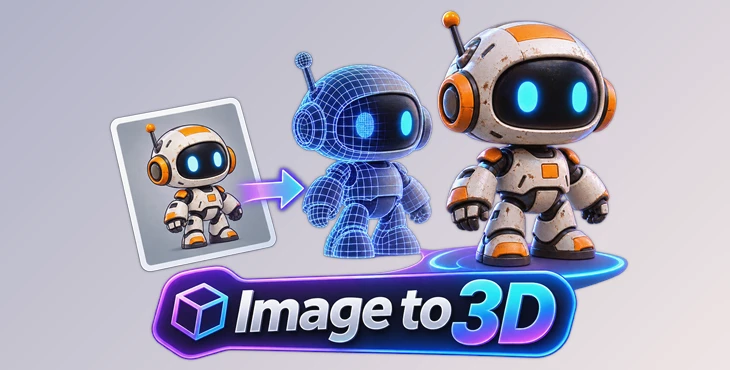
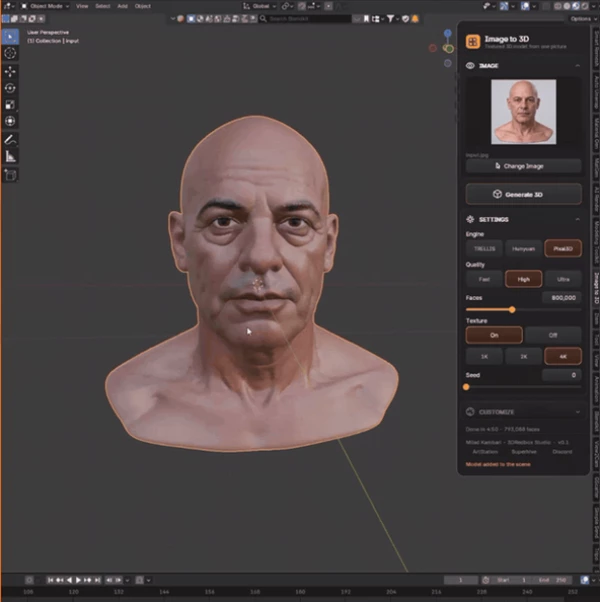
Image to 3D is a Blender addon that turns pictures into textured 3D models using AI. You can drag an image into the addon, generate a mesh, and use the result directly in your Blender scene. The entire process runs locally on your graphics card, so you do not need to upload images to a cloud service.
The add-on has three AI engines to create 3D models and another engine to improve surface details. It also includes tools to make textures look better and can remove image backgrounds automatically. You can choose different mesh resolutions and texture sizes based on your needs.
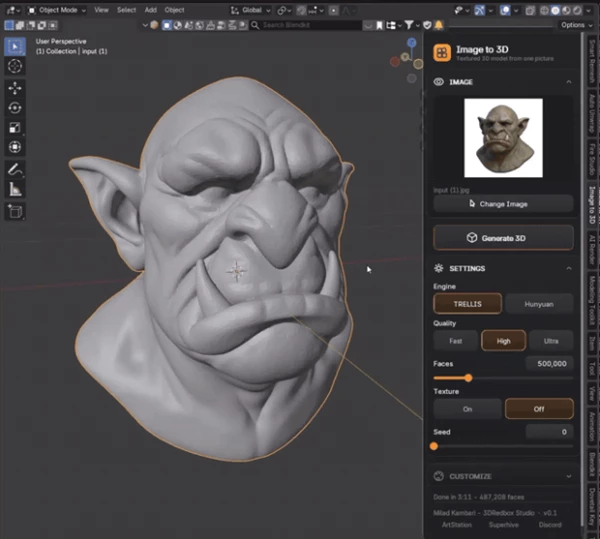
Turn a Single Image into a Textured 3D Model
Image to 3D uses a simple workflow that starts with one picture. You do not need to prepare a transparent image or remove the background before generating the model.
The process has three main steps:
Add an image: Drag your picture onto the image card inside Blender.
Generate the model: Press Generate 3D and let the selected AI engine process the image.
Use the result: The addon creates a 3D mesh with a texture directly in your Blender scene.
Generation usually takes a few minutes, depending on your hardware and the selected engine.
You can also choose the face count of the generated mesh and create textures at 1K, 2K, or 4K resolution. These options give you control over the model's geometry and texture resolution.
Choose Between Three AI Generation Engines
Image to 3D provides three generation engines, each designed for a different result. You can choose an engine based on whether you need faster generation, closer image matching, or cleaner geometry and textures.
AI Engine | Main Strength | Best Use |
|---|---|---|
TRELLIS | Fast generation with fine details | Quickly creating detailed models from one image |
Pixal3D | Closely matches the view in the original picture | Reproducing the visible appearance of an object |
Hunyuan | Clean shapes, strong texture quality, and multi-view support | Creating models with more accurate shapes and textures |
TRELLIS is the default engine and focuses on generating detailed meshes quickly. Pixal3D prioritizes matching the appearance shown in the source picture.
Hunyuan offers an additional option: it can process multiple images of the same object to improve the generated result.
Generate More Accurate Models with Multiple Views
A single picture does not show every side of an object. Hunyuan addresses this limitation by accepting extra reference images from different angles.
The addon provides dedicated image slots for:
Front: The main reference image.
Left: A view of the object's left side.
Right: A view of the object's right side.
Back: A view of the object's rear side.
These additional pictures help Hunyuan generate more accurate geometry and textures.
Multi-view generation is exclusive to Hunyuan. TRELLIS and Pixal3D generate models from a single image.
Improve Geometry and Textures After Generation
Image to 3D includes two enhancement tools for models you have already generated. They improve different parts of the result without requiring you to repeat the entire generation process.
Enhance Detail with Hi3D
Enhance Detail uses the fourth AI engine, Hi3D, to add finer surface details to an existing model.
It also repaints the texture while keeping the original shape, so you do not need to generate the geometry again from the beginning.
This option is designed for models that already have the desired overall shape but need more surface detail.
Enhance Texture
Enhance Texture focuses only on the model's texture.
It sharpens and enriches the existing texture without changing the geometry. You can use it when the mesh looks correct but the surface image needs more detail.
The difference between the two tools is simple: Enhance Detail works on surface detail and texture, while Enhance Texture improves only the texture.
Local AI Processing and Hardware Requirements
One of the main features of Image to 3D is that all AI generation happens locally. Your pictures are processed on your own computer rather than being sent to an online service.
The addon uses your graphics card to run its AI engines. According to the developer, different hardware changes the generation time but does not change the final model or texture quality when the same settings are used.
The recommended minimum configuration shown in the developer's performance tests is:
Component | Recommended Minimum |
|---|---|
Graphics memory | 8 GB VRAM |
System memory | 16 GB RAM |
Example GPU class | NVIDIA RTX 4060 |
Texture options | 1K, 2K, 4K |
For reference, the developer measured TRELLIS generation at approximately 1 minute 21 seconds in Fast mode and 2 minutes 32 seconds in High mode on a system with an RTX 4070 Ti, 12 GB VRAM, and 64 GB RAM.
These measurements used a 4K texture and 200,000 faces. Actual processing times depend on your hardware, selected engine, and generation settings.
Manage AI Models with the Built-In Downloads Tab
The AI engines require large model files, but Image to 3D does not require you to download every engine.
Its built-in Downloads tab lets you choose which models to install and where to store their files. You can select a folder on any drive.
The addon provides two download methods:
One-Click Download: The addon downloads the required files from the official model pages. It displays download progress, speed, and estimated remaining time. Interrupted downloads can resume from where they stopped.
Manual Download: You can use your preferred download manager. The addon shows the required files, their official download pages, and the correct destination folders. Its Check Files feature verifies downloaded files against their official fingerprints.
The download manager also detects missing or damaged files. If you select an engine that has not been downloaded, the addon directs you to the appropriate entry in the Downloads tab.
This system helps you manage the large AI model files without installing engines you do not plan to use.
Where Image to 3D Fits into Blender Projects
Image to 3D helps Blender users turn pictures into textured 3D models without making everything by hand.
You can use it to create 3D objects from reference images, add models to your scenes, or make a basic model and improve it later.
The add-on has different AI engines for different needs. TRELLIS is good for quickly creating a 3D model from one image. Pixal3D helps you make a model that looks like your original picture. Hunyuan gives you more control when you have several pictures of the same object from different angles.
To use this add-on, your computer needs enough GPU memory and RAM. If your computer meets these needs, you can create models, add textures, and improve details directly in Blender.

Files Password : gfxplugin.com OR 123456