Downloadable Files
You can download Auto Pin for free from the bottom of this page.
Automatic Corner Tracking in After Effects with Auto Pin
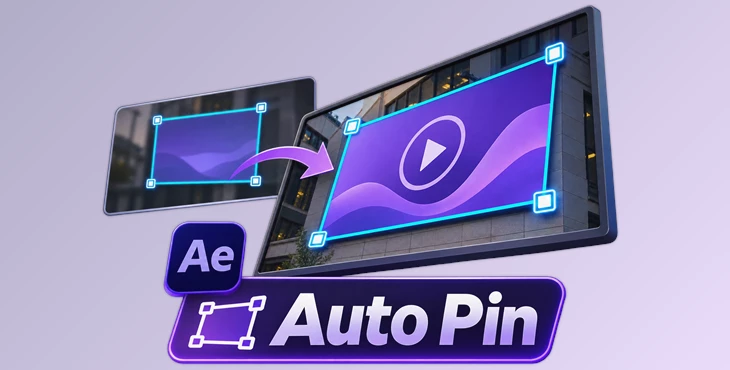
Auto Pin is an automatic corner tracking plugin for Adobe After Effects. It tracks the alpha boundary of a layer and applies the tracking result directly to the built-in CC Power Pin effect. You only need to select a layer and click the Track button, without manually placing tracking points.
Mocha AE and the regular After Effects tracker follow details and textures in an image. Auto Pin works differently. It tracks the edges of a layer using its alpha channel. This helps it follow the corners of a layer, even when the layer moves a lot between frames.
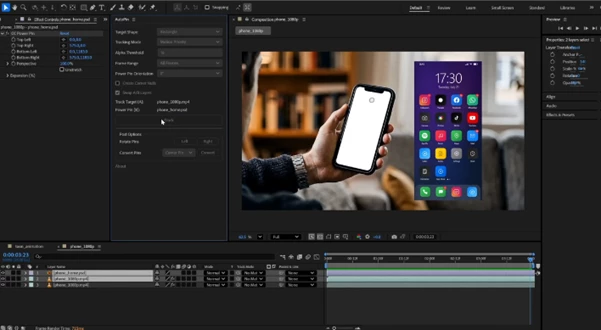
Automatic Corner Tracking with Auto Pin
Auto Pin simplifies corner tracking by removing the need to set up individual tracking points. Its algorithm analyzes the layer's alpha channel to determine the corner positions across frames.
The tracking process follows three steps:
Select the Layer: Choose the target layer in After Effects.
Click Track: Auto Pin analyzes the alpha channel and calculates the corner movement.
Apply the Result: The tracking data is applied directly to CC Power Pin.
This workflow keeps corner tracking inside After Effects and reduces the amount of manual setup needed before tracking.
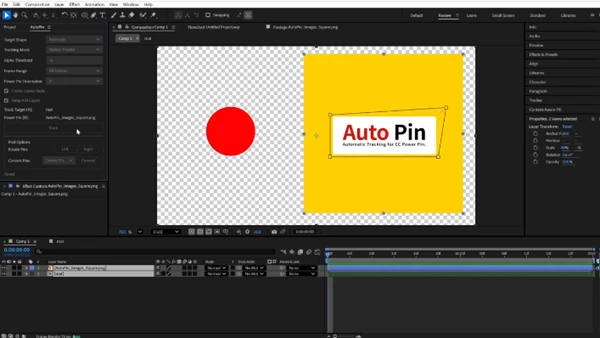
Key Features of Auto Pin
Fast Alpha Channel Analysis
Auto Pin uses an optimized algorithm to analyze the alpha channel efficiently.
According to the developer, once frames are cached, the plugin can track approximately four seconds of Full HD footage at 24 fps in about one second.
This performance figure refers to cached frames, so it should not be treated as a guaranteed speed for every project.
Stable Tracking During Large Movements
Some tracking methods depend on matching specific image details between frames. Large changes in position can make those details difficult to follow.
Auto Pin analyzes the entire frame rather than relying on selected tracking points. This helps it maintain stable corner tracking when a layer moves a significant distance between frames.
Automatic Size Adaptation
Auto Pin supports applying CC Power Pin tracking between layers with different dimensions.
The plugin automatically handles size differences without requiring additional setup. This is helpful when transferring tracking results between layers that do not share the same width and height.
Null Object Creation
In addition to applying the tracking result to CC Power Pin, Auto Pin can create null objects from the tracking data.
This provides another way to use the calculated tracking information within an After Effects composition.
How Auto Pin Works with After Effects
Auto Pin combines two components to handle tracking and user interaction.
Component | Function |
|---|---|
AEX Plugin | Performs high-speed tracking analysis |
Script Interface | Provides the controls used inside After Effects |
CC Power Pin | Receives the calculated corner tracking data |
An important advantage is project compatibility. After the tracking data has been applied, the After Effects project can be shared or rendered on another computer without Auto Pin installed.
This is particularly helpful when a project needs to move between different editing systems or team members.
Auto Pin vs. Traditional Tracking Methods
The main difference between Auto Pin and other tracking tools is the information used to calculate movement.
Tracking Tool | Tracking Method |
|---|---|
Auto Pin | Tracks the alpha boundary of a layer |
Mocha AE | Tracks image features and textures |
Standard After Effects Tracker | Tracks image features and textures |
Auto Pin is specialized for alpha-boundary tracking. It is not presented as a replacement for every tracking method available in After Effects.
Its main purpose is to automatically calculate corner positions from a layer's alpha channel and transfer them to CC Power Pin.

Files Password : gfxplugin.com OR 123456