Downloadable Files
You can download Metronome Matte for free from the bottom of this page.
Sync Layer Switching with Every Beat
This After Effects plugin lets you switch between video layers and images based on a musical beat, fixed time intervals, or custom keyframes. You can choose which layer appears at each point and control the timing without changing every cut manually.
Metronome Matte is designed for creating rhythmic video sequences. It works well for music-based edits, fast visual changes, and animations where different images need to appear at specific times. You can also change the tempo or layer order whenever you need to adjust the sequence.

Switch Layers Automatically with Metronome Matte
The main feature of Metronome Matte is its ability to display different layers in a repeating sequence. You assign a source layer to each beat or interval, and the plugin handles the switching.
To create a sequence, follow these steps:
Add your layers: Place your videos or images in an After Effects composition. Create a solid layer and apply Metronome Matte to it.
Set the timing: Enter a BPM value or use Tap Tempo. You can also choose a time signature and adjust Video Shift to align the first beat.
Assign the sources: Choose which layer should appear at each beat or interval.
Preview the sequence: Check the result and change the layer assignments or their order when needed.
The sequence repeats based on your settings. If the rhythm changes, you can update the BPM without rebuilding the entire switching pattern.
Three Ways to Control Layer Switching
Metronome Matte provides three timing modes. Each one gives you a different way to decide when the visible layer changes.
Timing mode | How it works |
|---|---|
BPM | Switches layers according to your selected tempo and time signature. Supports up to 16 beats per bar and four video intervals per beat. |
Time | Changes layers at fixed intervals measured in frames or seconds. Supports up to 100 source slots, with Accent Interval controlling the repeating cycle length. |
Keyframe Loop | Uses at least two Timing Keys keyframes to define switching points. The pattern between the first and last keyframes repeats, including uneven intervals. |
BPM mode is a natural choice for edits that follow music. Time mode works when you need regular changes without using a musical rhythm. Keyframe Loop gives you more control when the timing is not evenly spaced.
Control How Each Source Plays
Metronome Matte does more than switch between layers. It also provides several options for controlling what happens inside each active interval.
Stretch to Beat and Random Playback
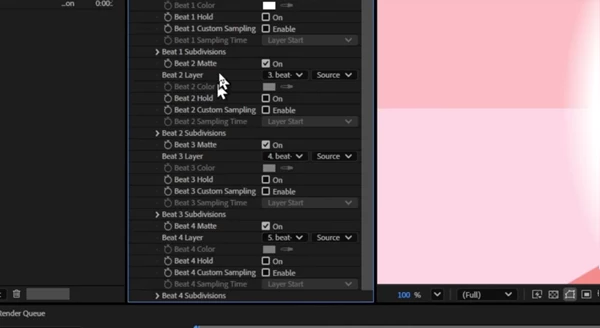
Stretch to Beat adjusts the playback speed so the section between a source layer's in and out points fits into one beat or interval.
Random Still selects a random frame from the source for each active interval. This creates a sequence of still images taken from the original footage.
Random Layer From Comp randomly chooses a layer inside a precomposition. You can change the Random Seed to create a different selection order.
Hold and Sampling Modes
The Hold option keeps the previous source and its sampling mode during the current interval. When used with Random Still, the selected frame remains visible.
The plugin also includes six sampling modes, such as Layer Start, Comp Time, and Layer End. These determine how the source is sampled during playback.
You can assign different sampling modes to individual beats or intervals, giving you control over how each source appears in the sequence.
Metronome Audio, Markers, and Count Expressions
Metronome Matte includes tools that help you check timing and connect the switching pattern to other parts of your composition.
Built-in Metronome Audio
You can preview the rhythm using four metronome sounds:
Beep
Click
Tick
Woodblock
The plugin also provides accent settings to distinguish selected beats. Audio Shift and Video Shift can be adjusted separately in frames, so you can align the sound and visual changes.
Markers and Count Expressions
Metronome Matte can create composition or layer markers at the switching points. These markers help identify where each change happens on the timeline.
The Copy Expression feature provides an expression that returns the current beat or interval number. You can paste it into another property to control animation based on the same timing pattern.
For instance, a property can use the current beat number to change its animation along with the layer sequence. This connects visual switching and property animation through a shared count.

Files Password : gfxplugin.com OR 123456