Downloadable Files
You can download PINr for free from the bottom of this page.
Keep Your After Effects Layers in Place
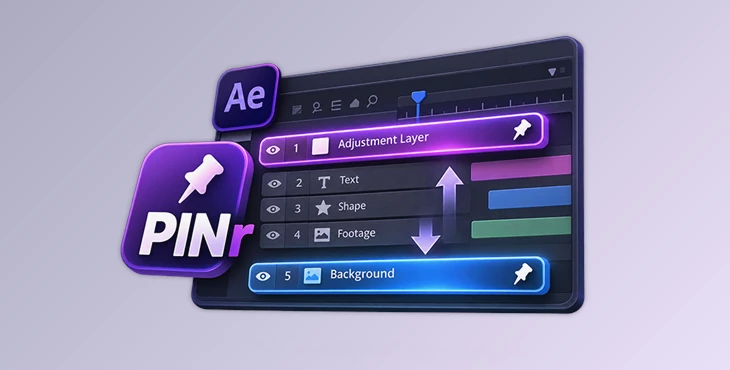
PINr is a dockable panel for Adobe After Effects that keeps selected layers at the top or bottom of your composition's layer stack, even when you add, paste, duplicate, or import new layers.
In big After Effects projects, it can be hard to keep layers in the right order. You may want a logo, color effect, or gradient at the top and a background at the bottom. PINr keeps these layers in place, even when you add new ones. This saves time because you don't need to move them again and again.
How PINr Keeps Your Layer Stack Organized
PINr works by assigning a top or bottom position to the layers you select. Once a layer is pinned, the panel checks the composition's layer order several times per second and moves pinned layers back to their assigned positions when necessary.
This is particularly helpful in compositions with dozens or even hundreds of layers, where changes to the timeline can affect the final appearance.
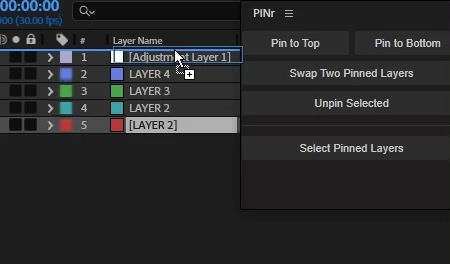
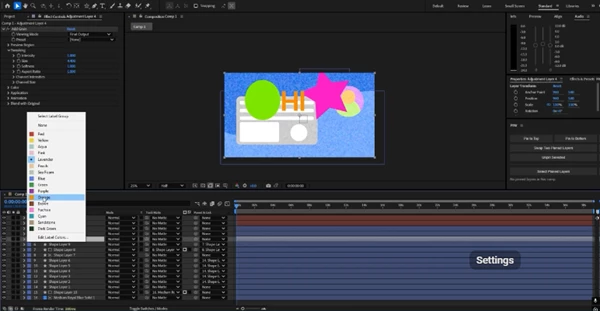
The panel provides several controls for managing pinned layers:
Pin to Top: Moves selected layers to the top of the stack and keeps them there.
Pin to Bottom: Keeps selected layers below all other layers, making it suitable for backgrounds.
Swap Two Pinned Layers: Exchanges the positions of two pinned layers, including layers pinned to opposite ends.
Unpin Selected: Removes the pin from a selected layer, allowing it to move normally.
Select Pinned Layers: Selects all pinned layers in the composition, helping you locate them in a long timeline.
What Happens When You Add New Layers?
When you pin layers to the top, any new, pasted, duplicated, or imported layers appear below them.
You can also pin multiple layers at once. PINr preserves their existing order. If you pin another layer to the top later, the previously pinned layers move down one position but remain pinned.
A layer can only be pinned to one side at a time. If you change its pin from top to bottom, PINr moves it to the new position.
Working with Locked Layers and Saved Projects
PINr includes several behaviors that help maintain layer organization without changing other parts of your project.
Locked Layers Stay in Position
PINr can manage locked layers. When a pinned layer needs to move, the panel temporarily unlocks it, changes its position, and locks it again.
This means you don't have to manually unlock important layers whenever the composition changes.
Pins Are Saved with Your Project
PINr stores pin information in each layer's Comment field. These tags remain available after you save and reopen an After Effects project, and any comment text you have already written is preserved.
The project can also be opened on a computer without PINr. The pinned layers behave like ordinary layers, and their pin tags remain visible as text in the Comment field.
The Panel Must Remain Open
PINr automatically manages layer positions only while its panel is open.
Closing the panel stops automatic layer movement, but it doesn't delete the saved pins. When you reopen PINr, it resumes managing them.
Where PINr Fits into an After Effects Workflow
PINr helps motion designers and editors keep important layers in place when working with large and complex compositions.
Some practical uses include:
Color adjustments: Keep an adjustment layer above the rest of the composition.
Logos and overlays: Prevent important visual elements from being buried under newly added layers.
Backgrounds: Maintain a background layer at the bottom of the stack.
Large compositions: Locate and manage pinned layers without searching through a long timeline.
PINr only changes layer order. It doesn't modify layer content, render effects, or export files.

Files Password : gfxplugin.com OR 123456