Downloadable Files
You can download MB Random Gradient for free from the bottom of this page.
Create Smooth, Colorful Animated Gradients with MB Random Gradient
This After Effects tool creates animated gradients with randomly moving colors on any layer. It uses eight color points that blend together to create smooth, changing patterns. You can control the colors, movement, blending, and scale without having to animate each point yourself.
Create Animated Gradients with Eight Color Points
MB Random Gradient uses eight points to build a colorful gradient. Each point has its own color and opacity setting, so you can decide how the colors appear and mix across the layer.
The gradient moves automatically, creating changing color combinations over time. The colors blend into each other as the points move, rather than staying in fixed positions.
You can also adjust the opacity of individual points without affecting the entire gradient. The effect preserves the original alpha of the layer, so transparent areas remain transparent.
Control Gradient Movement and Blending
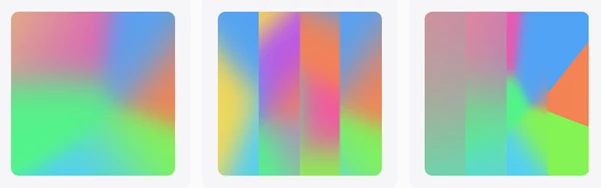
MB Random Gradient provides several controls for changing the appearance and behavior of the gradient.
Speed and Random Seed
The Speed setting controls how quickly the gradient moves. You can use slower movement for gentle color changes or increase the speed for more active animation.
The Random Seed setting changes the movement path of the color points. Each seed produces a different path that can be repeated, so you can return to a particular animation without relying on completely unpredictable movement.
Blend Radius and Falloff
The Blend Radius and Falloff controls determine how the colors mix.
These settings let you change the softness of the transitions between color points. You can create a gradient where colors spread smoothly into each other or adjust the blending to make the different color areas more noticeable.
Point Scale
Point Scale controls how far the colors spread across the layer.
You can adjust the X and Y axes together or change them separately. This gives you control over the horizontal and vertical distribution of the gradient.
For instance, you can spread the colors more widely across the horizontal axis while keeping their vertical distribution smaller.
Relative Position
The Relative Position option keeps the gradient centered on a moving layer.
This is helpful when the layer changes position during an animation. The gradient can remain centered relative to the layer rather than losing its intended placement as the layer moves.
Combining Multiple Gradients
MB Random Gradient also supports a simple technique for creating more complex color combinations.
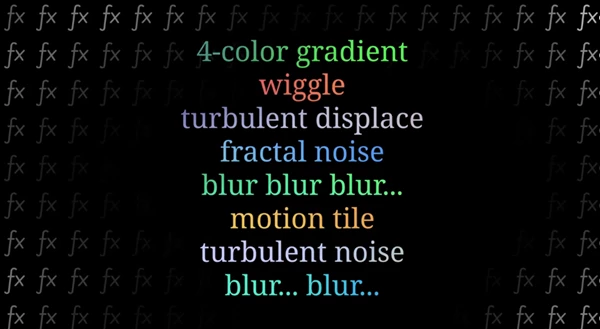
You can stack two or more layers using the effect and change the blending mode and opacity of the upper layers.
Each gradient contributes its own colors and movement, while the layer blending settings determine how they interact.
This approach gives you more variety than using a single gradient, especially when you want several animated color patterns to overlap.
Using MB Random Gradient in After Effects Projects
MB Random Gradient can be applied to any layer in After Effects, making it suitable for different types of animated color designs.
It is particularly relevant when a project needs a gradient that changes over time rather than a fixed combination of colors.
The eight color points provide control over the palette, while Speed and Random Seed determine how the animation behaves. Blend Radius, Falloff, and Point Scale handle the visual distribution of those colors.
For projects involving moving layers, Relative Position helps keep the gradient aligned with the layer's movement.
The main advantage of MB Random Gradient is that it combines random gradient animation with direct control over color, opacity, movement, and blending in one effect. You can create different animated results by adjusting these settings without building the movement of every color point individually.

Files Password : gfxplugin.com OR 123456