Downloadable Files
You can download Splitz for free from the bottom of this page.
Create Custom Split Screens in Premiere Pro
This Premiere Pro plugin makes it easy to create split-screen videos using clips from your timeline. You can show up to eight clips on one screen and adjust the position, size, and look of each one.
One of the main advantages of Splitz is that it works without nested sequences. Your original clips remain accessible on the timeline, so you can continue editing them while working on your split-screen design.
Create Split Screens Directly on Your Timeline
Splitz uses a simple workflow to turn multiple video clips into a single split-screen layout. You don't need to build separate compositions or manually position every clip before getting started.
The process has three steps:
Stack: Place your video clips on separate tracks in the Premiere Pro timeline.
Select: Select all the clips you want to include in the split screen.
Split: Click the Split button to create the layout.
The plugin arranges the selected clips into a split-screen composition. You can then use its dedicated preview window to see the result and make adjustments.
Since Splitz doesn't create nested sequences, you can still access your clips directly in the timeline.
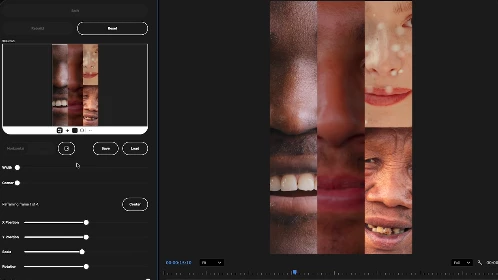
Layout Options and Frame Customization
Splitz includes several controls for changing how your shots appear within a composition. You can work with vertical or horizontal arrangements, adjust individual frames, and change the appearance of the divisions between them.
Vertical and Horizontal Arrangements
A simple toggle lets you switch between vertical and horizontal layouts.
Vertical divisions place shots side by side, while horizontal divisions arrange them above and below each other. You can also adjust how much space each shot occupies within the layout.
Position, Scale, and Rotation Controls
Each frame has its own adjustment controls, so you can change the appearance of one shot without affecting the others.
| Control | Function |
|---|---|
| X and Y Position | Move footage horizontally or vertically within its frame |
| Scale | Change the size of the footage |
| Rotation | Rotate an individual shot |
| Opacity | Adjust the transparency of a shot |
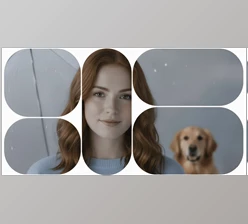
| Frame Shape | Choose rectangular or circular frames |
| Border Width | Change the thickness of frame borders |
| Corner Rounding | Create sharp or rounded frame corners |
These options give you control over both the footage and the overall design. For instance, you can reposition a subject inside a frame while keeping the surrounding split-screen arrangement unchanged.
Swap Shots Without Rearranging Clips
Splitz also includes a swap control for changing the placement of shots.
You can exchange the positions of clips within the layout without manually moving them between tracks. This is helpful when you want to compare different arrangements before choosing the final composition.
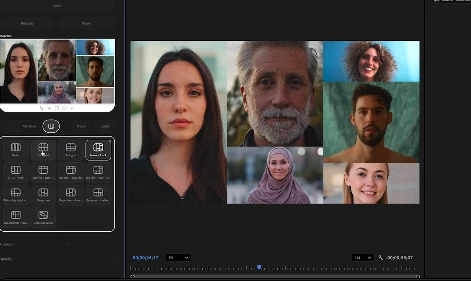
Built-In Layouts and Custom Presets
Splitz comes with ready-made split-screen presets that provide different starting arrangements.
You can select a preset and then change its proportions, framing, and visual style to match your footage. This gives you a starting point without limiting you to the original design.
The plugin also lets you save your own layouts as custom presets.
Once you've created an arrangement you like, you can save it and load it again in another edit. This is particularly helpful when several videos need to share the same split-screen style.
Rebuild Layouts for Different Aspect Ratios
A split-screen design created for one video format may not fit another timeline correctly.
Splitz includes a dedicated Rebuild button that adjusts an existing layout to match new timeline dimensions.
For example, when you move your clips from a horizontal project to a vertical timeline, you can use Rebuild to adapt the composition to the new aspect ratio.
You can then adjust the framing and proportions to suit the available space.
Split Screens for Social Media Videos
Splitz also works with vertical videos, including the 9:16 format used for Instagram Reels, TikTok, and YouTube Shorts. You can place several clips in one vertical frame and adjust how much space each clip takes up.
This makes it possible to display several camera angles, different moments, or related shots within one vertical video. The individual position and scale controls also help you reframe footage when working with a narrower canvas.

Files Password : gfxplugin.com OR 123456