Downloadable Files
You can download MagicToolbar for free from the bottom of this page.
Powerful Editing Shortcuts for Premiere Pro
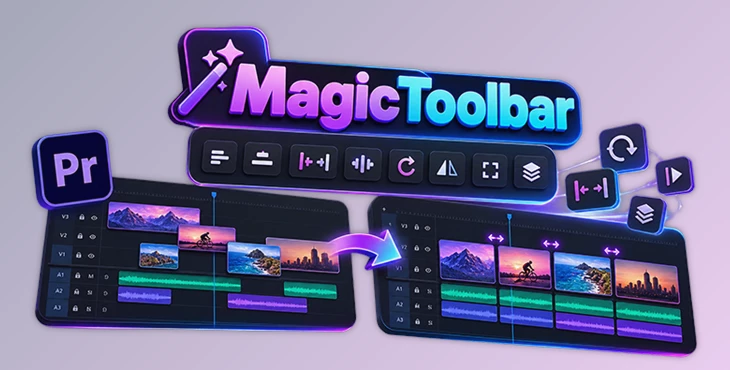
MagicToolbar is an extension for Adobe Premiere Pro that adds shortcuts for arranging clips, adjusting their position, and managing the timeline. It brings alignment, distribution, rotation, synchronization, and cleanup tools into one dockable panel.
You can align several clips to a reference, set exact spacing between them, or move clips across tracks without adjusting each one separately. The panel also includes custom buttons for applying your favorite effects and presets.
Align and Distribute Clips with More Control
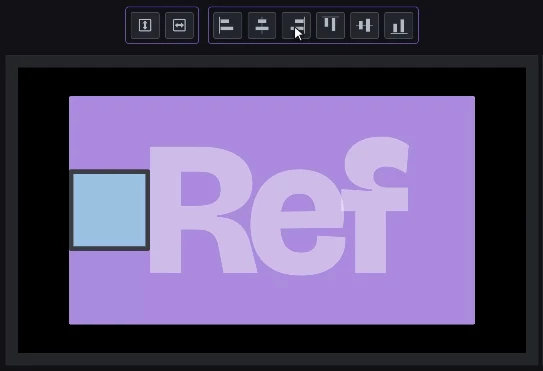
One of MagicToolbar's main features is the ability to align clips using a reference. You can choose a clip and align other clips to its edges or center, rather than relying only on the sequence.
The extension also includes a Global Center option. This centers several selected clips as a single group, similar to how they would behave inside a nested sequence.
For spacing, MagicToolbar provides horizontal and vertical distribution tools. You can set an exact pixel gap and choose between edge-to-edge and center-to-center spacing. The spacing can also be adjusted by dragging the mouse.
Alignment and distribution can account for the visible image, including Transform and Flip effects and adjustment layers above the clip. For animated properties, the extension reads values at the playhead. It also considers transparency in still images such as PNG, TIFF, and PSD files.
These controls are particularly helpful when arranging multiple images, text elements, or graphics that need consistent positioning.
Arrange Clips Across the Timeline
MagicToolbar includes several tools for changing how clips are organized across tracks. Each one handles a different type of arrangement.
| Tool | What it does |
|---|---|
| Tower | Keeps the first selected clip in place and stacks the remaining clips above it, aligned to its start. |
| Spread | Arranges selected clips in a staircase pattern across successive tracks. |
| Offset | Creates a staggered arrangement with a specified delay between clips. |
| Re-Stack | Aligns video clips with their audio, trims them to their common range, and packs the pairs down. |
| Extend | Extends selected clips to the end of the latest clip. |
| Switch Clips | Exchanges the positions of two clips across tracks. |
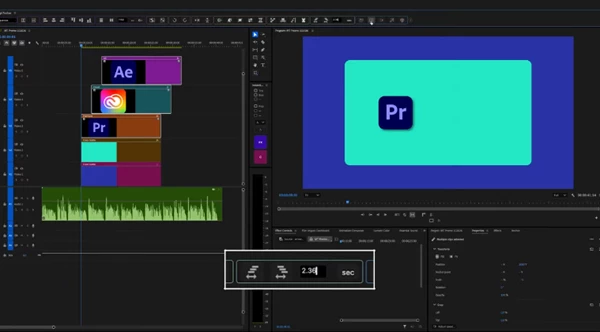
The Offset tool supports values in frames or seconds. You can enter a value in the settings or adjust the spacing by dragging the mouse. The staggered pattern can start from the top or bottom.
Tower also handles occupied tracks by skipping them and creating additional tracks when needed. Linked audio follows its video when using Tower, Offset, and Extend.
Synchronize Multiple Takes
The Spread and Re-Stack tools are useful when working with multiple takes or video and audio clips that need to be organized together.
Re-Stack can align each video with its corresponding audio and trim the pair to their shared range. This provides a way to organize several synchronized clips without manually repositioning every pair.
The Extend tool also has a practical use in subtitle workflows, where several clips may need to reach the same ending point.
Rotate, Mirror, and Exchange Motion Settings
MagicToolbar provides one-click controls for basic transformations:
Rotate 90° to the left or right.
Flip horizontally or vertically.
Exchange Motion parameters between two clips.
The Switch Parameters command transfers Motion settings between two selected clips, while Switch Clips changes their positions on the timeline.
These are separate operations, so you can change how clips appear without necessarily changing their timeline arrangement.
Custom Buttons and Timeline Cleanup
MagicToolbar supports up to six custom buttons. You can assign effects or effect presets captured from a clip, then give each button a name and an icon.
This puts frequently used effects directly in the toolbar without requiring you to find them in the Effects panel each time.
The extension also provides several commands for managing selected clips:
Delete All Keyframes: Removes keyframes from one or more selected clips.
Delete All Effects: Removes added effects from selected clips.
Instant In & Out: Selects all clips between the timeline's In and Out points.
These commands are useful for preparing clips for further editing or clearing existing adjustments from multiple selections.
Panel Layout and Everyday Workflow
MagicToolbar is a panel you can open and dock inside Premiere Pro. Using it is simple:
Open the MagicToolbar panel and place it where you want.
Select the clips you want to edit on the timeline.
Choose the tool you need, such as alignment, distribution, or transformation.
Change the settings if you need specific values.
The panel layout can be customized. Auto mode displays the standard strip or column arrangement, while Custom mode lets you organize button groups into rows and columns. Unused groups can be hidden in a storage area.
There is also a Help window with animated demonstrations of the toolbar's commands. Right-clicking a button opens its corresponding demonstration.
For keyboard-based workflows, certain commands, including Spread, Re-Stack, and the two Swap actions, can be triggered through the SpellBook bridge.

Files Password : gfxplugin.com OR 123456