Downloadable Files
You can download AlphaPaint for free from the bottom of this page.
Non-Destructive Alpha Mask Painting in After Effects
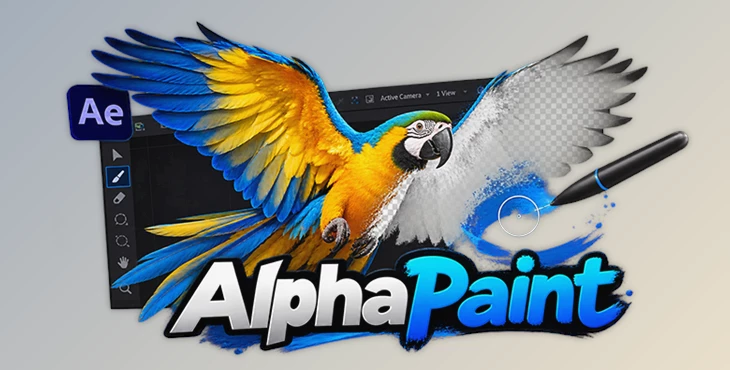
AlphaPaint is an After Effects plugin that lets you paint and edit alpha masks directly in the Composition viewer. You can remove or restore transparency, refine existing mattes, and create painted reveals while seeing the layers underneath your footage.
Unlike painting in a separate Layer viewer, AlphaPaint keeps the work inside your live composition. Its non-destructive stroke system also means you can change your painting later without damaging the original image.
Paint Alpha Masks Directly in After Effects
One of AlphaPaint's main features is the ability to paint directly over your composition. You can see how your alpha changes affect the final image while you work.
The plugin supports two main painting modes:
Erase: Removes alpha from the painted area, making that part of the layer transparent.
Restore: Brings alpha back to areas where transparency has been removed.
You can use these modes to create a new painted matte or correct an existing alpha channel. The original source pixels remain unchanged, so you can return to your strokes and edit them later.
This approach works well for fixing small transparency problems, cleaning up greenscreen footage, and creating custom reveals.
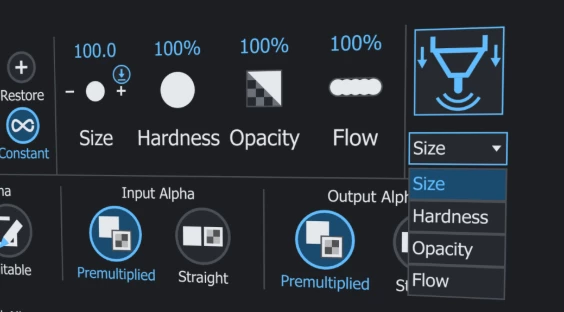
Pressure-Sensitive Brushes and Editable Strokes
AlphaPaint supports pressure-sensitive brushes, giving tablet users more control over their painting. Pen pressure can be assigned to four brush properties:
Size: Changes the brush diameter based on pressure.
Hardness: Controls how soft or sharp the brush edges appear.
Opacity: Adjusts the strength of the painted stroke.
Flow: Controls how much of the brush effect is applied while painting.
Each stroke keeps its recorded pressure behavior, even when you change its settings afterward.
Edit Your Painting with the Stroke Stack
The Stroke Stack stores your painted strokes so you can manage them individually.
You can change a stroke's opacity or hardness, switch it between Erase and Restore, or disable it without deleting it. Stroke groups can also be reordered to change how the final matte is built.
This gives you more flexibility when refining complicated alpha masks. A stroke that needs correction does not have to be painted again from the beginning.
Alpha Inversion Layers
Sometimes the area you want to remove is easier to paint than the area you want to keep.
AlphaPaint handles this with Alpha Inversion Layers, which reverse the transparency of your matte. Opaque areas become transparent, and transparent areas become opaque.
You can paint the simpler region and invert the result afterward.
Inversion layers can also be reordered, disabled, and given their own timing within the stroke history. This means you can control both how an inversion affects the matte and when it takes effect.
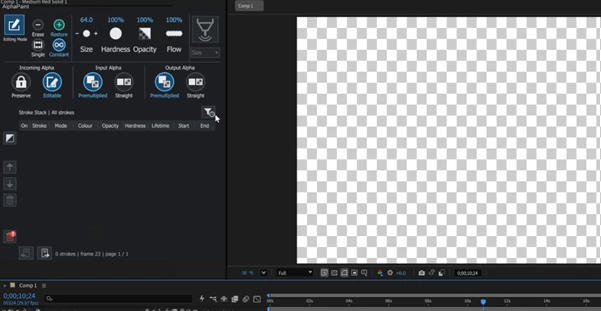
Control Stroke Timing Without Repainting
AlphaPaint includes a dedicated timing editor for controlling when painted strokes appear.
You can finish painting a matte first and then adjust its timing to match your footage or animation.
This is particularly helpful for:
Matching matte corrections to moving footage.
Cleaning up noisy greenscreen areas at specific moments.
Creating painted reveals that follow an animation.
Controlling when alpha changes appear in a composition.
Because the timing is separate from the painting itself, you can adjust when a stroke appears without recreating its shape.
Keyboard Shortcuts for Faster Painting
AlphaPaint provides shortcuts for painting, adjusting brush size, and navigating the Stroke Stack.
| Shortcut | Action |
|---|---|
| Left-click + drag | Paint with Erase or Restore |
| Alt + left-click drag | Temporarily reverse Erase/Restore |
| Shift + left-click drag | Paint straight lines at horizontal, vertical, or 45° angles |
| Ctrl + left-drag | Resize the brush in the viewer |
[ / ] | Decrease or increase brush size |
Ctrl + [ / ] | Adjust brush size in smaller steps |
Shift + [ / ] | Adjust brush size in larger steps |
| Page Up / Page Down | Move between stroke pages |
| Home / End | Jump to the first or last stroke page |
| Shift + click | Select a range of strokes |
For numeric controls, Ctrl + drag provides finer adjustments, while Shift + drag makes larger changes. You can also confirm typed frame values with Enter or Tab.
These controls let you make brush and stroke adjustments while staying focused on the composition.
GPU Acceleration and Alpha Handling
AlphaPaint uses NVIDIA CUDA to run faster if your computer has a supported GPU. If not, it can still work using your CPU.
The plugin supports several project color depths:
8-bit
16-bit
32-bit floating point
It preserves available HDR color values and provides independent straight or premultiplied alpha settings for input and output.
These settings matter when working with footage or compositions that use different alpha handling methods. You can match the plugin's input and output behavior to your compositing workflow without changing how the source colors are handled.

Files Password : gfxplugin.com OR 123456