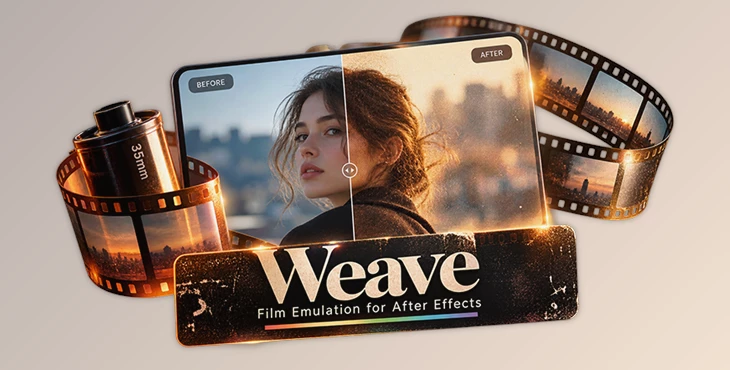
Downloadable Files
You can download Weave - Film Emulation for After Effects for free from the bottom of this page.
Create Authentic Film Looks with Weave in After Effects
Digital footage often looks too clean compared to traditional film. Real celluloid has grain, subtle movement, light scattering, and small imperfections that give each frame its own character. Recreating these details in After Effects usually involves combining several effects and adjusting them separately.
Weave brings these film characteristics together in one dockable After Effects panel. It applies a complete film emulation effect with a single click, then gives you 23 interactive controls to adjust the result. You can create anything from a dusty 8mm home-movie style to a cleaner 35mm cinematic look without building a complicated effects chain yourself.
Three Film Formats and Five Film Stock Looks
Weave offers three film formats: 35mm, 16mm, and 8mm. Each provides a different starting point for creating a film-inspired image.
You can also choose from five color looks based on the responses of real film stocks. These looks were developed using references from actual film test footage.
| Film Stock Look | Visual Characteristics |
|---|---|
| Portra 400 | Balanced colors, cooler shadows, and warm skin tones |
| Kodachrome 64 | Strong saturation, warm highlights, and vibrant skin tones |
| Ektachrome E100 | Cool green highlights and rich midtones |
| Fujifilm 400 | Subtle warmth and soft contrast, suited to daylight scenes |
| Vericolor III | Gentle warmth and soft contrast curves, suited to daylight exteriors |
A dropdown menu lets you switch between these looks, while the Look Intensity slider controls how strongly the selected color style affects your footage.
The film format and color look can be selected separately, giving you more flexibility when building a specific aesthetic.
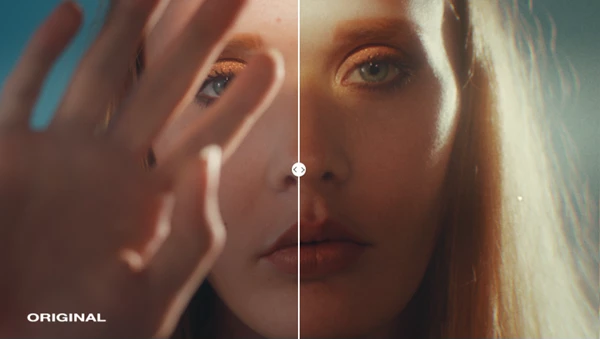
Film Emulation Effects and Controls
Weave doesn't rely on color adjustments alone. It recreates several physical characteristics of celluloid, including grain, halation, gate movement, and surface imperfections.
Procedural Grain, Dust, and Sparkles
Film grain and dust are generated procedurally rather than repeated from a fixed overlay. This means the dust and grain patterns change from frame to frame instead of showing the same texture repeatedly.
You can adjust the grain intensity independently. Dust and sparkles each have their own intensity and frequency controls, allowing you to decide how visible they should be and how often they appear.
These effects can also be reduced completely to zero. You can keep the film color and lighting characteristics without adding unwanted dust or scratches.
Halation and Light Scattering
Halation is one of Weave's more detailed film effects.
On real celluloid, bright light can scatter through the emulsion layers, creating a soft glow around high-contrast edges. Weave simulates this behavior by blurring the red and green channels where bright highlights meet darker areas along a hard edge.
Two settings control the result:
Halation Threshold: Determines which highlights are affected.
Halation Intensity: Adjusts the strength of the effect.
This targeted approach helps recreate the appearance of light interacting with film rather than simply blurring the entire image.
Gate Weave and Flicker
Gate weave introduces subtle frame movement associated with mechanical film transport. Flicker adds changes in brightness that contribute to an older film appearance.
Both effects have adjustable intensity, so they can be used for a noticeable vintage style or kept more restrained.
Bloom, Vignette, and Chromatic Aberration
Weave also includes optional effects for further shaping the image.
Bloom: Adds a soft glow to bright areas, with separate Threshold, Radius, and Intensity controls.
Vignette: Darkens or shapes the edges of the image, with Amount, Angle, and Pin Highlights settings.
Chromatic Aberration: Introduces color separation, controlled through an Amount setting.
Bloom is particularly suited to scenes with strong contrast between bright and dark areas, where it can create a softer, more nostalgic appearance.
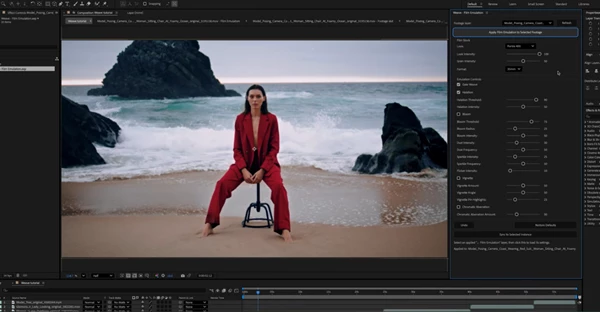
Working with Weave in After Effects
Weave uses a dedicated effects chain controlled through a single dockable panel. You don't need to stack individual effects manually to build the film look.
The basic workflow is straightforward:
Apply Weave to your footage with one click.
Choose a film format from 35mm, 16mm, or 8mm.
Select a film stock look and adjust its intensity.
Refine the emulation using the grain, halation, gate weave, flicker, and other controls.
Adjust individual clips or apply a consistent style across multiple shots.
The panel also includes a dedicated undo button and an option to sync the panel with the currently selected Weave instance.
With 23 interactive controls, you can change the look without having to manage every effect separately.
Where Weave Fits into Video Projects
Weave is designed for editors, filmmakers, colorists, and motion graphics artists who want the character of film in digital projects.
For independent films, the 35mm format and film stock looks can help create a cinematic appearance while keeping the amount of grain and other imperfections under control.
Wedding and event videos can benefit from the warmer color responses and optional bloom, particularly when the goal is a soft, nostalgic image.
The 8mm format, combined with dust, flicker, and gate weave, offers a different direction for retro-style footage.
Weave can also be applied across multiple clips. This is helpful when editing stock footage from different sources and trying to give the final sequence a more consistent film character.
It isn't limited to camera footage, either. You can apply Weave to After Effects graphics compositions to create a retro film-print appearance.

Files Password : gfxplugin.com OR 123456