Downloadable Files
You can download Reprojector Add-On for free from the bottom of this page.
Transfer Mesh Details in Blender with Reprojector
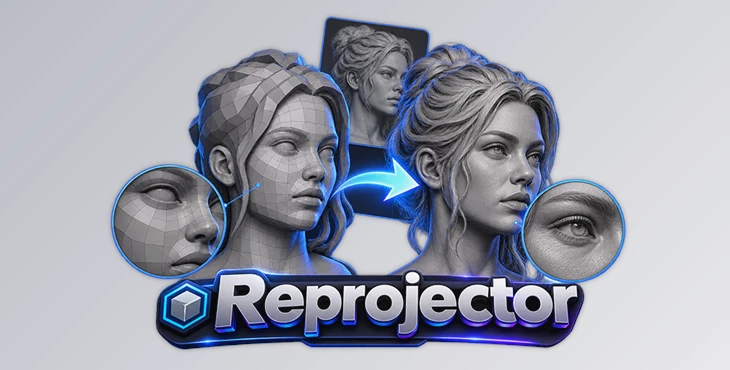
Reprojector Add-On is a Geometry Nodes tool for Blender that transfers surface details from a high-resolution mesh to another mesh. It is designed to reduce common projection problems, such as spikes and surface tearing, which can happen when using traditional Shrinkwrap methods.
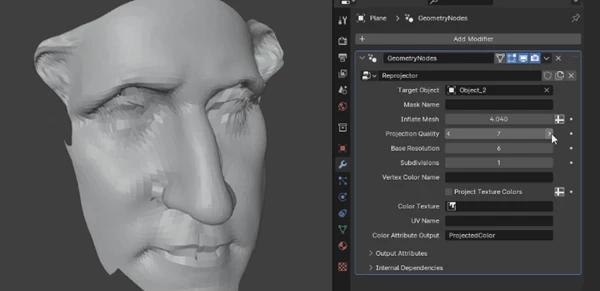
The add-on has a simple sidebar that makes the projection process easier. You can select your meshes, change the projection quality, adjust the mesh resolution, and choose where you want to add details.
Reprojector is particularly helpful when working with complex 3D models that contain small or difficult shapes, such as ears and fingers.
How Reprojector Handles Mesh Projection
Traditional Shrinkwrap workflows can produce unwanted geometry changes when projecting details onto complex surfaces. Some vertices may move into incorrect positions, creating sharp spikes or distorted areas.
Reprojector uses its own projection logic to address these problems. Its Geometry Nodes system is designed to transfer surface details while reducing visible artifacts.
This approach is especially important for organic models, where small changes to the mesh can affect the final shape. Areas such as fingers and ears require careful projection because their surfaces are close together and contain complex geometry.
The add-on also provides controls for adjusting the result without rebuilding the entire projection setup.
Main Features of Reprojector Add-On
Dynamic Mesh Resolution
Reprojector includes dynamic mesh controls that let you adjust resolution while working.
You can change the mesh resolution directly through the interface and refine the amount of geometric detail used during projection. This gives artists more control over the resulting surface.
Vertex Masking for Selected Areas
Not every part of a model needs the same projection treatment.
With vertex masking, Reprojector lets you define which areas of the mesh are affected by the projection. This is helpful when you want to transfer details to specific regions while leaving other parts unchanged.
Vertex Color and Texture Transfer
Reprojector supports more than geometry projection. It can also transfer vertex colors and textures between meshes.
This makes the tool suitable for workflows that require both surface detail and visual information from a source model.
Attributes for Baking and Rendering
The add-on produces clean attributes intended for baking and rendering workflows.
These attributes help prepare projected mesh data for later stages of a 3D project, rather than limiting the result to the initial projection process.
How to Use Reprojector in Blender
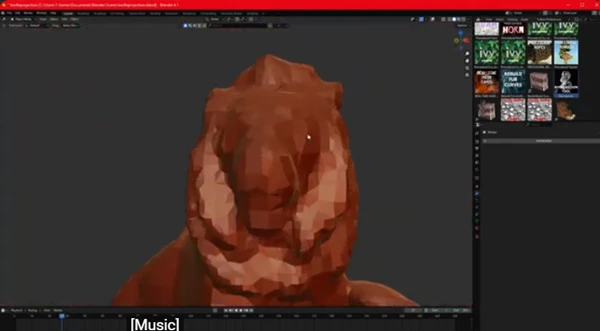
Reprojector organizes its main workflow into four steps through the Blender Sidebar (N-panel).
Select the target mesh: Choose the mesh that will receive the projected details.
Initialize the tool: Click the Initialize button to prepare the projection setup.
Choose the source: Select the high-resolution mesh containing the details you want to transfer.
Refine the projection: Adjust the Inflate and Quality controls to improve the result.
The Inflate and Quality settings provide control over the projection result. Combined with dynamic resolution and vertex masking, they let you refine the geometry according to the needs of your model.
Where Reprojector Is Useful
Reprojector is designed for projects where accurate surface detail transfer is important.
Organic character modeling: The projection system is intended to handle difficult areas such as ears and fingers, where conventional projection methods may produce unwanted geometry.
3D Sculpting: You can move details from a high-resolution sculpt to another mesh and control the quality and areas where the details appear.
3D Clothing: Vertex masking and mesh settings help you work on specific parts of detailed clothing models.
Baking and Rendering: You can transfer textures and vertex colors while keeping mesh data clean, making it easier to prepare your models for baking or rendering.

Files Password : gfxplugin.com OR 123456