Downloadable Files
You can download Primal for free at the bottom of this page.
Turn Messy Blender Meshes into Clean Quads
Primal is a Blender tool that turns messy or triangulated meshes into cleaner geometry made mostly of quads. It helps when a model has too many triangles or its topology needs some work. You can control the mesh density, keep sharp edges, use symmetry, and clean up the result without doing everything by hand.
Turn Messy Geometry into Quads
Primal converts triangulated and messy geometry into a quad-dominant mesh directly inside Blender. The process is designed to be fast and doesn't need much setup.
This is helpful when you have a model with irregular topology and want to make it easier to work with. Primal also tries to keep the original shape, so the result doesn't lose important parts of the model during remeshing.
Control the Topology and Mesh Density
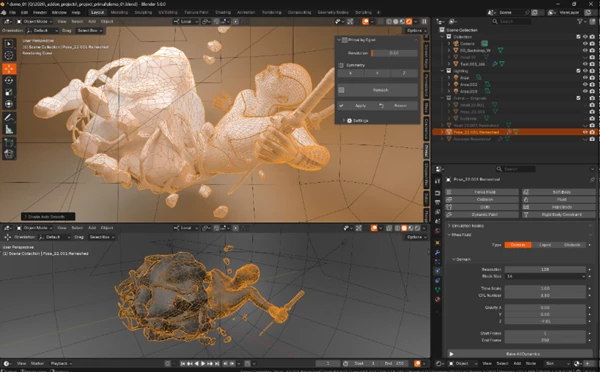
Primal looks at the surface of the mesh and adjusts the quad flow to better follow its shape. It works to preserve forms, silhouettes, curves, and transitions between surfaces.
You can also change the Resolution parameter to control how dense the final mesh will be.
Lower values: Create denser and cleaner topology.
Higher values: Reduce the polygon count for optimization.
This means you can choose a setting based on what you need. If you want more detailed topology, you can use a denser result. If the model has too many polygons, you can choose a lower-density mesh instead.
Symmetry Support
Primal supports symmetry on the X, Y, and Z axes. When you enable this feature, the mesh is mirrored during remeshing, and a Mirror modifier is added automatically afterward.
This is useful for models that have matching sides, such as characters, vehicles, and weapons. You don't need to add the Mirror modifier yourself after the process.
Keep Sharp Edges and Important Details
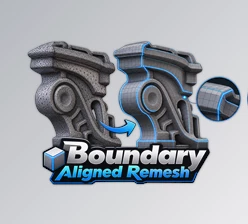
One problem with remeshing is that sharp edges and small mechanical details can change. Primal includes a Sharp Features option to help keep these parts of the model.
It can detect and preserve:
Sharp angles
UV seams
Material boundaries
Mesh borders
Face-set boundaries
This feature is especially relevant for hard-surface models, where edges and separate surface areas are an important part of the design. It helps Primal create cleaner topology without ignoring these details.
Clean Up the Mesh After Remeshing
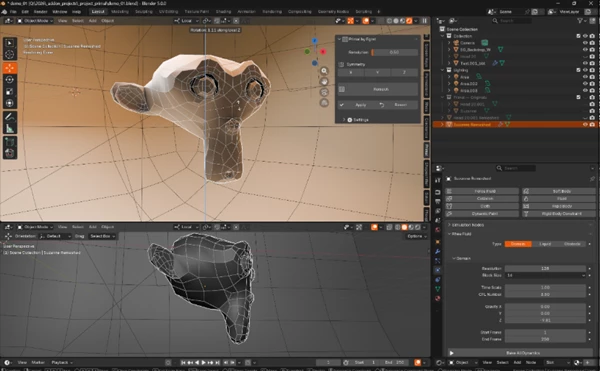
Primal also includes optional cleanup tools that can improve the mesh after remeshing. You can use the available operations to deal with common geometry problems without handling every step manually.
The cleanup options include:
Merging vertices
Recalculating normals
Removing degenerate geometry
Converting triangles to quads
Applying smoothing passes
These operations are optional, so you can choose whether to use them depending on the model and the result you want.
Go Back to the Original Mesh When Needed
Primal creates a backup of the original mesh before starting the remeshing process. This gives you a way to try different results without immediately losing your original geometry.
Once you're happy with the new mesh, you can apply it permanently. If you don't like the result, you can return to the original mesh at any time before applying the changes.
This is handy when you're testing different resolution settings or checking how well the new topology fits the model.
What Can You Use Primal For?
Primal can be useful in different Blender modeling workflows, depending on the type of mesh you're working with.
Character Models: Create cleaner topology and use symmetry when needed.
Hard-Surface Objects: Keep sharp corners and important mechanical details.
Vehicles and Weapons: Work with symmetrical shapes while keeping key edges.
Low-Poly Assets: Lower the polygon count by changing the resolution.
Messy Meshes: Turn irregular or triangulated geometry into a cleaner quad-based mesh.
Primal is a useful option when you need to clean up geometry without rebuilding the entire mesh yourself. Its resolution controls, symmetry support, and optional cleanup tools give you a few different ways to adjust the result based on the model you're working on.

Files Password : gfxplugin.com OR 123456