Downloadable Files
You can download Screen Builder Pro for free from the bottom of this page.
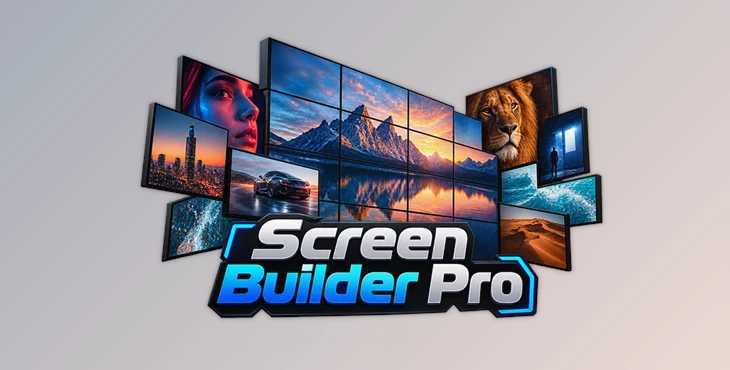
Create Multiscreen Video Walls with Screen Builder Pro
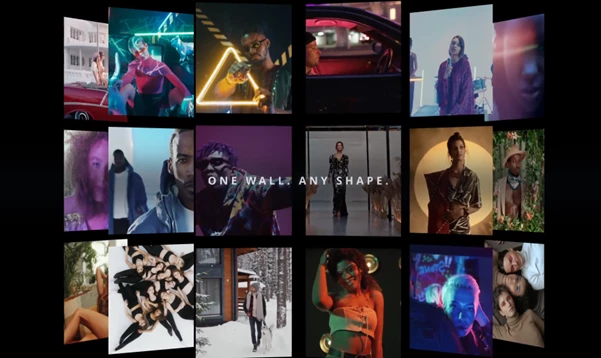
Screen Builder Pro is a Python script for DaVinci Resolve that helps you create multiscreen video walls, mosaics, and split-screen compositions without arranging every clip manually. It builds editable Fusion compositions from your own footage, giving you control over screen layouts, 3D positioning, camera movements, and reveal animations.
Create Multiscreen Compositions in DaVinci Resolve
Building a video wall with dozens of clips can get complicated, especially when each screen needs its own position, depth, and animation. Screen Builder Pro handles the initial layout through a Python-based builder while keeping the generated composition available for further editing in Fusion.
The script provides three main ways to arrange your footage:
Multiscreen: Combine multiple video clips into a 3D video wall with adjustable positioning and depth.
Mosaic: Spread a single image or video across multiple screens to create a larger composition.
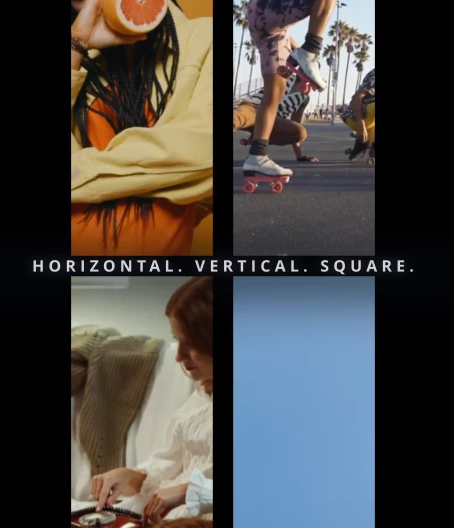
Split Divider: Choose from more than 49 ready-made layouts for arranging footage into separate sections.
These options cover everything from simple split-screen edits to more elaborate 3D screen arrangements. You can work with your own media rather than being limited to predefined footage.
3D Layout and Camera Controls
Screen Builder Pro includes several controls for changing how screens are arranged in 3D space. You can adjust spacing, curve, tilt, row angle, and Z depth to create flat grids or compositions with a more dimensional appearance.
Camera settings provide another way to present the layout. There are eight available camera options:
| Camera Option | View or Movement |
|---|---|
| Front | Front-facing view |
| Left | View from the left |
| Right | View from the right |
| Top | Overhead view |
| Perspective | Perspective camera view |
| Orbit | Camera movement around the composition |
| Push In | Camera movement toward the screens |
| Pull Out | Camera movement away from the screens |
For a straightforward video grid, a front-facing camera may be enough. More dimensional layouts can use perspective, orbit, or depth-based camera movements to show the arrangement from different angles.
Reveal Animations and Randomizer
Screen Builder Pro comes with 13 reveal animation presets for introducing screens into a composition.
It also includes a Randomizer system that changes screen timing and reveal patterns. This is particularly relevant when working with large grids, where having every screen appear at the same moment may not suit the intended animation.
The timing can be adjusted after generating the composition, so the initial build doesn't have to be the final animation.
How Screen Builder Pro Works
The script follows a relatively straightforward building process:
Choose your footage: Select the folder containing the videos or other media you want to use.
Select a layout: Choose a multiscreen grid, mosaic, or split-screen arrangement.
Adjust the screens: Configure spacing, curvature, and other 3D layout settings.
Set up the camera: Select a camera option and configure the reveal animation.
Build the composition: Generate the layout inside DaVinci Resolve.
Refine in Fusion: Edit individual screens, adjust animations, or randomize their timing.
One important detail is that Screen Builder Pro generates an actual Fusion composition, not a pre-rendered video.
The generated nodes remain accessible, and individual screen elements can still be modified. You can continue working on the composition directly in Fusion without having to rebuild everything for each adjustment.
The workflow is also non-destructive: generating a composition does not modify the existing timeline content.
Bonus Preview Builder Script
Alongside the main script, the package includes an optional tool called Screen Builder Pro – Preview Builder.
This additional Python script can automatically create the product demonstration project using your own footage. It builds multiple scenes and organizes them into a master timeline.
The Preview Builder is separate from the main composition-building workflow, so you can use Screen Builder Pro without running the bonus script.
Compatibility and Installation
Screen Builder Pro runs through the DaVinci Resolve and Fusion scripting environment. It does not require additional Python modules or third-party plugins.
| Requirement | Details |
|---|---|
| Software | DaVinci Resolve 18 or newer |
| Resolve editions | Free and Studio |
| Tested environment | DaVinci Resolve Studio 20.3 |
| Scripting language | Python |
| Python requirement | Python 3.6 or newer, 64-bit |
| Fusion | Required |
| Operating systems | Windows, macOS, Linux |
| Third-party plugins | Not required |
| Generated compositions | Editable Fusion nodes |
Installing the Script
To install Screen Builder Pro, copy Screen Builder Pro.py into the DaVinci Resolve Fusion Scripts / Utility folder.
Once the script is installed, open DaVinci Resolve and navigate to:
Workspace → Scripts → Screen Builder Pro
The optional Preview Builder script can be placed in the same folder and launched through:
Workspace → Scripts → Screen Builder Pro – Preview Builder
What's Included in Screen Builder Pro?
The package contains the main Python script and the tools needed to generate different screen compositions:
Multiscreen and Mosaic builders
More than 49 Split Divider layouts
Randomizer animation system
13 screen reveal presets
3D screen layout controls
8 camera view and movement options
Editable Fusion compositions
Bonus Preview Builder Python script
Screen Builder Pro is particularly suited to projects involving video walls, multi-clip sequences, and animated screen grids. Its main advantage is the combination of automated layout generation and editable Fusion nodes, allowing you to build a complex arrangement first and fine-tune its individual elements afterward.

Files Password : gfxplugin.com OR 123456