Downloadable Files
You can download PS1-ify for free from the bottom of this page.
Bringing Retro Console Aesthetics to Blender
PS1-ify is a Blender add-on designed to give 3D scenes the visual appearance of retro console games. Rather than configuring the necessary settings individually, the add-on provides a convenient way to import settings that create a PlayStation 1-style aesthetic directly in Blender.
The add-on is designed for Blender 5.0 and later, with its controls accessible through a dedicated panel in the 3D Viewport.
Creating a Retro Console Look in Blender
PS1-ify focuses on simplifying the process of setting up a retro game-inspired appearance. Its main function is to import the settings needed to make Blender scenes resemble games from older console generations.
This approach is particularly relevant when working on scenes intended to capture the visual style of PlayStation 1-era games. Instead of treating the retro appearance as a series of separate configuration tasks, PS1-ify brings the setup together through an add-on interface.
Once installed, the add-on provides a PS1-ify panel in Blender's 3D Viewport sidebar, also known as the N-panel. This keeps its controls accessible within the workspace where users interact with their 3D scenes.
Adding Custom 3D Models
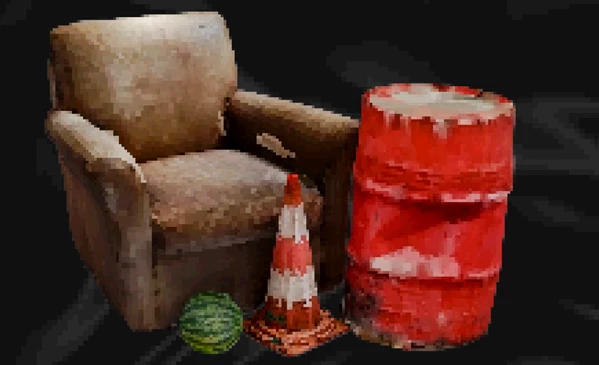
PS1-ify also supports importing custom models through its full-version functionality. This feature lets users extend the available assets with their own 3D objects, provided the model files and textures follow the required naming and folder structure.
The custom model workflow uses three types of files:
FBX models: Custom 3D objects must be exported in
.fbxformat.Texture images: Each texture must have exactly the same base filename as its corresponding FBX model.
Preview renders: An optional render with a transparent background can be included as an asset icon.
For instance, a model exported as red_barrel.fbx should have a corresponding texture named red_barrel.jpg. Matching filenames are an important requirement when preparing custom assets.
Custom Model Import Workflow
After preparing the files, place them in the appropriate directories inside the PS1-ify add-on installation folder.
| File | Destination folder |
|---|---|
red_barrel.fbx | ps1_ify/assets |
red_barrel.jpg | ps1_ify/textures |
| Optional preview render | ps1_ify/icons |
For the Windows installation path provided for Blender 5.0, the add-on files are located under:
AppData\Roaming\Blender Foundation\Blender\5.0\scripts\addons\ps1_ify
The assets, textures, and icons folders are located within this directory.
After copying the required files, restart Blender to complete the custom asset setup.
The transparent-background preview render is optional, so users can prepare a model and its matching texture without creating a separate icon image.
Installing PS1-ify in Blender
PS1-ify uses Blender's add-on installation process. The installation steps are straightforward:
Open Blender and navigate to Edit > Preferences > Add-ons.
Select Install and locate the PS1-ify
.zipfile.Install the add-on using the selected archive.
Open the 3D Viewport and access the N-panel.
Find the panel named PS1-ify.
The dedicated panel provides access to the add-on from within the 3D workspace.
PS1-ify is intended for Blender 5.0 and newer versions. The custom asset directory shown above specifically references Blender 5.0, so the installation path should correspond to the Blender version being used.
When to Use PS1-ify
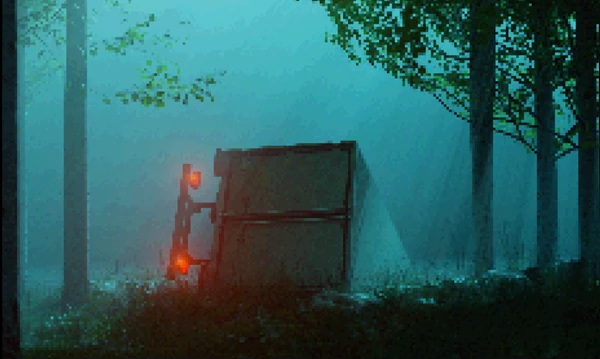
PS1-ify is useful for Blender projects that need the look of old PlayStation 1 games. It gives you a ready-made setup for creating retro-style scenes. You can also add your own 3D models and use them with the add-on.
Instead of setting up the retro look by hand, you can use PS1-ify to save time. It also helps you keep your custom models organized, making it easier to work on PS1-style projects in Blender.

Files Password : gfxplugin.com OR 123456

![Download [Blender] Rust Addon v1](https://dls4.gfxplugin.ir/Download_Files/22617/SearchSmall/banner.jpg)