Downloadable Files
You can download Nomad Sculpt for free from the bottom of this page.
Sculpt 3D Models Directly on Your Tablet
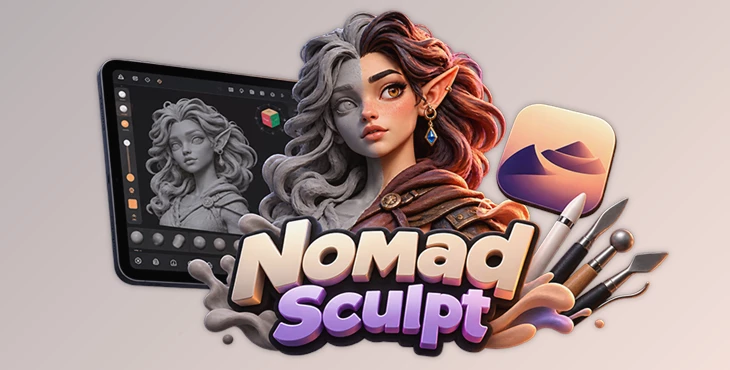
Nomad Sculpt is a 3D sculpting application that lets you create, shape, and paint 3D models directly on your device. It works on different devices but is especially comfortable on tablets with pressure-sensitive styluses, such as an Apple iPad with Apple Pencil or a Samsung Galaxy Tab with a stylus.
The app is similar to popular 3D sculpting programs like ZBrush and Blender, but it is easier to use, especially on touchscreens. You can start with a basic shape, use different brushes to add details, and paint your model, all in one app.
Nomad Sculpt also offers more advanced features for working with multiple objects, managing mesh detail, and organizing 3D scenes.
Getting Started with Sculpting Tools
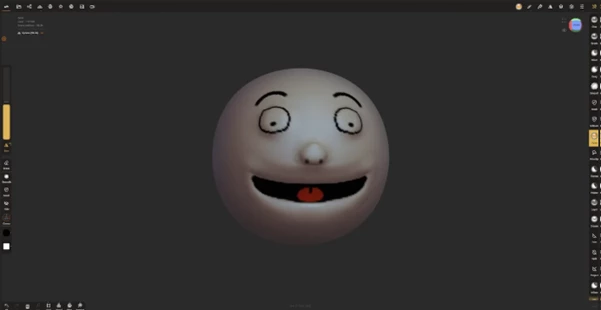
When you open Nomad Sculpt for the first time, you'll see a sphere in the center of the screen. You can immediately start sculpting by dragging your stylus across its surface.
The default tool is Clay, which adds material to the model. You can switch to Sub mode to remove material or use Smooth to soften rough areas. Symmetry is also enabled by default, so changes on one side of the model are reflected on the other.
Two sliders on the left side of the interface control how your brushes behave:
Radius: Changes the size of the brush.
Intensity: Controls how strongly the brush affects the surface.
Besides Clay and Smooth, Nomad Sculpt includes several tools for changing the shape and details of your models.
| Tool | Function |
|---|---|
| Move | Changes the shape of the model by moving parts of its surface. |
| Crease | Creates sharper lines and grooves. |
| Inflate | Expands areas of the surface. |
| Split | Separates parts of a model. |
| Trim | Cuts away sections of the mesh. |
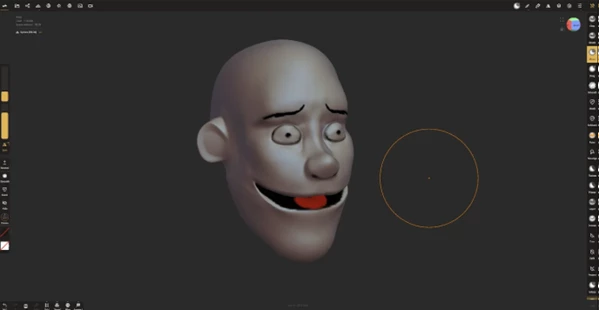
You can combine these tools when creating characters, stylized objects, or other 3D sculptures. For instance, when sculpting a cartoon head, you can use Move to adjust its overall shape, Inflate to build up facial features, and Crease to define smaller details.
Painting and Coloring Your 3D Models
Nomad Sculpt isn't limited to shaping geometry. It also includes a Paint tool that lets you apply colors directly to the surface of your sculpture.
To start painting, select Paint from the toolbox on the right. A colored sphere will appear in the left toolbar. Tap it to open the color selector, choose your preferred color, and paint directly on the model.
You can also use the Erase option to remove painted areas. Tapping Erase again returns you to normal painting.
This means you can work on both the shape and color of your sculpture within the same interface. It's particularly helpful when creating stylized characters or objects that need simple color details.
Navigating the Interface and Camera
One of the main advantages of Nomad Sculpt is its touchscreen-friendly navigation. You don't need a keyboard to move around your model or access the basic sculpting controls.
Here are the main touch gestures:
| Gesture | Action |
|---|---|
| Drag outside the model | Rotate the camera |
| Pinch with two fingers | Zoom in or out |
| Drag with two fingers | Pan the camera |
| Tap with two fingers | Undo the last action |
The interface also includes a Navigation Cube that shows which side of the model you're viewing. You can tap its sides to switch between views or drag it to rotate the camera.
The toolbars are organized around the workspace:
Top menus: Access scene settings, object controls, and tool options.
Right toolbox: Contains the sculpting and painting tools.
Left toolbar: Provides brush settings, symmetry, masking, smoothing, and other shortcuts.
Bottom toolbar: Gives quick access to frequently used functions.
You can also mirror the placement and ordering of the toolbars, which is helpful for left-handed users.
Useful Shortcuts in the Bottom Toolbar
Nomad Sculpt provides several controls that help you inspect and manage your work.
Solo hides other objects so you can focus on the selected model. X-Ray displays other objects in a transparent view while keeping the current object solid. You can also adjust the X-Ray color and opacity.
The Wire option displays the mesh wireframe, while Grid controls the workspace grid.
Another useful feature is Inspect, which displays additional mesh information. It shows UVs by default, but you can choose other available mesh properties.
The bottom toolbar also includes Undo, Redo, History, and a shortcut to the Voxel Remesher. Long-pressing the Voxel shortcut reveals options for adjusting remeshing quality.
Working with Meshes and Multiple Objects
As your projects become more detailed, Nomad Sculpt provides tools for managing the structure of your models.
The Voxel Remesher is accessible directly from the bottom toolbar, so you don't need to search through menus whenever you want to use it.
The app also includes topology-related features such as multiresolution and decimation, which are covered in its Topology section.
For larger projects, you can work with multiple objects and combine simple primitives into more complex scenes. The Scene tools help you manage these objects, while Solo and X-Ray make it easier to focus on individual parts.
Nomad Sculpt also supports importing and exporting models, as well as creating images of your sculptures. These options are available through its file-related features.
Using Nomad Sculpt on Desktop
Although Nomad Sculpt is particularly suited to tablets, it also supports desktop workflows.
On desktop, camera navigation uses the Alt or Option key:
Drag in empty space: Rotate the camera.
Alt/Option + drag: Pan the camera.
Alt/Option + drag, then release Alt/Option: Zoom the camera.
For Wacom tablets with a pen that has two or more buttons, you can configure the pen tip as left-click, the lower button as middle-click, and the upper button as right-click.
With this setup, you can rotate and pan the camera using the pen buttons while hovering over the tablet.
This navigation system may feel familiar to artists who have worked with ZBrush or other desktop sculpting applications.
Is Nomad Sculpt Worth Using?
Nomad Sculpt is a practical option for artists who want to sculpt and paint 3D models on a tablet without giving up access to more detailed modeling tools.
Its simple interface makes the first steps approachable, while features such as symmetry, masking, voxel remeshing, multiresolution, and scene management provide room for more complex projects.
The main difference is how easy it is to work with your model. You can use a stylus to change its shape, move the camera with your fingers, and switch between sculpting and painting without leaving the same workspace.

Files Password : gfxplugin.com OR 123456