Downloadable Files
You can download Vocal Isolator for free at the bottom of this page.
Separate Dialogue and Background Music in Premiere Pro and After Effects
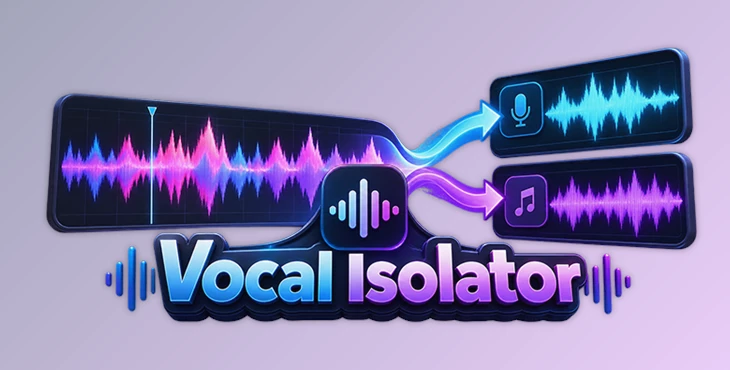
Sometimes you have a video where the dialogue and background music are mixed into one audio track. You might want to keep the voice and remove the music, or extract the instrumental part without the vocals. That's exactly what Vocal Isolator is designed to do.
This plugin lets you separate audio directly in Premiere Pro or After Effects. Just select a clip, choose the sounds you want to separate, and the plugin creates individual audio tracks for you.
You don't need to export the recording to another program or upload it to an online service. Everything is processed locally, and the separated audio is placed back on your timeline.
Choose What You Want to Separate
Vocal Isolator has three separation modes. Each one handles a different part of the original audio.
Vocals Only: Keeps the dialogue or singing and removes the background music.
Instrumental Only: Extracts the music while removing the vocal part.
Both Stems: Separates the recording into two tracks, one for vocals and another for instrumental audio.
Say you're editing an interview where the speaker's voice is mixed with loud music. You can select Vocals Only to extract the dialogue. If you need the music from that same recording, Instrumental Only handles the opposite task.
Both Stems is useful when you want to edit the voice and music separately, even though they originally came from a single mixed recording.
Keeping the Voice Natural
Removing music from a recording isn't always as clean as it sounds. Audio separation can leave behind strange artifacts, making voices sound hollow, metallic, or slightly underwater.
Vocal Isolator uses an audio separation model rated at 12.97 dB SDR (Signal-to-Distortion Ratio). The engine is designed to preserve vocal clarity while reducing the watery phase artifacts and hollow sound that can appear during separation.
The goal is to recover a cleaner vocal track without making the voice sound heavily processed.
How Vocal Isolator Works
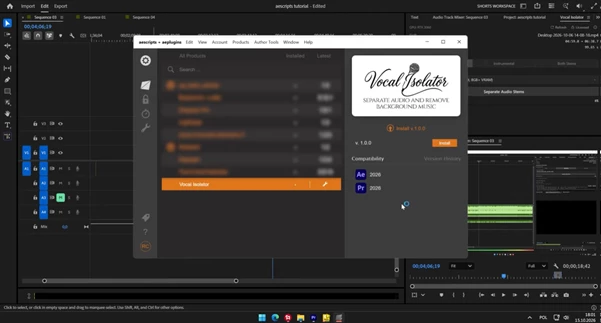
The plugin runs through a panel inside Premiere Pro and After Effects, so the process stays within your existing editing project.
There are three steps:
Select a clip: Highlight an audio track, video clip, or nested sequence on your timeline.
Pick a mode: Choose Vocals Only, Instrumental Only, or Both Stems from the plugin panel.
Run the separation: Click Separate and wait for the engine to process the audio.
Once processing finishes, the separated stems appear directly on your timeline, ready for editing.
You can work with the extracted dialogue or music without having to manually import the results into your project.
Audio Processing Without Cloud Uploads
Another important detail is that Vocal Isolator works completely offline. Your recordings stay on your computer, and the separation doesn't depend on an external server.
That matters when you're handling material that shouldn't be uploaded elsewhere, such as confidential interviews, corporate recordings, NDA-protected projects, or unreleased music.
There are also no cloud-based limits on the duration or file size of the audio you process.
Compatibility and Hardware Requirements
Vocal Isolator is available for Windows and supports Adobe Premiere Pro and After Effects.
| Component | Supported Requirements |
|---|---|
| Adobe Premiere Pro | 2022–2025+ |
| Adobe After Effects | 2022–2025+ |
| Operating System | Windows 10 / 11 (64-bit) |
| Recommended GPU | NVIDIA RTX or GTX with CUDA |
| CPU Support | Intel Core, Intel Ultra, and AMD |
| Audio Processing | Fully offline |
An NVIDIA CUDA GPU is recommended for processing, but the plugin also supports Intel and AMD CPUs.
Keep in mind that Vocal Isolator is Windows-only. There's currently no macOS support.
When Is Vocal Isolator Worth Using?
Vocal Isolator is most relevant when you're working with audio that has already been mixed and you don't have separate recordings of the voice and music.
That could be an interview with background music, a video clip where you only need the spoken dialogue, or a music recording where you want to work with the instrumental and vocal parts independently.
The biggest advantage is that you can do everything right inside Premiere Pro or After Effects. Once the audio is separated, the new tracks are ready to use in your project. You don't have to switch between different apps or move audio files back and forth.

Files Password : gfxplugin.com OR 123456