Downloadable Files
You can download Windrops for free from the bottom of this page.
Create Retro Window Trails in After Effects
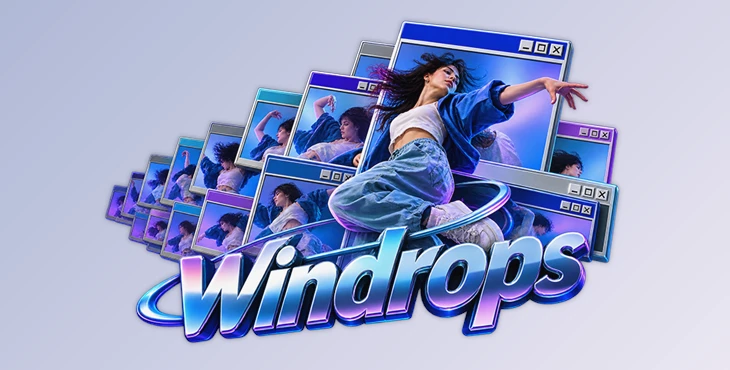
Windrops is an After Effects plugin developed by Melted Electronics that turns movement in your footage into animated desktop windows. As a subject moves, the plugin generates overlapping windows that display frozen or delayed moments from the video. The result looks like a series of old computer windows appearing across the screen, with each one capturing a different moment of the action.
You can use Windrops to create retro computer effects, motion trails, and layered visuals without building every window separately. The plugin includes two different looks, eight window styles, and controls for adjusting how the windows appear and disappear.
Turn Movement into Stacked Desktop Windows
The main idea behind Windrops is simple: movement creates windows. The plugin analyzes motion in your footage and automatically places windows around the areas where activity is detected.
Each window captures a moment from the clip and holds that image while the original footage continues playing. New windows appear as movement continues, creating a collection of overlapping frames. They remain visible for a set amount of time before disappearing.
The effect works particularly well with footage that contains clear movement, such as dancing, boxing, basketball, or other fast-paced action.
You also have control over how busy the effect becomes. Windrops lets you adjust the number of windows, their size, and the length of the trail. You can create a short sequence of windows around a moving subject or fill more of the frame with overlapping images.
Two Different Looks: Motion Windows and Time Trail
Windrops includes two built-in looks. Both use windows to display moments from your footage, but they arrange those windows differently.
Motion Windows
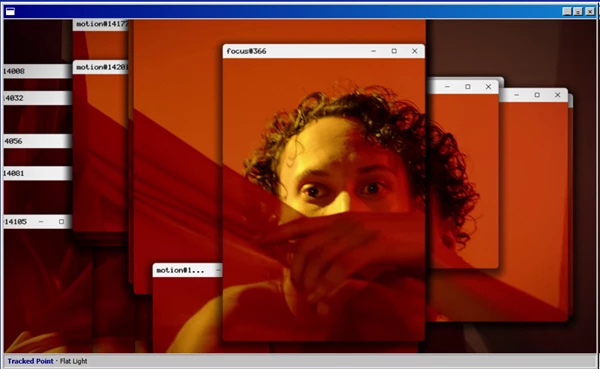
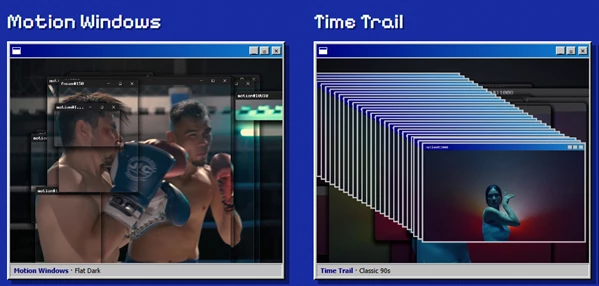
Motion Windows places desktop-style windows around moving subjects. The windows react to activity in the footage, while larger focus windows can follow the main action.
For example, in a boxing clip, windows can appear around a punch or a dodge, capturing different moments of the movement.
This look is a good choice when you want the windows to interact with the subject rather than simply cover the entire frame.
Time Trail
Time Trail takes a different approach. It creates a diagonal cascade of full-frame windows, similar to the repeated error windows seen on older Windows computers.
Each new window displays another frozen moment, gradually building a trail across the screen.
A dancer moving through a shot, for instance, can leave behind a long sequence of windows showing different positions from the performance.
The main difference between the two looks is how they handle the composition:
| Motion Windows | Time Trail |
|---|---|
| Windows appear around movement | Full-frame windows form a diagonal cascade |
| Larger windows can follow the main subject | Windows build a trail of captured frames |
| Emphasizes specific moving areas | Emphasizes the sequence of movement over time |
Eight Window Styles for Different Visual Designs
The appearance of the windows is a major part of the effect. Windrops includes eight styles inspired by different generations of desktop interfaces.
Modern Dark: Dark interface elements with a contemporary appearance.
Modern Light: A lighter alternative to the modern dark design.
Minimal: A simplified window design with fewer visual details.
Classic 90s: Traditional desktop windows inspired by older computer interfaces.
Glossy 2000s: Glossy windows with a look associated with early-2000s interface design.
Flat Light: A clean, flat window style with a light appearance.
Flat Dark: A darker version of the flat interface style.
Pinstripe: Windows featuring a distinctive striped design.
You can also adjust the interface scale to change how the window elements appear in your composition.
Windrops supports pop-in and fade-in animations, so you can decide whether windows appear suddenly or enter more gradually.
For a nostalgic computer-error effect, Classic 90s is a natural choice. Modern Dark or Flat Dark may fit better when you want the window effect to feel less dated.
Keep the Main Subject Visible with Focus Windows
One problem with stacking windows over a video is that the main subject can become difficult to see. Windrops addresses this with Focus Windows.
These are larger windows designed to keep important parts of the footage visible while smaller windows continue appearing around the frame.
There are two ways to control their position.
Auto Focus
In Auto mode, Windrops follows the strongest movement detected in the footage.
This is a straightforward option for clips where the main action is clearly defined, such as a person dancing against a relatively still background.
Tracked Point
Tracked Point gives you more direct control over the focus area.
You can link the plugin's Focus Point to an After Effects track point. The larger windows then follow that tracked position while the smaller windows continue responding to motion elsewhere in the footage.
For example, you could track a person's face and keep the larger windows centered around it, even as other parts of the scene generate additional windows.
This gives you a way to maintain attention on a specific subject without removing the surrounding window effect.
Customize Window Timing, Backgrounds, and Animation
Beyond choosing a look and window style, Windrops provides several controls for shaping the final result.
You can adjust window size, amount, and trail length to control how much of the footage becomes covered.
The plugin also includes five background modes, including transparency. This gives you different options for handling the area behind the generated windows.
Its controls are keyframeable, meaning you can animate effect settings throughout a composition. For instance, you could begin with fewer windows and increase their amount as the action becomes more intense.
Windrops also uses frame-rate-independent timing. Window behavior is based on time rather than depending on a particular footage frame rate.
Compatibility and Rendering Support
Windrops works with After Effects 2022 and later on Windows and macOS, including Intel and Apple Silicon systems.
The plugin supports:
8, 16, and 32 bits per channel (bpc)
Multi-Frame Rendering
Network rendering
Keyframeable effect controls
Multi-Frame Rendering and network rendering support are particularly relevant when working with larger After Effects compositions or rendering projects across multiple machines.
Where Windrops Fits into Video Editing
Windrops has a unique look, so it's a good choice when you want the desktop-window effect to stand out in your video.
It works well for music videos, dance edits, sports videos, and creative motion graphics. Videos with lots of movement work especially well because the plugin can react to what's happening on screen. You can also choose different window styles to match the mood of your video.
The Motion Windows look is better suited to emphasizing moving subjects, while Time Trail is more appropriate for recreating the familiar cascade of old desktop error windows.
What makes Windrops different from a basic window overlay is its connection to the movement inside the footage. The windows aren't simply decorative graphics placed on top of a video. Their appearance and placement respond to the action, giving the effect a more direct relationship with what's happening on screen.

Files Password : gfxplugin.com OR 123456