Downloadable Files
You can download Pathsmith for free from the bottom of this page.
Advanced Path Tools for After Effects
Working with paths in After Effects can get complicated, especially when you need to connect paths across compositions, animate objects along custom routes, or modify mask shapes. Pathsmith brings 21 path tools into one panel, giving you more control over mask and shape paths without having to build everything manually.
From linking paths and creating motion animations to rounding corners and preparing shapes for smooth morphing, Pathsmith handles several tasks that After Effects doesn't support natively.
Link Mask and Shape Paths Across Compositions
One of the most practical features of Pathsmith is its ability to connect different paths to a single source. You can capture any mask or shape path and use it to control other paths, even when they're located in separate compositions.
With the Link tool, simply select your target paths and connect them to the captured source. The connection uses expressions, so any changes you make to the original path automatically appear in the linked paths.
There's also a Multi Pick & Multi Link option for working with several paths at once. It lets you capture multiple source paths and connect them to the same number of targets in order.
For projects with repeated shapes or connected animations, this gives you a way to manage several paths without editing each one separately.
Animate Layers Along Custom Paths
Pathsmith includes several tools for controlling how layers move, rotate, and interact with paths. The animations remain connected to their paths, meaning you can adjust the route later without rebuilding the movement.
Here are the main motion tools:
Follow: Moves layers along a path using a Path Progress slider from 0 to 100. You can animate the slider with keyframes or convert the movement directly into Position keyframes.
Distribute: Places selected layers evenly along a path and maintains their spacing when the path changes.
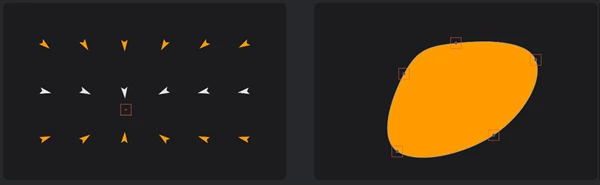
Pin: Attaches layers to individual path vertices based on selection order. If the path moves or changes shape, the attached layers follow their vertices.
Wiggle: Adds natural back-and-forth movement along a path without letting objects move away from it. It can also work alongside Follow animations.
Orient: Controls whether linked layers face the direction of the path. It also supports 3D layers.
Look At Null: Creates a null object that selected layers automatically face. Moving the null changes their orientation.
Null Per Vertex: Creates a null for each path vertex. You can either let the path control the nulls or use the nulls to reshape the path.
The Follow tool also supports directional rotation while preserving the layer's own rotation as an offset.
These controls are particularly helpful when creating motion graphics with multiple objects following the same route, such as animated icons, moving elements, or objects arranged along curved paths.
Advanced Path Editing Beyond Native After Effects Tools
Pathsmith isn't limited to animation. It also includes editing tools that address several limitations of After Effects, particularly when working with masks.
Boolean Operations and Rounded Corners
The Boolean tool combines two selected layers using three operations:
Union: Combines shapes into a single result.
Subtract: Removes one shape's area from another.
Intersect: Keeps the overlapping area between shapes.
Unlike effects that only change the appearance of a shape, these operations produce real, editable geometry. They also work with mask paths.
Another useful tool is Round Corners, which lets you round sharp vertices using a custom radius. This works on both shape paths and masks, even though After Effects doesn't provide native corner rounding for masks.
Simplify Paths and Create Cleaner Morphs
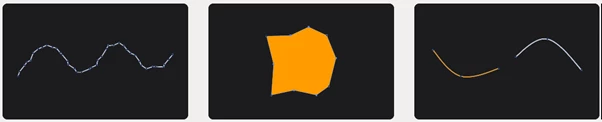
Paths imported from tracing or created by hand sometimes contain more vertices than necessary. Pathsmith's Simplify tool reduces unnecessary points while keeping the curve clean.
For shape morphing, the Match Points tool adjusts paths to have the same number of vertices without changing their appearance. This helps avoid unwanted distortions when interpolating between different shapes.
Pathsmith also includes several smaller editing tools:
Snap Vertex: Aligns one vertex precisely with another to close gaps or connect paths.
Reverse: Changes a path's direction, including on animated paths. It's particularly helpful when a Trim Paths animation moves in the wrong direction.
Open/Close: Converts closed paths into open ones or closes existing open paths.
Split: Divides a path at a selected vertex.
Together, these tools provide more precise control over path geometry without requiring complicated manual adjustments.
Create Arrows, Apply Styles, and Animate Strokes
Pathsmith also provides tools for turning basic paths into finished graphic elements.
Arrow Tool
The Arrow tool converts an existing path into an arrow with customizable styling. You can control its line, dashes, taper, and arrowheads at either end.
The resulting arrow remains a regular stroke, so it continues to work with After Effects' Trim Paths feature. When you animate the stroke, the arrowhead follows its tip.
This is useful for animated diagrams, directional graphics, and motion graphics that need arrows following custom curves.
Shape Styles and Trim Animation
With Shape Styles, you can adjust fill, stroke, opacity, and animated dashes across multiple selected shape layers. It also supports saving presets, making it easier to reuse the same styling in different parts of a project.
The Trim tool creates a ready-to-use draw-on animation for shape layers and masks. It automatically sets up keyframes, which you can then adjust to control the animation timing.
A Single Panel for Managing Path Tools
Despite including 21 tools, Pathsmith keeps everything accessible through one After Effects panel.
You start by capturing a source path. Any tool that requires a source can then use that captured path, so you don't need to select it again for every operation.
The interface also includes a few options for finding tools quickly:
Search: Find a specific tool by name.
Five categories: Browse tools based on their functions.
Favorites: Keep frequently used tools within easy reach.
Compact toolbar: Access helper tools without opening the full tool grid.
Pathsmith is available in nine languages: English, Turkish, Chinese, Hindi, German, Spanish, French, Italian, and Portuguese.
Where Pathsmith Fits Into Your After Effects Workflow
Pathsmith is especially relevant for projects involving complex shape animations, connected paths, or detailed vector editing.
Its biggest advantage is bringing path linking, motion controls, geometry editing, and stroke animation together in one place. You can work with both masks and shape paths while keeping many of your animations connected to their original geometry.
For After Effects users who frequently work with paths, Pathsmith provides a more flexible way to build and modify animations without relying entirely on the application's native path tools.

Files Password : gfxplugin.com OR 123456