Downloadable Files
You can download Highlighter for free from the bottom of this page.
Create Responsive Animated Highlight Boxes in After Effects
Creating animated selection boxes around text, images, or other elements in After Effects can take more work than expected, especially when those elements need to move or change size. Highlighter simplifies this process by creating a responsive highlight box with an animated cursor in a single click.
The tool gives your graphics a clean UI-style selection effect, similar to what you might see in a design application or SaaS interface. The box automatically fits your selected layer and can follow changes to its size, position, or content.
Create Animated Highlight Boxes for Any Layer
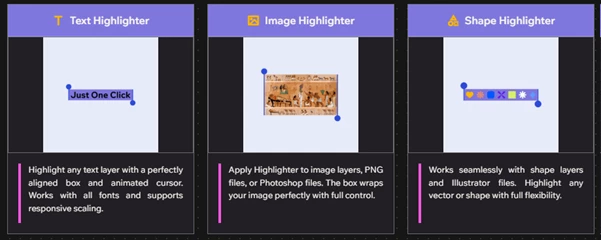
Highlighter works with different types of layers, including text, images, shapes, PNG files, Photoshop files, and Illustrator artwork.
Getting started is simple. Select a layer, choose your preferred box and cursor colors, and click the Highlighter button. The tool creates a box that fits the selected element, along with a cursor that can be animated.
It also handles multiple selections in different ways:
Single layer: Creates a responsive box around the selected layer.
Multiple layers: Creates one box covering the combined area of all selected layers.
Shift + Click: Creates a separate highlight box and cursor for each selected layer.
No selection: Creates an independent box that you can position and resize manually.
One of the most practical features is how the box responds to changes. If you edit the text or adjust the dimensions of a linked element, the highlight box updates to match. You can also add or remove source layers later, and the box automatically adjusts its size.
Highlighter Features and Animation Controls
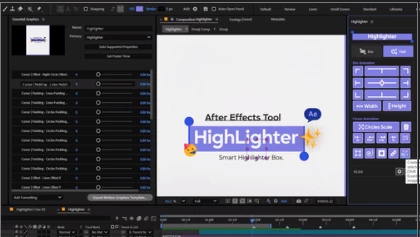
Highlighter offers more than a basic rectangle animation. It includes controls for the box, cursor, linked elements, and their movement.
Box and Cursor Animation
The tool includes 11 directional controls for animating the box from different corners and edges. You can choose where the animation begins without manually creating each scale keyframe.
The cursor has its own animation options, including circle scaling and five Trim Path controls:
In: Animates the cursor path inward.
Out: Animates the path outward.
InOut: Controls inward and outward path animation.
MidIn: Provides an additional path animation mode.
Reverse Path: Reverses the direction of the path movement.
You can also control where the cursor appears using five placement modes: Smart, Left to Right, Right to Left, Both Top, and Both Bottom.
Smart mode automatically determines the cursor direction based on the layer type and language.
Custom Box and Cursor Styling
Highlighter provides separate styling controls for the selection box and cursor.
For both elements, you can choose Fill and Stroke, Fill only, Stroke only, or disable both. Colors, opacity, and stroke thickness can also be adjusted individually.
The box includes additional controls for:
Padding: Adjust spacing around the highlighted content, either uniformly or on individual sides.
Offset: Move the box independently along the X, Y, and Z axes.
Rotation: Rotate the box from its center, edges, or corners while keeping the cursor aligned.
Scale: Resize the box from different directions.
Font Height: Fine-tune how the box fits text characters.
Cursor settings go further, with independent controls for line and circle sizes, colors, positions, and animation timing.
Link Elements and Build Responsive Graphics
One of Highlighter's more interesting capabilities is its layer-linking system.
You can attach other elements to the highlight box using eight directional controls corresponding to its sides and corners. Independent Null controllers are created for moving, scaling, and animating those linked elements.
This is particularly helpful when creating UI animations with labels, icons, or supporting graphics that need to stay positioned around a selection box.
Highlighter also includes several tools for managing these relationships:
Tool | What it does |
|---|---|
Nulls | Creates controllers for linked layers and box corners |
Parent | Connects layers based on their selection order |
Link Scale | Makes selected elements scale together with the box |
Lock / Unlock Transform | Temporarily disconnects or restores the box's transform tracking |
Alpha Matte | Uses the highlight box as an Alpha Matte for selected layers |
Duplicate | Copies a box and cursor, including their animation |
The tool can also convert the box, cursor, and associated Null layers into 3D layers while preserving their parenting relationships.
Paragraph Text Alignment
Highlighter includes five one-click text formatting controls: Left, Center, Right, RTL, and LTR.
These controls let you change text alignment or writing direction without shifting the text away from its original visual position.
They work with regular text layers, animated text, and text that doesn't have a Highlighter box attached.
Export Responsive MOGRT Templates for Premiere Pro
Highlighter also supports creating Motion Graphics Templates (MOGRTs) for Adobe Premiere Pro.
Its Control feature collects the available preset settings into a single Control Null, making them easier to manage through Essential Graphics.
Using Shift + Click on the Control button adds the controls directly to Essential Graphics for MOGRT export.
This gives you a way to create customizable selection-box animations in After Effects and prepare them for use in Premiere Pro.
Where Highlighter Fits Into Your Projects
Highlighter is particularly well suited to motion graphics that need to draw attention to specific elements on screen.
Some practical uses include:
UI and SaaS animations: Create selection boxes around interface elements, buttons, and design components.
Software demonstrations: Highlight particular areas of an interface while explaining a feature.
Text animations: Add responsive outlines and animated cursors around titles, words, or paragraphs.
Product presentations: Draw attention to images, graphics, and important visual details.
Motion graphics templates: Build editable highlight animations for Premiere Pro.
There's also a dedicated sound effects pack designed for Highlighter's box and cursor animations, which can help match the visual movement with audio.
A Practical Tool for UI-Style Animations
Highlighter is useful when you want selection boxes to follow your content as it changes. It's especially handy for text animations, UI demos, and motion graphics you want to use again in other projects.
You can let the box resize automatically, choose how it moves, change the cursor's appearance, and link it to different layers. That way, you don't have to spend time creating and adjusting each selection box yourself.

Files Password : gfxplugin.com OR 123456