Downloadable Files
You can download AI Labelling for free from the bottom of this page.
Label and Tag AI Content in Adobe Apps
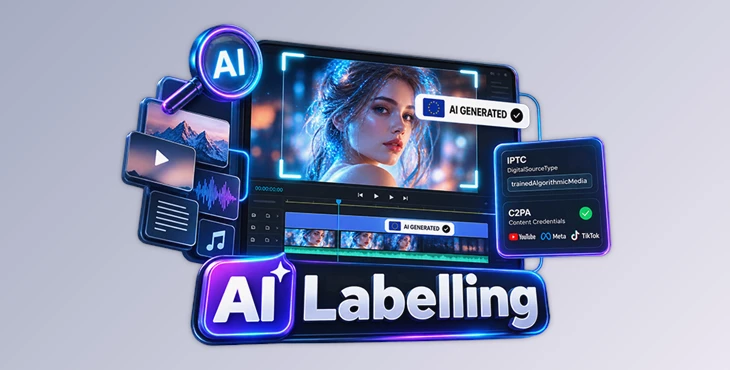
AI-generated content is becoming more common in videos, images, and other digital projects. But identifying which parts were created or modified using AI isn't always straightforward. AI Labelling by Aescripts helps you label AI content directly inside Adobe Premiere Pro and After Effects, without adding unnecessary steps to your editing process.
The tool lets you add visible AI labels to your videos, along with hidden information that supported platforms can read to identify AI content. It also comes with official EU Commission label designs, customizable badges, and tools to check clips for AI-related information.
Visible AI Labels and Machine-Readable Tags in One Tool
One of the main features of AI Labelling is that it handles two different types of AI identification together.
Visible labels appear directly on the video or image, making it clear to viewers that AI was involved in creating or modifying the content.
Machine-readable tags are embedded in the file's metadata. These tags help platforms such as YouTube, Meta, and TikTok identify AI-related content without relying only on what appears on screen.
AI Labelling supports IPTC Digital Source Type metadata, including the trainedAlgorithmicMedia value, as well as C2PA Content Credentials.
This approach is particularly helpful when preparing AI-assisted projects for publication, where both visible disclosure and file-level identification may be important.

Official EU AI Badges and Custom Designs
AI Labelling includes official European Commission label assets associated with AI content disclosure under the EU AI Act.
There are three badge types, each available in white and black:
| Badge | Purpose |
|---|---|
| AI Generated | Identifies content generated using AI |
| AI Modified | Identifies content modified using AI |
| AI Base | A basic badge that can be paired with your own text |
The different styles give you options for placing labels over light or dark footage.
You aren't limited to the included designs, either. AI Labelling lets you create a custom badge that matches your project's visual style or branding. Custom designs can also be saved as presets for later use.
This is helpful for creators who want consistent AI disclosure labels across multiple videos without using the same default design every time.
How AI Labelling Works
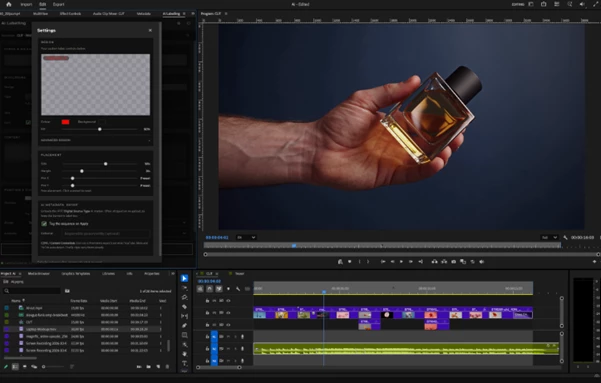
The plugin uses a single panel to handle the labelling process, from checking your content to preparing it for export.
The workflow consists of five steps:
Check: Determine whether the selected clip needs an AI label and which category applies.
Label: Choose an official EU badge or use a custom design.
Content: Specify the content type, such as video, image, music, voice, or text.
Place: Set the badge position, duration, and animation.
Export: Apply the label and write the appropriate tag when exporting.
The panel keeps these controls together, so you don't need to manage the visible badge and metadata as completely separate tasks.
Automatic AI Detection and Clip Scanning
AI Labelling also includes tools to help identify content that may need a label.
Its built-in scanning feature checks clip names, metadata, and C2PA information for signs of AI-generated or AI-modified material.
This can be helpful when working with projects containing a mixture of original footage and AI-assisted assets. Rather than relying entirely on manual inspection, you can use the scan to locate potentially relevant clips and review their labelling needs.
Badge Positioning, Timing, and Animation
AI Labelling provides several controls for how a badge appears in your project.
You can position labels using nine available placement options and adjust their timing to match the relevant section of your content.
The plugin also includes three animation styles:
Fade: Gradually reveals or hides the label.
Slide: Moves the label into or out of view.
Pop: Creates a more noticeable appearance effect.
These options let you choose how prominently the label appears without having to create a separate animation manually.
Non-Destructive Labelling
Another useful feature is how AI Labelling handles badges inside the editing project.
Labels are placed on their own track, keeping them separate from the original footage. The badge is burned into the final picture during export, while the master project remains clean.
This means you can adjust the label's appearance, position, or timing without permanently changing the source material.
Supported Adobe Software and Platforms
AI Labelling is designed for Adobe-based editing workflows and supports both Windows and macOS.
| Software | Support |
|---|---|
| Adobe Premiere Pro | Supported |
| Adobe After Effects | Supported |
| Adobe Photoshop | Coming soon |
The plugin covers different types of AI-related content, including video, images, music, voice, and text.
Its combination of on-screen badges and embedded metadata is particularly relevant for creators publishing AI-assisted content on social media and video-sharing platforms.
It's worth noting that AI Labelling provides disclosure tools and official EU Commission label assets, but it is not a substitute for legal advice or an independent assessment of compliance with the EU AI Act.
A Practical Way to Identify AI Content
AI Labelling brings several parts of AI content disclosure into one Adobe panel. Its main advantage is the ability to manage visible badges, clip checking, placement controls, and machine-readable tags within the same workflow.
If you work with AI-generated or AI-edited content, this tool makes it easier to add labels and get your files ready for export. You can also go back and make changes to your original project whenever you need to.

Files Password : gfxplugin.com OR 123456