Downloadable Files
You can download Check Mesh for Blender for free from the bottom of this page.
Find Topology Problems While You Model
When you're working on a 3D model in Blender, it's easy to miss small problems in the mesh. You might have overlapping vertices, faces that intersect, or edges that aren't connected properly. These issues aren't always visible, but they can cause trouble when you start sculpting, adding modifiers, or preparing your model for 3D printing.
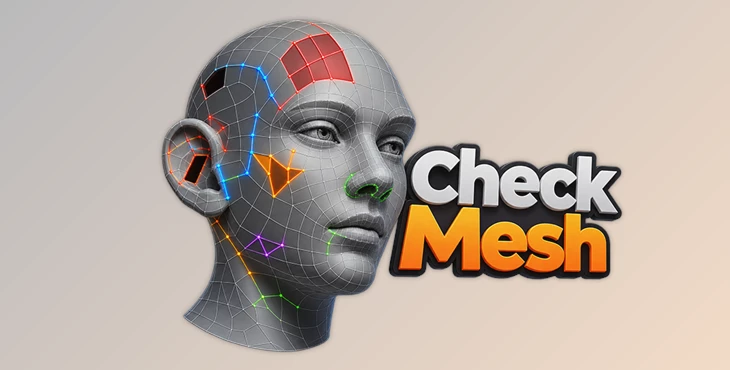
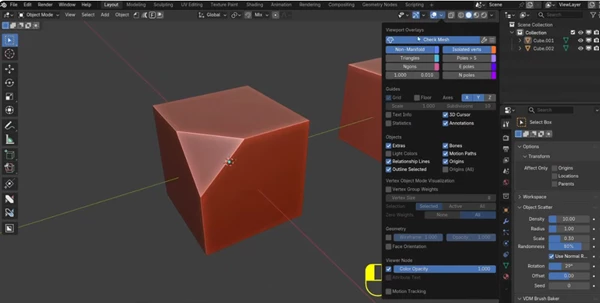
Check Mesh for Blender helps you spot problems in your 3D models while you work. It uses different colors to highlight issues right in the viewport, making it easy to see which areas need fixing.
The add-on works in Object, Edit, and Sculpt modes. You can leave it running while you model, turn individual checks on or off, and use its built-in tools to select or fix problem areas.
What Can Check Mesh Detect?
Check Mesh comes with 12 checkers that look for different types of mesh problems. Each one uses its own color in the viewport, making it easy to tell them apart.
Here's what it can find:
N-gons: Faces with more than four sides.
Triangles: Regular triangles and long, stretched triangles.
Non-manifold geometry: Open boundaries and edges or faces that don't form proper connections.
Intersecting faces: Parts of the mesh that pass through each other.
Overlapping geometry: Duplicate vertices, edges, or faces in the same place.
Non-flat faces: Quads and n-gons that aren't completely flat.
Complex poles: E-poles, N-poles, and vertices connected to six or more edges.
Bowties: Vertices where separate groups of faces meet incorrectly.
Isolated vertices: Loose points that aren't connected to the rest of the mesh.
UV seams: Edges where UV islands are separated.
Sharp edges: Edges marked as sharp.
Unapplied scale: Objects with non-uniform scale.
You can enable only the checks you need. For example, if you're cleaning up a model for 3D printing, you might want to focus on non-manifold edges and intersecting faces. If you're working with subdivision surfaces, n-gons and complex poles may be more important.
Fix Mesh Issues Without Leaving Your Workflow
Check Mesh doesn't just show you where problems are. It also includes tools to help you deal with them.
In the diagnostic panel, each checker has options to select the affected geometry and fix supported issues. This means you can find a problem, select it, and work on it without searching through the entire model.
There's also a Fix All option that repairs fixable issues across all selected meshes. Not every topology problem can be fixed automatically, but it can help with problems that the add-on knows how to repair.
Apply Scale Without Affecting Children and Modifiers
Check Mesh also watches for non-uniform scale.
When you select an object with this issue, the add-on warns you. You can then use Safe Apply Scale, which is designed to apply the object's scale while preserving its children and modifiers.
This is particularly helpful when you're working with objects that have several modifiers or are connected to other objects in the scene.
Fast Topology Checking, Even on Dense Meshes
Checking a large mesh can take time, especially when it contains hundreds of thousands of faces.
Check Mesh uses a compiled, multithreaded engine to analyze geometry. According to the developer, editing performance is around 11 times faster than with the earlier implementation.
The developer tested the checkers on a mesh containing 500,000 faces. Here are some of the reported results:
| Mesh Check | Analysis Time |
|---|---|
| N-gons | 3 ms |
| Overlapping geometry | 20 ms |
| UV seams | 22 ms |
| Non-flat faces | 16 ms |
| Intersecting faces | 78 ms |
| Complex poles and bowties | 23 ms |
| Non-manifold geometry | 12 ms |
| Triangles | 240 ms |
| Sharp edges | 1.2 ms |
These results come from tests on Windows using Blender 5.2. The actual speed will depend on your computer and the complexity of your model.
The important part is that you can keep checking your mesh while editing it, without having to stop and run a separate analysis every time.
Clear Viewport Feedback and Custom Colors
Check Mesh gives you a quick visual indication of your mesh's condition.
When you select a clean mesh, you'll see a short green flash. If the object has non-uniform scale, you'll get a red warning instead.
You can also change how the highlighted geometry looks.
The add-on lets you adjust the colors used for different checks, as well as point sizes, edge widths, and display offsets.
This is handy when your Blender theme or MatCap makes certain colors difficult to see. You can choose colors that stand out against your model without making the viewport too cluttered.
Easy Access Inside Blender
You don't need a separate window to use Check Mesh. Its controls are available in Blender's Overlays menu, and you can also place them in an N-panel tab.
If you use it often, you can add it to Quick Favorites or assign a keyboard shortcut to toggle it.
Since it works in Object, Edit, and Sculpt modes, you can check your mesh at different stages without changing how you normally work in Blender.
Where Is Check Mesh Useful?
Check Mesh can help with several types of 3D work.
Subdivision modeling: Find n-gons, complex poles, and uneven faces before they affect the shape of your model.
Game assets: Check geometry before exporting models to Unreal Engine 5 or Unity.
Retopology: Spot overlapping vertices, unwanted triangles, and other problems while rebuilding a mesh.
Sculpting: Keep an eye on topology issues while working in Sculpt mode.
3D printing: Look for open boundaries, intersecting faces, and non-manifold geometry before preparing a model for printing.
It's especially handy when you're working with models that have been edited many times or contain a lot of small details.
Blender Compatibility
Check Mesh supports Blender 4.2 and newer and works on:
Windows x64
Linux x64
macOS with Apple Silicon
macOS with Intel processors
Everything comes in one package, with no additional components to install.
Check Mesh is worth considering if you spend a lot of time checking and cleaning up topology in Blender. Having the problems highlighted while you model means you can catch them early, rather than discovering them after you've moved on to the next stage of your project.

Files Password : gfxplugin.com OR 123456