Downloadable Files
You can download Block Transition for free from the bottom of this page.
Create Eye-Catching 3D Transitions with Block Transition
Block Transition is a plugin for Adobe After Effects and Premiere Pro that helps you create 3D transitions between video clips. It uses cubes, rotating bars, and camera movements to turn a simple cut into something more interesting.
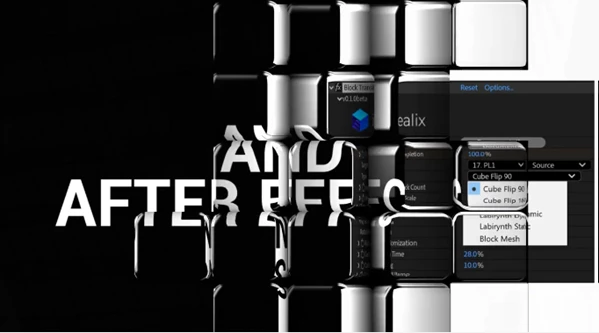
The plugin comes with five transition modes. You can make cubes flip to reveal the next shot, create a moving 3D tunnel, or have the camera travel through a group of floating blocks.
You can also change the size and number of cubes, add reflections, adjust their colors, and use motion blur for smoother movement.
Five Different Transition Modes
Block Transition gives you five ways to move between two clips. Each mode has its own look and settings.
1. Cube Flip
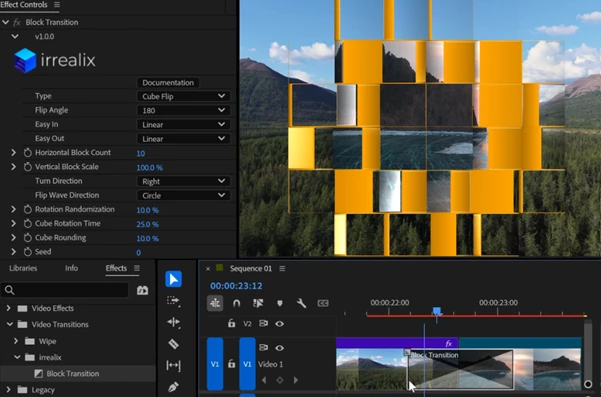
Cube Flip splits your video into a grid of small cubes. These cubes rotate to reveal the next clip.
You can choose between 90° and 180° rotations. With the 180° option, an extra side of each cube becomes visible, and you can give it any color you like.
There are also different ways to control how the cubes rotate. They can flip from one side of the screen to the other, spread out from the center, or move in a random pattern.
The plugin adds rounded edges, reflections, and shadows to make the cubes look more realistic.
2. Bar Flip
Bar Flip is similar to Cube Flip, but it uses long bars instead of small cubes.
The bars rotate 90° or 180° to reveal the next shot. It's a good choice when you want a simple geometric transition with larger shapes.
3. Labyrinth Dynamic
Labyrinth Dynamic creates a 3D tunnel made from cubes.
During the transition, the cubes stretch into a tunnel, and the camera flies through it. You can choose whether the camera turns left, right, up, or down.
You can also rotate the camera 90° clockwise or counter-clockwise.
At the end of the tunnel, another group of cubes appears. They move outward and then come together to form your next shot.
4. Labyrinth Static
Labyrinth Static creates a similar tunnel effect, but the cubes don't move.
Instead, the camera travels through a tunnel made of stretched blocks. This gives you a different look from the Dynamic mode, where the cube grid changes shape.
You can also use both Labyrinth modes together to create the feeling of flying through a long, connected maze.
5. Block Mesh
Block Mesh creates a transition using cubes placed at different positions in 3D space.
Your two video clips are projected onto the cubes from different directions. The camera then moves between these directions to reveal the next shot.
The cubes also have rounded edges and reflections, giving the transition more depth.
Main Features of Block Transition
Besides the five transition modes, Block Transition includes several settings that let you customize the effects.
Adjustable Cube Density: Change how many cubes appear in the transition.
Highlight Edges: Add colored edges to the cubes and adjust their thickness and opacity.
Motion Blur: Make fast cube rotations and camera movements look smoother.
Reflection Map: Add reflections and highlights to cube surfaces.
Reverse Motion: Reverse the direction of the transition animation.
Vertical Block Scale: Adjust the vertical size of the blocks.
GPU Acceleration: Get near real-time performance on most modern PCs and Macs.
Another useful feature is that the plugin keeps the first and last frames of your clips unchanged. The 3D animation only happens during the transition, so your footage looks normal before and after the effect.
How to Use Block Transition in Premiere Pro and After Effects
Block Transition works in both Adobe Premiere Pro and After Effects, but you can use it a little differently in each program.
Adobe Premiere Pro
In Premiere Pro, you can add Block Transition directly between two clips on your timeline.
Simply choose a transition mode, adjust the settings if needed, and set how long you want the transition to last.
You don't need to open After Effects or create a separate animation. Everything can be done inside Premiere Pro.
Adobe After Effects
In After Effects, you get access to the plugin's full creative controls.
You can customize the cube grid, change rotation patterns, adjust camera movements, and control reflections and other visual details.
This gives you more freedom when creating transitions for motion graphics or videos that need a specific visual style.
When Should You Use Block Transition?
Block Transition can work well in different types of video projects, including promotional videos, product showcases, motion graphics, and creative video edits.
For a quick transition between clips, Cube Flip or Bar Flip may be enough. If you want something with more movement, the Labyrinth modes let the camera travel through a 3D tunnel.
Block Mesh is another option when you want floating cubes and a stronger sense of depth.
Overall, Block Transition is a practical tool for editors who want more than basic cuts and fades. Its five modes offer different 3D effects, and you can adjust their appearance without having to build each transition from scratch.

Files Password : gfxplugin.com OR 123456