Downloadable Files
You can download AiBow Genkou by Aescripts for free from the bottom of this page.
Create Traditional Japanese Manuscript Layouts in After Effects
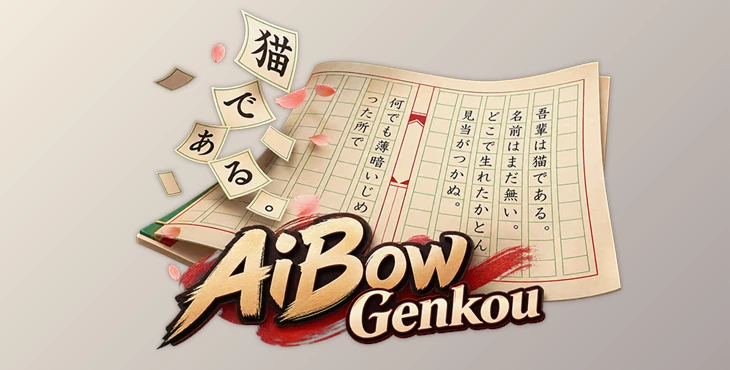
AiBow Genkou by Aescripts is an After Effects tool for creating Japanese manuscript paper, also known as genkou youshi. It draws a traditional writing grid directly inside After Effects and places your text into individual cells, with one character per cell.
You can write Japanese text vertically (tategaki) or horizontally (yokogaki), change the page layout, and animate the text in the correct reading order. The tool also handles Japanese character spacing and punctuation placement.
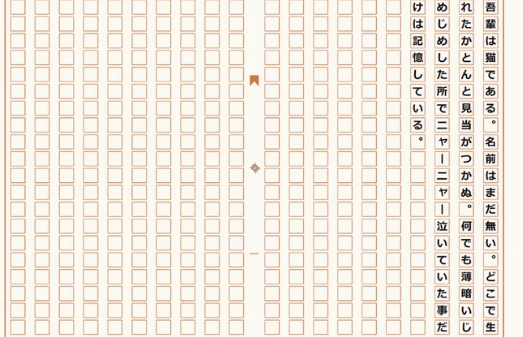
Customizable Japanese Manuscript Paper
AiBow Genkou starts with a standard 20 × 20 manuscript sheet, but you aren't limited to that layout. You can change the number of lines and cells per line to create different paper sizes and arrangements.
The main layout settings include:
Lines and Cells: Set the number of writing lines and characters per line.
Cell Gap: Adjust the spacing between individual cells.
Ruby Space: Control the extra space between lines for ruby text.
Gutter Width: Customize the center space of the manuscript.
Frame Margin: Set the distance between the writing grid and the surrounding edges.
Cell Size: Use automatic fitting or switch to a fixed cell size.
When you apply the effect to a solid layer, the manuscript automatically fits the layer dimensions. You can adjust the margin or disable Fit to Layer to work with fixed-size cells.
The paper background can fill the entire layer, cover only the manuscript sheet, or remain transparent. You can also choose how the generated paper is placed relative to the original layer.
Traditional Paper Details
The tool includes several details found on traditional Japanese manuscript sheets.
You can add a center gutter with a fishtail-shaped gyobi mark and center bar, choose between single and double frames, and customize the colors of the paper and grid lines.
The rules and frames use exact-area anti-aliasing to keep their edges smooth.
Vertical and Horizontal Japanese Writing
One of the main features of AiBow Genkou is its support for both Japanese writing directions.
| Writing Mode | Text Direction |
|---|---|
| Vertical (Tategaki) | Characters are arranged vertically, with writing starting from the right-hand line. |
| Horizontal (Yokogaki) | Characters are arranged horizontally, with writing starting from the top. |
You can switch between these modes using the Writing setting and clicking Generate again.
AiBow Genkou also includes Japanese typesetting features. It converts letters and digits to full-width characters and supports hanging punctuation through kinsoku handling.
These details help text follow Japanese manuscript conventions rather than simply placing characters inside a grid.
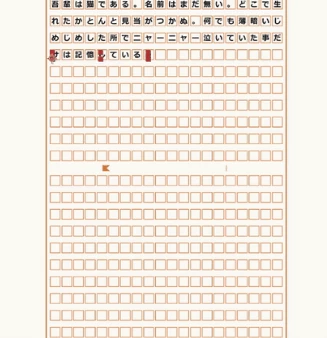
Generate Text Using Regular After Effects Layers
AiBow Genkou doesn't require you to build every line of text manually.
Write your content in an After Effects text layer, select that layer under Text Source, and click Generate. The tool places the characters into the manuscript cells automatically.
Each generated line becomes a regular After Effects text layer, parented to the manuscript sheet.
The generated text also inherits the font, fill, and stroke settings from the original source layer.
Because these are ordinary text layers, you can continue using After Effects text animators and effects on them. You aren't restricted to a flattened image or a single uneditable text element.
The Remove command deletes the generated text lines when you need to clear the layout or start again.
Animate Text in Japanese Reading Order
AiBow Genkou includes a Reveal animation that follows the manuscript's reading order.
Rather than creating individual keyframes for every character, you can control the animation through a single parameter.
The animation uses two main controls:
Reveal: Controls how much of the manuscript is visible, from 0 to 100.
Reveal Softness: Determines how many cells each fade spans.
To animate the writing, set a keyframe for Animation > Reveal at 0 and another at 100.
The cells then appear in the correct reading sequence for the selected writing direction.
This is particularly useful for animated Japanese text, manuscript-style titles, and motion graphics that need characters to appear progressively across the paper.
How to Use AiBow Genkou
The basic workflow takes four steps:
Create a solid layer and apply Effect > AiBow Tools > AiBow Genkou.
Select your existing text layer in the Text Source setting.
Adjust the manuscript layout and click Generate.
Animate Animation > Reveal from 0 to 100 if you want the text to appear gradually.
You can customize the grid, gutter, frame, and writing direction before generating the text.
If you change the writing direction, click Generate again to rebuild the text in the selected layout.
Compatibility and System Requirements
AiBow Genkou is designed for Adobe After Effects and supports the following Windows environment:
| Requirement | Details |
|---|---|
| Software | Adobe After Effects |
| Operating System | Windows 10 / 11 (64-bit) |
| Color Depth | 8, 16, and 32 bpc |
| Platform Limitation | Windows only |
The Windows-only limitation is important if you work with After Effects on macOS.
Where AiBow Genkou Fits Best
AiBow Genkou is particularly suited to projects that need the appearance of traditional Japanese manuscript paper.
It can be used for Japanese typography animations, educational videos about Japanese writing, manuscript-inspired motion graphics, and titles that use vertical or horizontal character arrangements.
Its main advantage is that the manuscript grid, text placement, and reveal animation are handled together inside After Effects.
And because the generated lines remain regular text layers, you can continue editing and animating them using familiar After Effects tools.

Files Password : gfxplugin.com OR 123456