Downloadable Files
You can download Summon for free from the bottom of this page.
Create AI Content Without Leaving After Effects
Working with AI-generated content often means switching between different tools, downloading files, and importing them back into your editing project. Summon brings AI image, video, and lipsync generation directly into Adobe After Effects through a native panel.
It supports more than 44 AI models, including Kling, FLUX, Seedance, MiniMax, Luma, and Ideogram. You can generate content using frames from your composition, review the results, and add them directly to your timeline.
Summon also includes tools for upscaling, reframing, and managing previous generations. Everything stays connected to your After Effects project, so you don't have to manage AI-generated files separately.
Generate AI Videos Directly From Your Composition
One of Summon's main features is its Animate tab, which lets you create AI-generated videos using frames from your After Effects composition.
The frame under your playhead becomes the starting point for the animation. You can also provide an end frame to guide how the scene should develop.
The process is straightforward:
Select your start frame and optional end frame → Choose an AI model and adjust its settings → Generate and review the video → Add the finished clip to your project or timeline
Once the generation is complete, the footage appears in the result window. You can add it to your project bin or place it on the timeline at the current playhead position.
There's no need to export reference frames manually or search through a downloads folder to find the finished video.
Access 44+ AI Models From One Panel
Summon includes a Model Manager that connects directly to fal.ai. It gives you access to different AI models without requiring a separate interface for each one.
Some of the supported models and services include:
Kling: AI video generation.
Seedance: AI video generation.
FLUX: AI image generation.
MiniMax: AI video generation.
HeyGen: AI lipsync generation.
Luma and Ideogram: Additional AI generation options.
Each model has its own settings and controls, so the available options depend on which model you select.
The Model Manager can also refresh its list directly from fal.ai. When compatible models become available, they can often be accessed without updating the Summon panel itself.
Another important detail is that Summon doesn't restrict model access to a fixed allowlist. This gives users more flexibility when working with models available through fal.ai.
Add Lipsync to Your Videos
Summon has a dedicated Lipsync tab for matching spoken audio with video footage.
You provide a video clip and an audio track, then choose a supported lipsync model to generate the result.
Services such as HeyGen, Sync, and VEED are available within the same panel.
This feature is particularly relevant when working with talking characters, dialogue scenes, or AI-generated videos that need synchronized speech.
After processing, the lipsynced clip can be added directly to your After Effects timeline, alongside the rest of your composition.
Keep Every AI Generation Organized
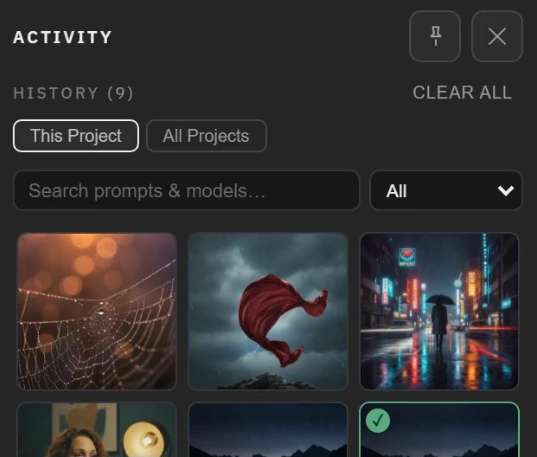
AI generation often involves creating several versions of the same shot before finding the right result. Summon keeps those generations organized through its Activity drawer.
Every generated result is saved in a folder next to your After Effects project file (.aep).
The Activity drawer stores information about each generation, including its prompt, selected model, and settings.
You can search through previous generations, filter them by project, and drag an earlier result back into the input slots when you want to reuse it.
Summon also preserves generation history when a project is renamed, helping you keep track of previous work without losing access to earlier results.
Upscale and Reframe Your Footage
Summon includes finishing tools for adjusting generated content and existing composition layers.
Upscaling
You can upscale generated results or composition layers directly through the panel.
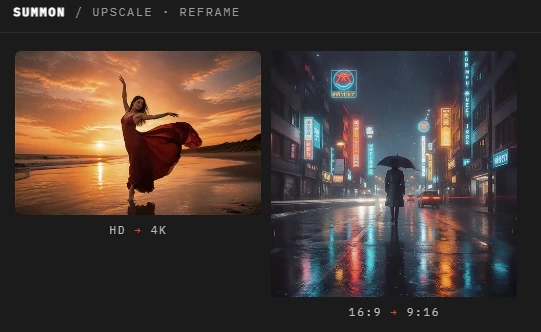
Summon supports 4K upscaling through compatible Topaz applications installed on your computer or through cloud-based processing.
This is helpful when you have a lower-resolution result that needs to be prepared for a higher-resolution composition.
AI Reframing
The Reframe feature changes a video's aspect ratio by using AI to reconstruct the scene rather than simply cropping the existing frame.
For instance, you can convert a 16:9 widescreen shot into a 9:16 vertical format. The model generates additional scenery where necessary to fit the new composition.
The reverse is also possible, allowing vertical footage to be adapted for widescreen projects.
You can review the output using Summon's built-in player before placing it on the timeline.
Project History and Generation Usage
Summon also provides information about the resources used for each AI generation.
Before starting a generation, the panel displays an estimated processing cost based on the selected model and settings. Afterward, it records the actual amount reported by fal.ai.
Usage information is available for individual projects and across your work, with an option to export the spend log.
Summon connects through your own fal.ai API key, so a configured fal.ai account is required for AI generation. The panel itself does not provide the processing resources.
Is Summon Worth Using?
Summon is particularly suited to After Effects users who work with AI-generated images, animated shots, and lipsynced videos.
Its main advantage is the connection between AI generation and the After Effects timeline. You can use frames from an existing composition, generate new footage, and bring the result back into the same project without a separate export-and-import process.
The combination of multiple AI models, searchable generation history, and built-in finishing tools makes Summon a practical option for keeping AI-assisted video production in one workspace.

Files Password : gfxplugin.com OR 123456