Downloadable Files
You can download HueCrafter Film Engine for free at the bottom of this page.
Bring the Look of Film Into Your Digital Footage
Creating a convincing film look involves more than adding a color preset. Film has its own way of handling contrast, highlights, skin tones, grain, and color density. Recreating all these details in digital footage often requires several color grading nodes and careful adjustments.
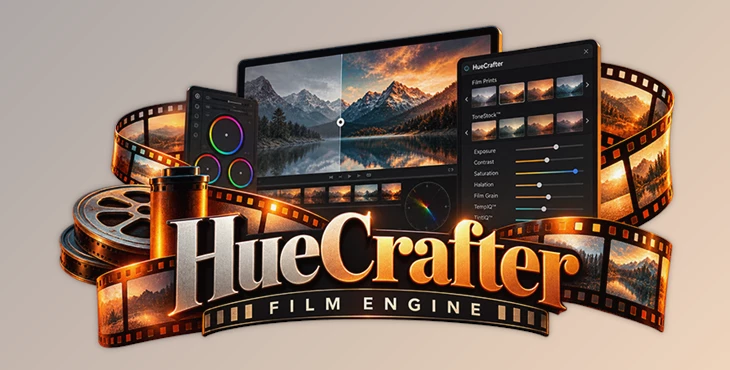
HueCrafter Film Engine by HueCraft brings these controls together in a single OFX plugin for DaVinci Resolve Studio. It combines film emulation, color grading, and analog texture effects, giving filmmakers and colorists more control over the final image without building a complicated node tree.
The plugin includes 20 film prints, customizable tonal profiles, Technicolour-inspired colour, photochemical exposure controls, and realistic film textures. You can start with a film print and then adjust its appearance to match the mood of your footage.
Build Your Film Look With Prints, ToneStock, and Technicolor
HueCrafter uses a layered approach to film emulation. Rather than relying on one fixed look, it lets you combine different color and tonal characteristics.
20 Film Prints
The engine includes 20 film prints, each designed with its own color response, contrast, and visual character.
These prints provide a starting point for creating different cinematic styles. You can choose a print based on the appearance you want and refine the result using the engine's additional controls.
ToneStock™
ToneStock adds another layer of tonal customization to the selected film print.
It includes profiles such as Neutral, Velvet, Onyx, and Noir, allowing you to change the tonal character without replacing the entire film look.
This separation between film prints and tonal profiles gives you more flexibility when shaping the image.
Technicolor 4
Technicolor 4 introduces rich, dimensional color inspired by the Technicolor process.
Its adjustable intensity lets you blend this color treatment into your existing grade, creating a more distinctive look while maintaining control over the result.
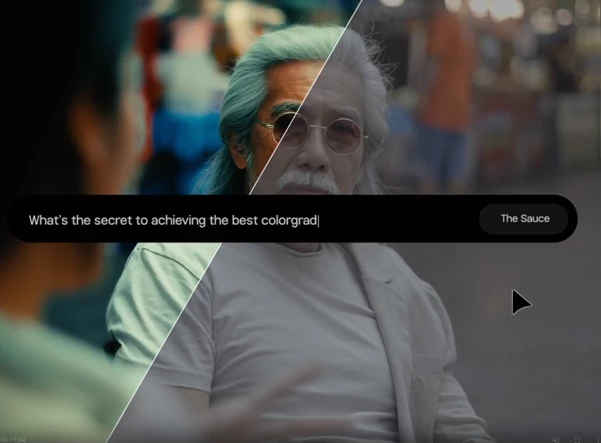
Control Exposure, Color, and Film Density
Beyond its film prints, HueCrafter Film Engine includes several tools for adjusting how footage responds to light and color.
Tool | What It Does |
|---|---|
ExpoDrive™ | Adjusts exposure while preserving natural color and highlight detail. |
TempIQ™ / TintIQ™ | Controls color temperature and tint for more natural color balancing. |
SkinLock™ | Helps protect skin tones and maintain their natural appearance during grading. |
Photochemical Push/Pull | Simulates exposure and tonal responses inspired by traditional film development. |
Tonal Architecture | Controls density, contrast, saturation, and tonal compression. |
These controls are particularly important when working with footage that needs both creative color adjustments and consistent skin tones.
For more detailed color work, HueCrafter also includes two additional tools:
Split-Toning: Separates color treatment between shadows and highlights, with controls for intensity, hue, and sky recovery.
Printer Lights: Provides individual red, green, and blue adjustments, along with Neutral Recovery for balancing the image.
Together, these features let you shape the color and tonal response of footage beyond the appearance of the original film print.
Add Authentic Film Texture and Optical Effects
Film emulation isn't only about color. The texture of the image and the way light behaves also contribute to its appearance.
HueCrafter includes several effects designed to recreate these characteristics.
Film Grain and Halation
The 1:1 Algorithmic Film Grain system offers several film-inspired grain options:
Clean 35mm
Kodak 35mm
Fuji 35mm
Kodak 16mm
Fuji 16mm
Super 8
These options let you select a grain character that suits your footage, from cleaner 35mm-style textures to more noticeable Super 8 grain.
The Halation effect recreates the warm glow that appears around bright areas in photochemical film. Its Range, Intensity, and Clarity controls let you adjust how strongly this glow affects the image.
Radial Blur and Vignette
HueCrafter also provides optical effects for controlling the viewer's attention.
Radial Blur creates organic softness toward the edges of the image while preserving a sharper optical core. You can adjust its intensity and the size of the sharp central area.
The Vignette controls let you darken or shape the outer areas of the frame using Amount, Focus Size, Softness, and Shape settings.
These effects can be used separately or alongside the film emulation controls to develop a more complete cinematic look.
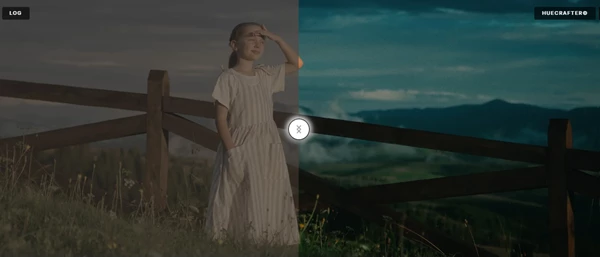
Camera and Log Profile Compatibility
HueCrafter Film Engine supports a wide range of camera inputs and color management profiles, helping you work with footage from different camera systems.
Supported inputs include:
ARRI: LogC3 and other supported camera profiles
Apple: Apple Log 2
Blackmagic Design
Canon
DJI
Fujifilm
Nikon
Panasonic / Lumix
Phantom
RED
Sony
ACES / ACEScct
DaVinci Wide Gamut
Cineon Log
Rec.709
This broad input support is helpful when a project contains footage recorded with different cameras or color profiles.
Software Compatibility
HueCrafter is an OFX film emulation plugin designed for DaVinci Resolve Studio.
It supports both Windows and macOS, with its film prints, color controls, and texture effects available through the plugin's integrated interface.
A Complete Film Look Without a Complex Node Tree
One of the main advantages of HueCrafter Film Engine is how it organizes different parts of film emulation.
Film prints, tonal profiles, exposure adjustments, skin tone protection, grain, halation, and optical effects are all accessible within one engine.
For colorists working on cinematic footage, this provides a practical way to develop detailed film-inspired looks while keeping the grading process more organized.
Rather than functioning as a simple collection of LUTs, HueCrafter Film Engine offers a customizable system for shaping the color, tone, and texture of digital footage inside DaVinci Resolve Studio.

Files Password : gfxplugin.com OR 123456