Downloadable Files
You can download Drop2Floor for free from the bottom of this page.
Put Cinema 4D Objects Exactly Where the Floor Begins
Placing objects precisely on the ground in Cinema 4D can require extra adjustment, especially when an object's geometry or hierarchy makes its lowest point difficult to identify. Drop2Floor handles this placement in a single operation. The plugin takes a selected object or hierarchy, finds its lowest point, and moves it directly to the top of the workplane without leaving the geometry intersecting the ground.
It works with polygons, primitives, generators, deformers, splines, caches, and object hierarchies, allowing the same placement method to be used across different types of Cinema 4D objects.
Drop Objects Directly to the Floor
The main function of Drop2Floor places selected objects on the world floor at Y=0. Rather than relying only on the object's axis position, the plugin detects the lowest point of the relevant geometry and uses that point for placement.
Its geometry detection can work with polygon objects, splines, caches, and deformer caches. When both polygon geometry and splines are available, polygon geometry is preferred for the calculation.
The plugin also accounts for scene structure when determining the lowest point. Hidden and disabled objects are skipped, along with boolean-child and volume-mesher-child objects. This keeps geometry that should not participate in the calculation from affecting the resulting floor position.
Multiple selected objects can also be processed in a single operation rather than requiring each object to be handled separately.
Axis to Floor Mode
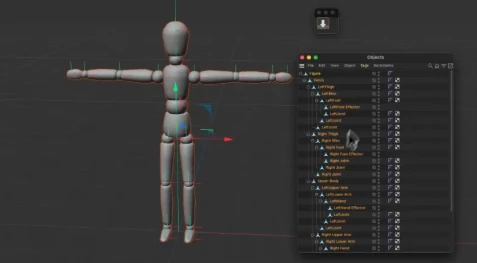
Drop2Floor is not limited to moving geometry. Using Shift + Click activates Axis to Floor Mode, which moves the axis of an object or group to its lowest point.
This provides a ground-level axis that can be useful when placing or scaling an object relative to the floor. For groups built around null objects, the plugin can move the null to the bottom of the group while keeping its children visually in their existing positions.
The distinction between the standard operation and Axis to Floor Mode is straightforward:
Standard operation: moves the selected object or hierarchy onto the floor.
Shift + Click: moves the object or group axis to its lowest point.
Use Any Surface as a Custom Floor
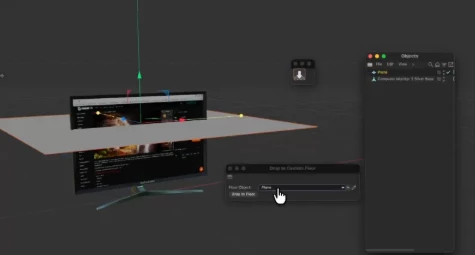
The world floor at Y=0 is not always the surface an object needs to sit on. Drop2Floor therefore includes a Custom Floor Mode for positioning objects relative to another surface.
Using Alt + Shift + Click on the plugin icon opens a window where a custom floor object can be assigned. After the floor is specified, selected objects can be placed above that surface using the Drop To Floor button in the dialog.
This expands the workflow beyond basic world-floor placement. A surface in the scene can effectively become the new floor, while the plugin continues to handle the positioning of the selected objects relative to it.
Handling Object Hierarchies and Complex Scenes
Drop2Floor can operate on individual objects as well as complete object hierarchies. Its lowest-point detection is designed to work across several forms of Cinema 4D geometry rather than being restricted to editable polygon objects.
The plugin supports:
Polygon objects
Primitives
Generators
Deformers and deformer caches
Splines
Cached geometry
Object hierarchies
Multiple selected objects
For larger scenes, Drop2Floor displays progress feedback in the Cinema 4D status bar while processing the operation. This provides visible feedback when calculations involve more complex scene data.
Cinema 4D Compatibility
Drop2Floor supports Cinema 4D 2024, 2025, and 2026 on both Windows and macOS.
Its focused workflow makes it suitable for situations where objects need to be aligned accurately with the world floor or another chosen surface, while Axis to Floor Mode provides an additional way to establish a useful ground-level pivot for subsequent placement and scaling.

Files Password : gfxplugin.com OR 123456