Downloadable Files
You can download FixPitch for free from the end of this page and use it on both Windows and macOS.
FixPitch by Aescripts
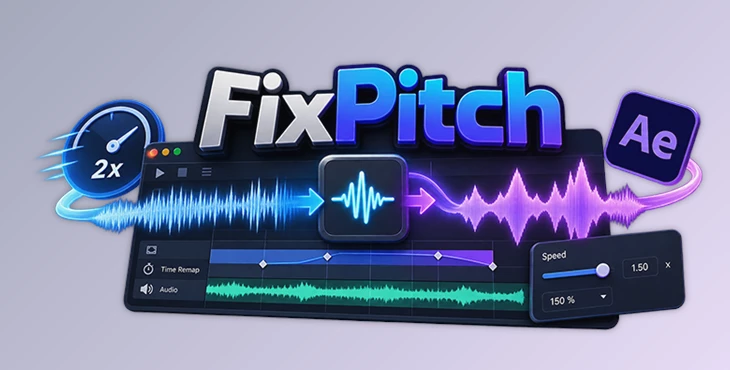
Changing the speed of a clip in After Effects can create an obvious audio problem: speeding it up raises the voice into a high-pitched sound, while slowing it down produces an unnaturally deep result. FixPitch is designed specifically to correct this issue inside After Effects, preserving natural audio pitch after Time Stretch or Time Remap changes.
Rather than requiring the audio to be sent to another application for pitch correction, FixPitch processes it through FFmpeg and returns the corrected audio directly to the composition. It supports straightforward speed changes as well as more complex animations involving multiple Time Remap segments.
Automatic Pitch Correction for Speed Changes
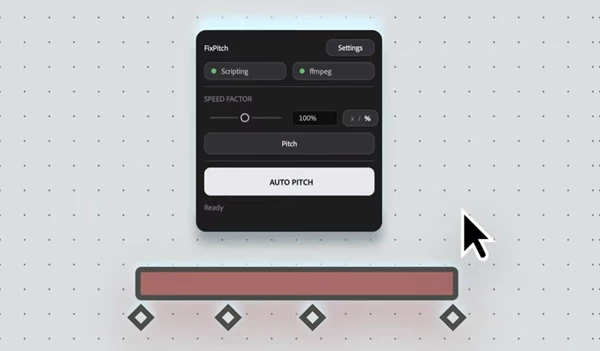
The core function of FixPitch is its One-Click Auto Pitch system. The script reads the selected layer's Time Stretch or Time Remap settings, determines the appropriate speed factor, and applies the necessary pitch correction automatically.
There is no need to calculate the speed multiplier manually when using this mode. The correction is based directly on the timing configuration already applied to the layer.
This addresses a limitation in After Effects' native audio processing. After Effects does not provide the dedicated time-stretching audio processing required to change playback speed while preserving the original pitch. FixPitch uses FFmpeg for that calculation and brings the processed result back into the project.
Multi-Segment Time Remap Support
FixPitch is not limited to clips running at one constant altered speed. It can also process Time Remap animations containing multiple keyframes and speed segments.
For this type of layer, the script treats each section between Time Remap keyframes individually. Each segment receives its own pitch correction according to its speed, and the processed sections are then joined into a single audio track.
This makes the script suitable for speed ramps where playback speed changes several times within the same layer rather than remaining at a fixed value throughout the clip.
Manual Speed Control
Automatic detection is not the only processing option. FixPitch includes a Manual Override Mode for situations where the correction should not follow the layer's actual Time Stretch or Time Remap values.
The manual controls include both a slider and numeric input. Speed can be entered as either:
A multiplier using x
A percentage using %
This provides direct control over the speed factor used for audio processing and can also be used for creative adjustments or fine-tuning independently of the layer's timing configuration.
Processing Audio from Precomps
Audio does not have to exist directly on the active composition's source layer. FixPitch also supports sources located inside nested compositions.
When the required audio comes from a precomp, the script automatically renders the precomposition before processing it. This removes the need to manually pre-render the nested composition before running pitch correction.
Non-Destructive Audio Handling
FixPitch keeps the original source intact during processing. Rather than deleting or modifying the original audio, it mutes the source layer's audio and works with the corrected result separately.
Because the original remains available, you can compare it against the processed audio or return to the original whenever necessary.
The processing pipeline uses lossless PCM WAV for intermediate audio files. For the final output, there is also an optional 320 kbps MP3 export.
File Management and Readiness Checks
Audio processing creates intermediate and output files, so FixPitch includes file-management features to keep them organized. Output files can be stored automatically next to the After Effects project or placed in a custom folder.
Temporary processing files are cleaned up automatically.
The interface also provides built-in readiness indicators for two requirements that affect whether processing can run:
After Effects scripting permissions
FFmpeg availability
These checks make it possible to identify a missing requirement before starting the operation rather than discovering the problem during processing.
FFmpeg Requirement
FFmpeg is required to use FixPitch and is not bundled with the script. It must be installed separately as a one-time setup. FFmpeg is available for both Windows and macOS, and a step-by-step installation guide is included with FixPitch.
The dependency exists because pitch-preserving speed adjustment requires dedicated time-stretching processing that After Effects' native audio engine does not provide. FixPitch passes the required audio processing to FFmpeg and then returns the pitch-corrected audio to the After Effects composition.
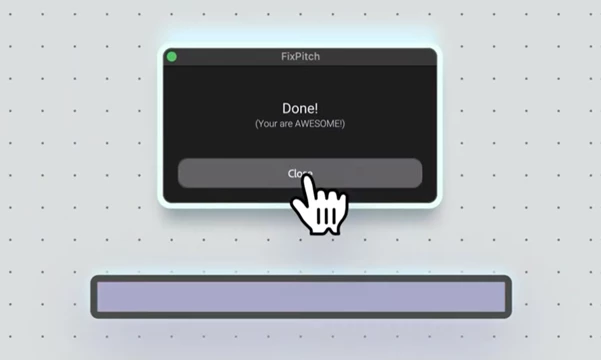
Once FFmpeg and the required permissions are set up, using FixPitch is pretty simple:
Change the clip speed → Run FixPitch → Let it detect the speed or enter it manually → Process the audio → Get the corrected audio back in After Effects
Most of the process happens right inside After Effects, so you don’t have to keep switching between different apps.
For editors and motion designers who regularly change playback speed directly in After Effects, FixPitch provides a focused solution to the resulting pitch problem while supporting everything from simple Time Stretch adjustments to multi-segment Time Remap setups.

Files Password : gfxplugin.com OR 123456