Downloadable Files
You can download EUNTES for free from the bottom of this page.
EUNTES by Aescripts
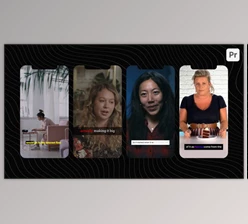
Long-form recordings often contain several short passages that can work independently as social media clips, but finding those moments, reframing them, creating subtitles, and preparing supporting text involves multiple separate steps. EUNTES brings those tasks together inside Adobe Premiere Pro, analyzing a recording and turning selected moments into editable vertical sequences.
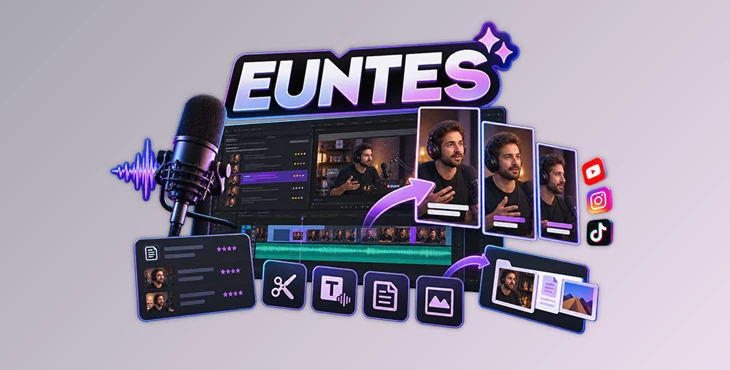
Designed for podcasts, streams, interviews, and talks, EUNTES can transcribe a recording, identify passages that work on their own, create portrait clips, generate editable subtitles, prepare social media text, and even suggest cuts for the original long-form recording. Its tools can be run as a complete workflow or opened individually when only a specific task is needed.
Find Strong Moments in Long Recordings
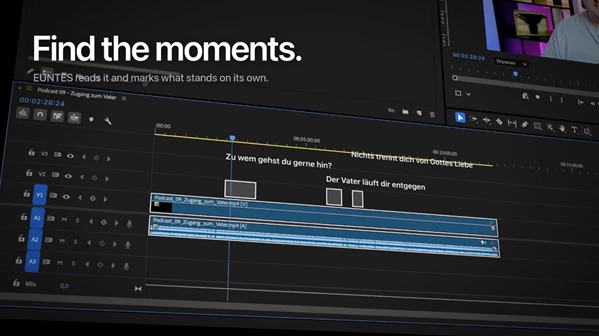
The MomentPicker tool reads the entire recording and suggests passages that could work as standalone clips. Rather than simply splitting the recording at fixed intervals, it evaluates individual passages and gives each suggestion a rating.
Every suggested moment includes its rating, timecode, quote, and an explanation of why the passage works. The start and end points are placed on sentence boundaries, helping each suggestion remain understandable when separated from the full recording.
You can control both the desired clip length and the number of moments EUNTES should find.
If the initial suggestions are not enough, MomentPicker can search for additional moments in portions of the recording that have not already been used, without requiring a second transcription.
From Selected Moment to Vertical Sequence
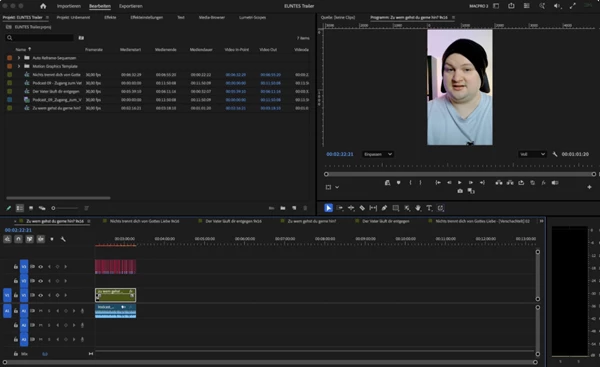
Once you choose a moment, EUNTES creates a separate 1080 × 1920 vertical sequence from the master timeline. The selected section is cut from the source sequence and reframed for portrait presentation.
Each generated clip remains a normal sequence inside the Premiere Pro project. You can trim it, delete it, or continue editing it using the regular Premiere Pro workflow.
Subtitles are placed on their own track rather than being permanently embedded into the video, keeping the resulting clip editable.
The core process can therefore move directly from:
Recording → Transcription → Moment Selection → Vertical Sequence → Editable Subtitles
This structure is particularly suited to turning a long podcast, stream, interview, or talk into multiple short-form clips without moving the content through several separate tools.
Editable Subtitle Creation
EUNTES generates subtitles directly in the Premiere Pro timeline as Motion Graphics templates, with one template for each subtitle line. The currently spoken word can run along in a selected colour.
Subtitle timing and presentation can be adjusted through several controls:
Fast, medium, or calm pacing
Characters per subtitle
Maximum subtitle duration
Ten included typefaces
Support for your own subtitle templates
Because the subtitles remain editable Motion Graphics elements, their appearance and placement can continue to be adjusted after the initial generation.
Straight2Social Content for Each Clip
EUNTES does more than create the video sequence. Its Straight2Social workflow prepares accompanying material for each generated clip.
For every clip, it can create a title, YouTube description, Instagram caption, and hashtags in the language of the original recording. The generated text remains editable, and alternative titles can be provided to choose from.
EUNTES can also create a title image using a still from the sequence in both 16:9 and 9:16 formats.
When a clip is ready, the Prepare for upload function places the video, generated text, and cover material together in one folder. This keeps the media and its related publishing assets grouped for the next stage of the workflow.
AI Cut for Cleaning Up Recordings
The AI Cut tool analyzes the recording for sections that may be candidates for removal, including slips, filler words, and long pauses.
Suggested cuts are presented for review rather than being applied blindly. You select the items you want removed, and EUNTES performs those edits on a copy of the sequence, leaving the original sequence untouched.
The suggestions include information such as the cut type, timecode, certainty, and reason, giving you context before deciding which changes to apply.
Preparing the Full Episode
The workflow is not limited to short vertical clips. EUNTES can also prepare supporting content for the complete long-form episode.
For YouTube, it can generate a title, description, chapter marks, and hashtags for the full recording. A trailer can also be assembled from the strongest short moments and used to open the episode.
This connects the short-form and long-form workflows: the same recording can be analyzed for shareable clips while also producing material intended for the complete episode.
Modular or End-to-End Workflow
The EUNTES panel includes dedicated areas for Moments, Texts, YouTube, Trailer, Subtitles, and Cuts, along with an option to run the entire workflow.
That means the tools do not have to be used in a fixed sequence every time. You can run the complete process when preparing a recording from beginning to end or open an individual tool when, for example, you only need subtitles, suggested cuts, or social text.
Compatibility and Important Requirements
EUNTES is currently designed for Adobe Premiere Pro on macOS. A Windows version is not currently available, although one is planned.
The AI analysis also requires the user to provide their own Anthropic API key. Anthropic handles the AI analysis used by the tool directly, so access to that API is a technical requirement for the AI-powered parts of the workflow.
For Premiere Pro users who work with podcasts, interviews, streams, and talks, EUNTES brings several parts of the editing process into one panel. It can analyze long recordings, help select useful clips, create vertical sequences, generate subtitles and social media text, clean up recordings, and prepare complete episodes. The created sequences and content remain editable, so you can easily adjust them when needed.

Files Password : gfxplugin.com OR 123456