Downloadable Files
You can download OMNIX Translator for InDesign for free from the end of this page.
OMNIX Translator for InDesign by Aescripts
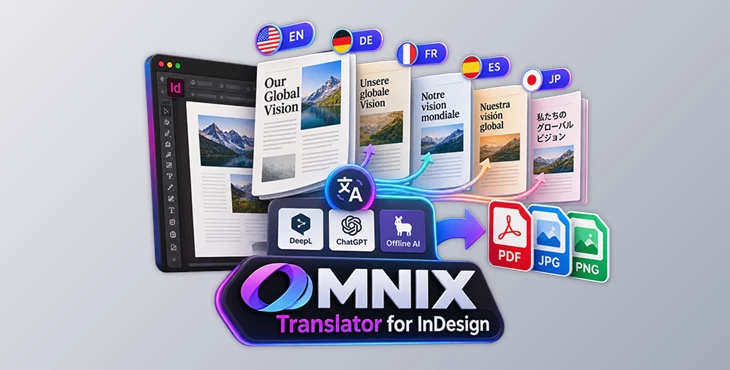
Producing the same InDesign document in multiple languages can quickly turn into a repetitive workflow. Text has to be translated, placed into the correct frames, checked across different language versions, and then exported again for every required output. OMNIX Translator for InDesign brings translation and multilingual batch exporting directly into Adobe InDesign, reducing the need to move content back and forth between separate tools.
The tool can translate an entire InDesign document into multiple languages using DeepL, ChatGPT, or Private Offline AI. Once the translated versions are ready, they can also be batch exported as PDFs or images from the same workflow.
Translation Directly Inside Adobe InDesign
A major part of the OMNIX workflow is keeping translation inside InDesign. In a conventional process, designers may need to copy text from a document, open an external translation or AI tool, translate the content, return to InDesign, and paste the result into the appropriate text frame.
Repeating this across many text frames and languages creates several opportunities for manual errors. Content may be missed, pasted into the wrong frame, or mixed between different language versions.
OMNIX Translator loads InDesign text into its editor, processes the translation, and can inject the translated content back into InDesign text frames. This creates a more direct workflow for documents containing large amounts of multilingual content.
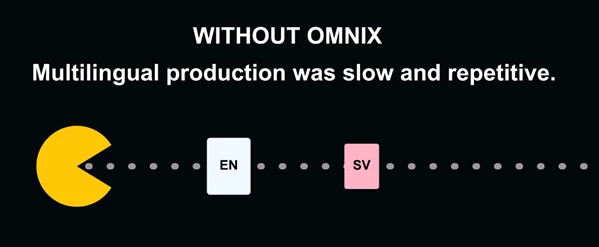
The difference becomes more significant as document and language counts increase. A 20-page document translated into five languages represents 100 translated pages, while a 100-page project across 20 languages represents 2,000 translated pages. OMNIX is designed to handle this type of multilingual production without requiring the same copy-and-paste process for every version.
Three AI Translation Options
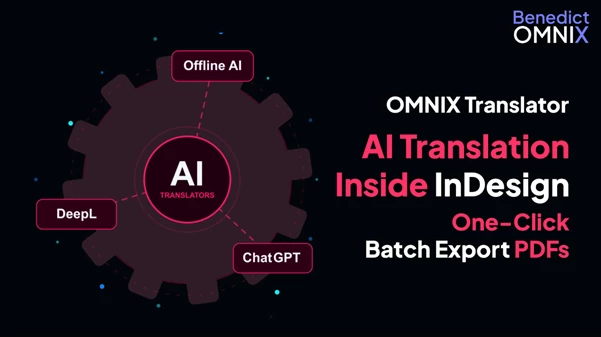
OMNIX Translator for InDesign does not limit the workflow to a single translation service. It provides three translation methods, allowing the translation approach to be selected according to the project.
DeepL
DeepL integration is intended for natural, professional translation, including corporate multilingual content. OMNIX connects to the DeepL API so translation can be performed as part of the InDesign workflow.
ChatGPT
The ChatGPT option provides prompt-powered AI translation through the OpenAI API. This gives users an AI-based translation method directly within the OMNIX workflow instead of requiring text to be manually transferred to an external AI interface.
Private Offline AI
For documents where text should not be exposed online, OMNIX also supports local translation through Private Offline AI. This option works with Ollama-compatible models and processes the translation locally.
The three approaches therefore cover different requirements:
DeepL: high-quality translation through the DeepL API
ChatGPT: flexible, prompt-powered translation through the OpenAI API
Private Offline AI: local translation with Ollama-compatible models
Translating Multiple Language Versions Together
OMNIX is designed around multi-language production rather than translating only one piece of text at a time. Target languages can be selected and organized into language groups before the document text is loaded for translation.
The basic workflow can be represented as:
Select Target Languages → Build Language Groups → Load InDesign Text → Select AI Translator → Translate Text → Inject Translation into Text Frames
This approach is particularly relevant when one source document needs to be prepared for many markets or audiences. Instead of treating every translated document as a completely separate translation task, multiple language versions can be managed within the same production process.
Batch Export Multilingual PDFs and Images
Translation is only one part of multilingual document production. Once different language versions have been prepared, each one still needs to be exported and named correctly.
OMNIX addresses this stage with batch export capabilities. Multiple translated language versions can be exported together rather than requiring a separate manual export for each document.
Supported export options described for the tool include:
PDF
JPG
PNG
Files can also be named according to the user's requirements during the batch export process.
This becomes particularly important when changes are made late in production. If a finalized document has dozens or even 100 language versions, a small revision could otherwise require every version to be exported again individually. With OMNIX Translator for InDesign, the language versions can be batch exported again directly from InDesign.
Reducing Repetitive Multilingual Production Tasks
OMNIX combines two parts of the localization process that can become especially repetitive at scale: translating InDesign content and exporting the resulting language versions.
Rather than using a workflow built around repeated copying, application switching, pasting, naming, and individual exports, the tool keeps these operations connected inside InDesign. This also reduces common manual problems such as missing content, mixing languages, pasting translated text into an incorrect frame, using an incorrect filename, or forgetting to export one of the required versions.
For production agencies working with large numbers of multilingual documents, this can simplify projects involving hundreds or thousands of translated pages. The same workflow can also be used by individual designers who only need to prepare a smaller number of localized layouts.
The combination of DeepL, ChatGPT, and Private Offline AI translation with multilingual PDF and image batch exporting is what defines OMNIX Translator for InDesign as more than a standalone translation interface. It covers both translation and the repetitive output stage that follows it, while keeping the process directly connected to Adobe InDesign.

Files Password : gfxplugin.com OR 123456