Downloadable Files
You can download MagicMorphing for free from the end of this page.
MagicMorphing by Aescripts
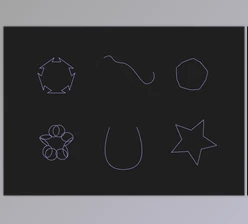
Shape morphing in After Effects can go wrong even when both shapes and their keyframes are set up correctly. Path points may be matched in the wrong order or direction, causing parts of the shape to cross over each other and creating a twisted transition. MagicMorphing by Aref Nashawi is designed specifically to correct this problem.
The tool automatically aligns path vertices between keyframes while preserving the shapes, keyframe timing, and easing you have already created. Instead of rebuilding the animation, you select the relevant Path keyframes and let MagicMorphing correct how their points correspond.
Fix Twisted Shape Morphing in After Effects
MagicMorphing focuses on the relationship between path points across different keyframes. During a shape morph, the shapes themselves may be correct, but individual vertices can take the wrong route from one form to another.
The plugin corrects three important aspects of that relationship: point order, path direction, and the first vertex. Aligning these elements creates a smoother and more accurate transition without the unwanted twisting caused by incorrect point matching.
Importantly, this correction does not replace the animation decisions you have already made. Existing keyframes remain in their original positions, and their easing is preserved.
Select, Align, and Preview
The MagicMorphing workflow takes place directly inside Adobe After Effects through a compact panel.
The process is straightforward:
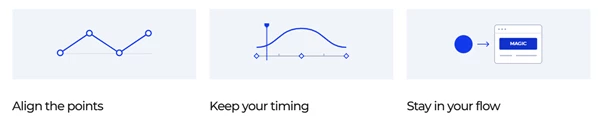
Select Path Keyframes → Click MAGIC → Preview the Transition
First, select at least two keyframes on a Path property. Selecting only the layer is not enough; the Path keyframes themselves need to be selected.
Next, click the MAGIC button. MagicMorphing analyzes the selected paths and aligns their vertices between the keyframes.
You can then preview the animation to see how the corrected point matching affects the transition. Because the existing timing and easing remain intact, the result can be evaluated within the animation you already built rather than requiring a new setup.
Standard and Complex Path Modes
MagicMorphing provides two approaches depending on the complexity of the contours being matched.
The standard mode is intended as the starting point and keeps point counts low. For more detailed shapes that require denser contour matching, Complex Path can be enabled.
Complex Path may add vertices to the existing path so that detailed contours can be matched more effectively. It does not create additional Path properties or extra layers.
This distinction gives you control over how the plugin handles different types of shapes: simpler paths can retain a lower point count, while more detailed contours can use additional vertices when necessary for the morph.
Restore the Original Path with Undo
The panel also includes an Undo control for returning to the state before a successful MAGIC operation.
MagicMorphing saves the previous path values and point counts, allowing them to be restored directly from the panel. This is particularly relevant when Complex Path has increased the number of vertices, and you want to return to the original configuration.
The Undo history remains available during the current panel session. There is also an important limitation: edits made to those keyframes after running MAGIC can prevent the saved state from being restored.
A Focused Panel Inside After Effects
MagicMorphing keeps its workflow inside a compact After Effects panel rather than requiring a separate process outside the application. Its main interface brings together the MAGIC, Complex Path, Undo, and help controls.
MagicMorphing doesn’t change your shapes or the animation you’ve already made. It simply fixes how the points of one shape match up with the next, helping prevent strange twists or unwanted movement during a morph.
If you often animate shapes and paths in After Effects, it can make these transitions much easier to fix while keeping your original keyframes, timing, and easing unchanged.

Files Password : gfxplugin.com OR 123456