Downloadable Files
You can download CompResizer for free from the bottom of this page.
CompResizer by Aescripts
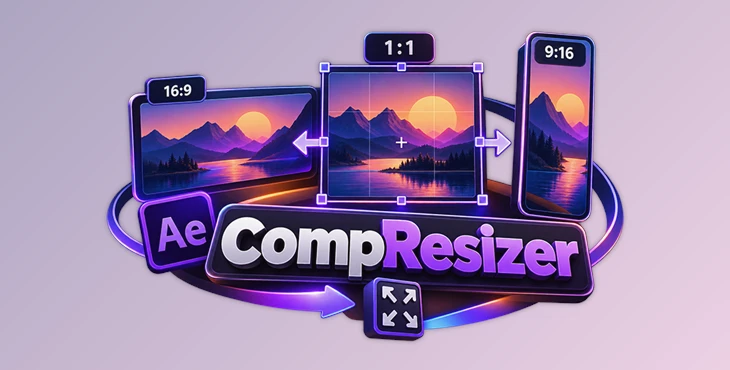
Reframing an existing After Effects composition for a different aspect ratio can create an immediate layout problem. Simply changing the composition dimensions does not reposition the layers, which can leave parts of the original design outside the new frame. CompResizer handles this process by automatically repositioning and rescaling every layer to match the new composition size.
It can convert compositions between vertical, square, widescreen, and custom formats without requiring responsive rigs, expression controllers, layer pre-tagging, or rebuilt precomps.
Reframe Existing After Effects Compositions
CompResizer is designed to work directly with existing compositions, including projects created previously without any special preparation. Select a composition, choose the new dimensions, and the tool adjusts its layers for the new frame.
For instance, a 16:9 composition can be converted to 9:16 without manually moving and scaling each individual layer. Rather than treating the operation as a simple canvas resize, CompResizer adapts the content itself to the new dimensions.
This workflow is particularly relevant when the same creative needs to be prepared for different formats used on platforms such as TikTok, Instagram, and YouTube.

Presets and Custom Composition Sizes
Frequently used dimensions are available through built-in presets:
9:16
1:1
4:5
16:9
4K UHD
720p
Custom dimensions can also be entered by specifying the required width and height.
An Aspect Ratio Lock provides additional control when setting dimensions. With the lock enabled, entering a width automatically calculates a proportional height. Unlocking it allows the width and height to be entered independently.
Control How Layers Adapt to the New Frame
Different aspect ratios may require different approaches to scaling the original content. CompResizer provides three modes for deciding how the composition should fit the new frame:
| Mode | Behavior |
|---|---|
| Fill | Scales the content to fill the new frame, allowing cropping where necessary. |
| Fit | Keeps the full content visible and uses letterboxing when required. |
| Stretch | Stretches the content to match the new dimensions exactly. |
Alongside these scaling options, a 3×3 anchor grid determines the alignment of the content inside the resized composition. This lets you control which area remains positioned within the visible frame and which parts may fall outside it.
The combination of scaling mode and alignment control is useful when converting between substantially different formats, such as a widescreen master and a vertical composition.
Resize Without Flattening the Composition
CompResizer does not permanently bake, flatten, or precompose the layers during resizing. Instead, it temporarily parents the layers to a rig, applies the required position and scale adjustments, and then releases that rig.
As a result, the composition retains its existing layer structure, effects, and keyframes after the resize operation.
Each resize is also performed inside a single undo group. If the result needs to be reverted, one Cmd/Ctrl+Z returns the composition to its previous state.

Keep the Original or Resize in Place
The tool provides two approaches depending on how you want to handle the source composition. You can resize a duplicate while leaving the original composition untouched, or apply the resize directly to the existing composition.
Using a copy is practical when several aspect-ratio variations need to be created from the same master composition, while resizing in place is available when maintaining a separate original is unnecessary.
A Three-Step Resizing Workflow
The process is kept to three main steps:
Open the composition → Choose a size and scaling behavior → Click Resize
First, select the After Effects composition you want to reframe. Next, choose one of the included presets or enter custom dimensions and determine how the content should scale. After clicking Resize, CompResizer automatically recalculates the position and scale of the layers for the new frame.
There is no requirement to prepare the project with responsive rigs or controllers beforehand, which means the same process can also be applied to compositions that were not originally built with multi-format delivery in mind.
Adapting One Composition to Multiple Formats
The main goal of CompResizer is to make resizing and reframing After Effects compositions faster and easier while keeping the project editable.
You can choose from preset sizes or enter your own dimensions. Options like Fill, Fit, Stretch, the 3×3 alignment grid, and aspect ratio locking also give you control over how your content fits and appears inside the new frame.
This is especially useful when you need the same design in different sizes, such as vertical, square, or widescreen. Instead of adjusting every version by hand, CompResizer handles most of the resizing for you while keeping the project editable.

Files Password : gfxplugin.com OR 123456