Downloadable Files
You can download Luma Fade for free from the end of this page.
Luma Fade
Luma Fade is a lightweight transition for DaVinci Resolve that blends two clips through a clean, luma-based dissolve. It was originally created for day-to-night transitions in real estate videos, where two shots of the same scene need to flow naturally into one another, but its use is not limited to that type of footage.
The transition works directly on the Edit page and uses a drag-and-drop workflow. Its main controls—including the transition curve, softness, and blend timing—remain adjustable, giving editors control over how the change between clips develops without requiring Fusion or additional third-party plugins.
How the Luma-Based Transition Works
Rather than acting as a basic cut between two clips, Luma Fade creates the transition through luminance. This creates a smooth dissolve with a distinct visual character that suits footage where a conventional transition would feel too abrupt.
The effect was developed specifically for day-to-night real estate transitions. For instance, a daytime view of a property can blend into its nighttime counterpart while maintaining a polished transition between the two states.
Its scope extends beyond real estate footage. According to the product description, Luma Fade can also be used for:
Cinematic B-roll
Stylized social reels
Other edits that benefit from a luma-based dissolve between two clips
Adjustable Transition Controls
Luma Fade provides three key areas of customization directly from the Edit page:
Transition Curve
Adjust the curve to change how the transition progresses from the first clip into the second.
Softness
Softness controls help shape the appearance of the luma-based dissolve rather than locking the effect to a single predefined look.
Blend Timing
The blend timing is adjustable, giving you control over how the two clips transition into one another.
Together, these controls make the effect customizable while keeping its workflow focused on a single transition technique.
Edit Page Workflow
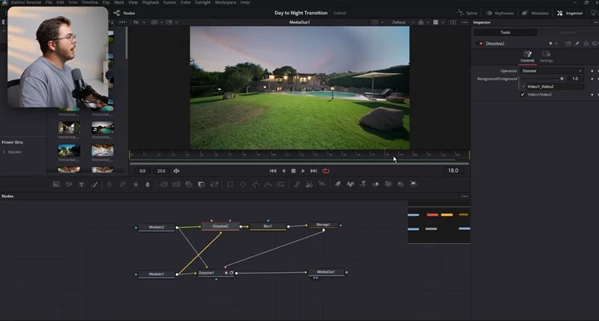
One defining characteristic of Luma Fade is that it is built entirely for the DaVinci Resolve Edit page. You don't need to open Fusion to build or modify the transition.
The workflow is straightforward:
Install the .drfx file → Add Luma Fade to the edit → Adjust the curve, softness, and blend timing on the Edit page
This approach keeps the transition accessible within the regular editing environment and is particularly relevant for editors who want a customizable effect without adding a separate Fusion workflow to their project.
The transition is also optimized for speed and designed as a lightweight tool rather than a larger effects package.
Installation and Package Details
Luma Fade is supplied as a one-click install .drfx file. The delivered DRFX file is approximately 21 KB.
No third-party plugins are required, and the transition does not depend on Fusion for its normal workflow.
| Detail | Luma Fade |
|---|---|
| Product Type | Luma Fade Transition |
| Software | DaVinci Resolve |
| Main Workspace | Edit Page |
| Installation Format | .drfx |
| File Size | 21 KB |
| Fusion Required | No |
| Third-Party Plugins Required | No |
| Adjustable Controls | Transition curve, softness, blend timing |
| Original Use Case | Day-to-night real estate transitions |
A Focused Transition for DaVinci Resolve
Luma Fade gives you a simple way to blend two clips based on their brightness, right inside DaVinci Resolve’s Edit page. Just drag and drop the effect, then adjust the curve, softness, and timing to get the transition you want.
Although it was originally designed to transition real estate footage from day to night, you can apply the same luma-based effect to cinematic B-roll, social reels, and other edits where this dissolve style fits the footage.

Files Password : gfxplugin.com OR 123456