Downloadable Files
You can download Iridea for free from the end of this page.
Iridea
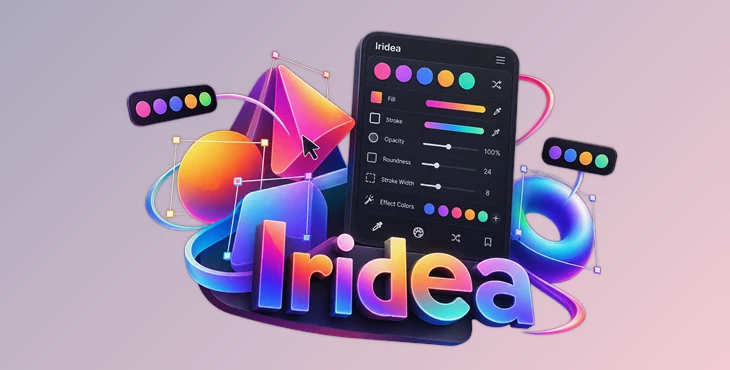
Color editing in After Effects can involve navigating through layers, Shape Groups, paint properties, effects, and nested compositions just to reach the controls you need. Iridea takes a different approach: it provides a fast, selection-driven color workflow where the relevant controls appear in one adaptive panel.
From one panel, you can quickly change things like Fill, Stroke, Opacity, Roundness, Stroke Width, and effect colors without digging through lots of menus and properties.
You can also adjust colors across multiple layers, manage paint settings, randomize values, use color palettes and presets, and add keyframes with modifier keys.
Direct Selection-Driven Color Editing
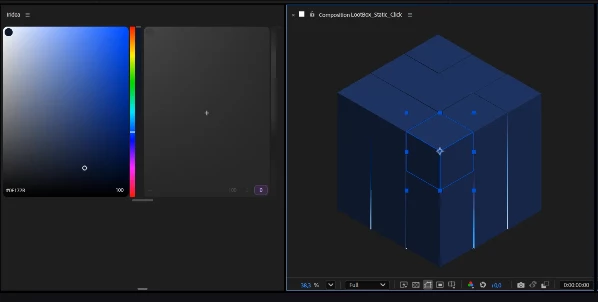
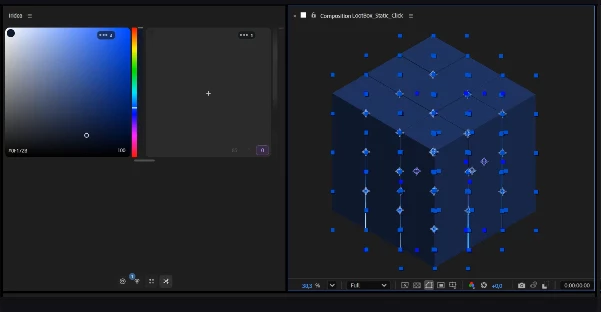
The core of Iridea is its Direct Selection Architecture. Rather than requiring you to locate individual color properties manually, the panel responds to what is currently selected in After Effects.
Select the layers or properties you want to work with, and Iridea provides the appropriate color inspectors and controls. The interface can respond to selected layers, properties, and nested compositions.
This approach is particularly relevant in compositions containing complex Shape Layer structures, where Fill and Stroke properties may otherwise be located inside multiple Shape Groups.
Adaptive Controls in One Interface
Iridea brings several frequently adjusted visual properties into the same panel:
Fill
Stroke
Opacity
Roundness
Stroke Width
Effect colors
The interface is dynamic rather than fixed. It automatically adapts to the current selection and available properties, keeping the controls relevant to the elements being edited.
The panel also uses a responsive layout. It can reflow when docked at different sizes, including narrow After Effects workspaces, so its controls remain usable without filling the interface with unnecessary elements.
Multi-Layer Relative HSB Editing
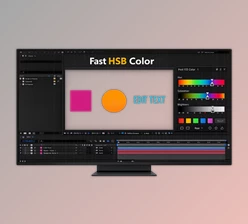
One of Iridea's specialized controls is Shift + Drag HSB.
When multiple layers are selected, you can Shift + Drag to change hue, saturation, or brightness across those layers. These changes are calculated relative to each layer's individual starting color rather than forcing all selected elements toward the same absolute value.
As a result, the original tonal spread between the selected colors is maintained while their HSB values are adjusted together.
This provides a gesture-based way to modify an existing motion palette across several elements while preserving the differences already present between their colors.
Fill, Stroke, and Opacity Management
Iridea is not limited to choosing colors. It can also manage the paint properties themselves.
Using Shift + Click, Fill and Stroke paints can be removed or restored directly. The system supports batch paint injection and removal, including properties located inside nested Shape Groups and compound paths.
Opacity is also available for several different levels of the composition. Iridea provides continuous adjustment for:
Fill Opacity
Stroke Opacity
Layer Transform Opacity
These values can be scrubbed directly while the composition updates in real time.
Randomization and Palette-Based Exploration
For exploring color variations, Iridea includes targeted color randomization.
Randomization can be applied across:
Fill
Stroke
Text
Effects
Variations can be generated using smart variations or stored palettes. This makes randomization part of the same selection-driven workflow rather than a separate process.
The generated variations are reversible, allowing different color directions to be explored without permanently committing to each variation.
Modifier-Based Controls
Several important Iridea operations are built around modifier-assisted gestures:
| Gesture | Function |
|---|---|
| Shift + Drag | Adjust multiple colors using relative HSB editing |
| Shift + Click | Remove or restore Fill and Stroke paints |
| Ctrl + Click | Add keyframes |
These shortcuts combine property editing and animation-related actions directly with the panel's selection-based workflow.
Project Color Scanning, Palettes, and Presets
Iridea also includes tools for working with colors beyond the currently visible property controls.
Project color scanning can be used as part of the broader color workflow, while palettes provide stored color sets that can also participate in color randomization. Presets are included for reusable workflow configurations.
Together, these tools extend Iridea from direct property editing into palette management and color exploration without changing its central selection-driven approach.
A Color Workflow Built Around Speed
Iridea is designed specifically to reduce deep property navigation during color work in After Effects. Its main distinction is not simply putting color controls into another panel, but making those controls respond directly to the current selection.
The workflow is simple:
Select your layers or properties → Iridea shows the controls you need → Make your changes → Apply them across your layers
You can change colors and other values, work with multiple layers, randomize settings, manage paint properties, or add keyframes from the same panel.
This is especially useful when your project has lots of Shape Layers, text, effects, or colors that need to work together. Instead of searching through different properties, you can handle most of them from one dockable panel.

Files Password : gfxplugin.com OR 123456