Downloadable Files
You can download cvELD Shell Fit for free from the end of this page.
cvELD Shell Fit
cvELD Shell Fit is a Blender clothing-fitting tool for bringing existing garments closer to a body or other reference geometry while retaining control over details, openings, thickness, and local deformation. It combines whole-garment fitting with selection-based refinement, bulge and dent tools, protection masks, and penetration inspection.
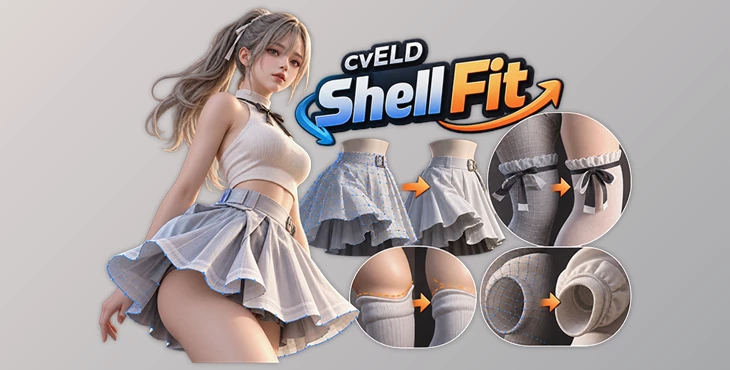
Rather than treating the garment as a shape that simply needs to be pushed onto a surface, Shell Fit provides controls for areas that should keep their character. A skirt opening can retain space around the hem, small ribbon details can be protected from flattening, and closed cuffs can preserve their shell thickness during fitting.
Whole-Garment Fitting and Local Refinement
Shell Fit separates broad fitting from smaller corrective work.
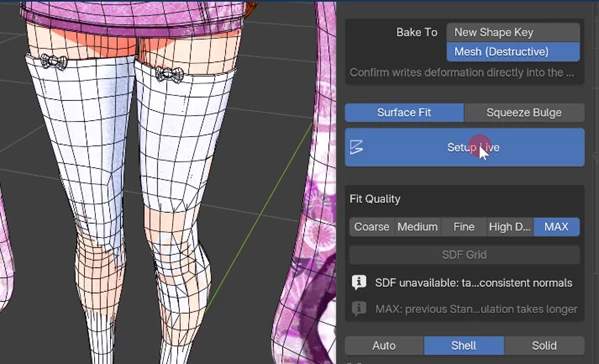
Surface Fit brings an entire clothing object toward its assigned reference. After the overall fit is established, QuickShellFit can work on selected mesh vertices or curve points, snapping them to surfaces, edges, or vertices.
The default QuickShellFit pie is available with Ctrl + Shift + 1, letting you adjust individual areas without repeating the whole-object fitting operation.
A typical fitting sequence is:
Assign Body and Cloth → Choose Deform and Reference → Setup Live → Adjust spacing and protected areas → Inspect → Confirm Fit
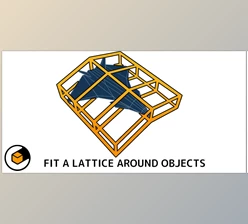
You can confirm a fitting pass as an editable shape key, keeping the result available for further work. Direct mesh output is also available, while lattice fitting provides an option for broader adjustments.
Preserve Garment Details Instead of Flattening Them
One of the central controls in Shell Fit is the Protection Mask. Selected regions can remain in place while surrounding geometry follows the fitting operation. Intermediate mask weights create softer transitions rather than an abrupt boundary between protected and fitted areas.
This is particularly relevant for garments containing details that should not simply collapse against the reference surface. In the demonstrated sock fitting, for instance, detail preservation keeps attached ribbon shapes intact while the socks themselves are fitted to the legs.
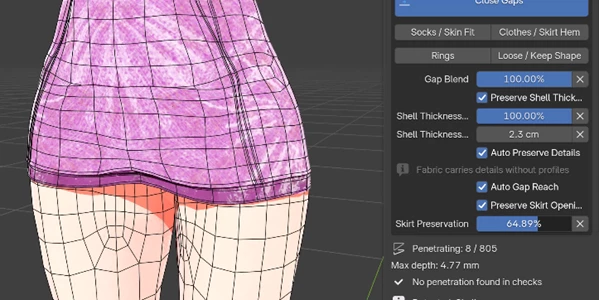
Shell Fit also includes controls for garment openings. With a skirt, Preserve Skirt Opening and Skirt Preservation can balance a closer body fit against the amount of space retained around the hem. Gap Blend provides additional control over gap closing.
Squeeze Bulge, Dents, and Contact Deformation
Version 1.3.4 expands the Bulge workflow with contact-area and object-pressure bulges, editable guide generation with automatic settings, and deformation smoothing.
Squeeze Bulge can deform the body around a garment opening rather than only altering the clothing. One demonstrated setup uses a knee-high sock as the reference and deforms the thigh above it. Shape presets can establish the starting form, followed by adjustments to dent depth and the reach of the surrounding bulge.
There are four ways to position this effect:
From Garment Edges
From Contact Areas
Choose the Location with a guide
Dent with an Object
Dent with an Object uses an object such as a sphere or box to press toward a surface. Its Start operation automatically derives reaction distance, dent limit, and rim dimensions from the meshes. Vertices in the overlapping area follow the reference while a raised rim forms around the contact.
Guide-based deformation provides another approach when the crease needs to be placed deliberately. Shell Fit can generate an editable guide loop at the clothing top or 3D cursor. After Auto Set and Preview, the guide marks the dent while the neighboring area forms the bulge. Moving or editing the guide changes the resulting shape.
Bulge smoothing is available for reducing uneven deformation without smoothing away the original body.
Garment-edge detection relies on open mesh boundaries, so applied thickness can prevent those edges from being detected. An unthickened reference copy or another placement mode may be needed in that situation. Coarse faces and downstream Subdivision can also limit fitting because Shell Fit does not change vertex counts.
Shell Thickness Preservation
Fitting closed clothing parts introduces a specific problem: outer and inner surfaces can collapse toward the same reference even when the rims retain their thickness.
Version 1.3.3 addressed a reproduced closed-cuff case by extending automatic thickness search from an already detected wall thickness to locate the opposing inner surface on the same closed part.
The Preserve Shell Thickness Amount controls how much of that detected thickness remains:
| Amount | Result |
|---|---|
| 100% | Keeps the detected shell thickness |
| 50% | Uses half of the detected thickness |
| 0% / Off | Allows both layers to approach the reference |
For an initial setup, the developer recommends enabling Preserve Shell Thickness, setting Amount to 100%, and leaving Search at 0 for automatic search.
This thickness-search extension requires a closed manifold part and an already detected thickness. Open seams, folds, and negative scale may require separate adjustment.
Penetration Inspector
The Penetration Inspector is designed to locate areas where clothing crosses or sinks into the body.
Assign the body as Reference, the garment as Deform, and run Inspect Penetration. Shell Fit displays colored viewport marks together with a viewport card identifying several result types:
Crossings — intersecting triangles
Inside — vertices estimated to be inside a closed body
Near — close samples
Review — uncertain areas requiring inspection
Monitor Changes can recheck the result after edits, while Show Through Mesh exposes marks that would otherwise be hidden. Recheck performs a fresh inspection.
From there, Auto Fix starts a live Shell Fit correction that can be confirmed or canceled. Manual Adjust selects problematic control vertices for local editing.
There are important limits to this process. Inspection covers one object pair in the current pose, and automatic correction does not guarantee that every intersection will be removed. Inside detection also depends on a closed body; with an open body, an Inside result shown as “—” means that the test is unavailable rather than that no inside vertices exist.
Manual adjustment should be used with a posed Armature.
Additional Transfer and Output Options
Shell Fit is not limited to fitting operations. Copy-only workflows can transfer weights, shape keys, and normals when geometry fitting itself is unnecessary.
For completed fitting operations, results can be kept as shape keys or applied directly to the mesh. This gives users a choice between retaining an editable fitting result and committing the deformation directly to the model.
Compatibility and Requirements
cvELD Shell Fit 1.3.4 requires:
Blender 4.5.0 or later and below 5.3.0
Blender 5.2+ for SDF Grid
Required SDF nodes and a closed, consistently oriented body when using SDF Grid
Separate Body and Cloth mesh objects for whole-object fitting
Blender 5.2.1 is recommended.
Development and validation are performed on Windows. Linux has not been tested by the developer. A user has reported an issue involving a Python 3.14-based Blender package, but its cause has not been confirmed. If a distribution-provided Blender package fails, the developer suggests trying an official Blender build within the supported version range. Flatpak has also been suggested as a possible workaround, although it has not been independently verified.
On Windows x64 with CPython 3.13, selected numeric operations can use the bundled native backend. A Python fallback is used elsewhere.
Installation and Initial Setup
Keep the downloaded ZIP file as it is. You can install it from Preferences → Install from Disk, or simply drag the ZIP into Blender and confirm the installation. After enabling cvELD Shell Fit, press N in the 3D View to find it in the sidebar.
For your first fit, a good setup to start with is:
One garment → MAX quality → Auto fit type → New Shape Key output
It’s also a good idea to save your Blender file before starting.
After the fitting is done, check the result carefully, especially around the skin, thin areas, and layered clothing. The automatic fit may still leave some intersections.
If the garment doesn’t move, check the Deform side, reference object, protection weights, and search range. You can also set Gap Blend to 0% to stop the attraction while keeping penetration correction active.
For Bulge operations that move no vertices, Shell Fit can suggest checking the deformation and reference sides, Wrap Distance, and Limit Group. In sock-based deformation, the body should be the deforming object and the socks should serve as the reference.
With its combination of whole-object fitting, targeted QuickShellFit corrections, protected details, garment-opening controls, thickness preservation, Bulge deformation, and penetration inspection, cvELD Shell Fit keeps both broad fitting and smaller corrective operations inside Blender while leaving the final geometry under the user's control.

Files Password : gfxplugin.com OR 123456