Downloadable Files
You can download Split Studio for free from the end of this page.
Split Studio
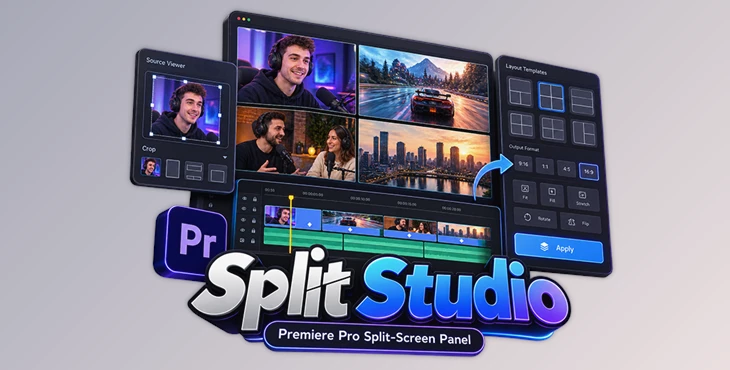
Building a split-screen edit in Premiere Pro often involves repeating the same sequence of tasks: nesting clips, arranging the nests, opening Motion controls, and adjusting Scale and Position for every layer. Split Studio is a Premiere Pro panel designed specifically to replace that process with a visual crop-and-compose workflow.
The panel makes the process simple. First, you can crop your clips. Then, you can arrange them in the layout you want. When everything is ready, click Apply. Split Studio creates the nested sequence and adds the Motion settings automatically. Your original timeline stays the same.
This approach suits edits such as reactions, podcasts, gameplay with facecam, before-and-after comparisons, picture-in-picture compositions, and multi-camera grids.
Crop and Compose in Separate Viewers
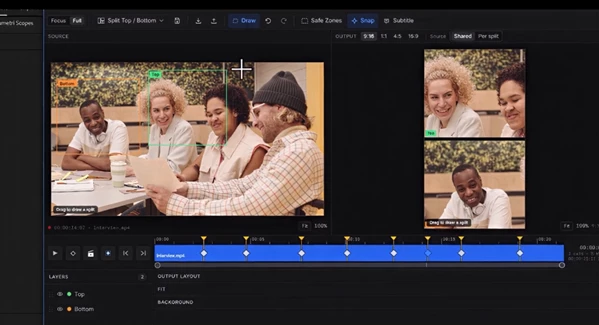
Split Studio's central idea is its two-viewer interface.
The Source Viewer on the left is used to define crop windows directly on real sequence footage. These masks represent windows onto the original frame rather than placeholder graphics.
The Output Viewer on the right controls where those cropped sources appear in the final composition. Cells can be positioned inside several output formats:
9:16
1:1
4:5
16:9
Within the output, Split Studio provides Fit, Fill, and Stretch options along with scale, rotation, and flip controls.
An important part of this design is that the crop and output cell are decoupled. Changing a cell's size does not automatically resize its source crop, so you can adjust framing and layout geometry independently.
The preview matches the result created by Apply. Premiere Pro handles framing through Scale and Position rather than Motion Crop, helping nested sequences retain the intended framing.
From Layout to a Real Premiere Pro Sequence
Split Studio does not stop at previewing a layout inside its panel. Once the composition is ready, Apply creates the corresponding nested sequence in Premiere Pro.
The basic process is:
Crop Source → Arrange Cells → Preview Layout → Apply → Nested Sequence
During Apply, the panel builds the required nests and automatically writes the Motion values. You can also include an optional background.
This replaces a manual process in which each clip would otherwise need to be nested, added to the master timeline, positioned separately, and revisited whenever the split-screen design changes.
The source timeline itself remains unchanged, giving the generated split-screen its own sequence rather than rebuilding the existing edit.
Layout Changes with Timeline Keyframes
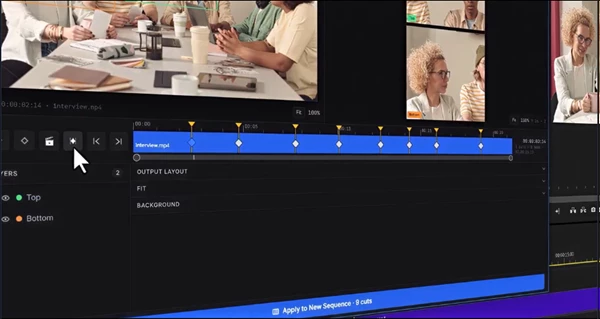
Split Studio can also handle split-screen arrangements that change during an edit.
A single playhead drives both viewers, and you can place layout keys where the composition needs to change. These keys are based on held layouts rather than tweened transitions: the editor parks the playhead, changes the arrangement, and defines the next state.
When it applies the result, Premiere concatenates the resulting segments with frame-tight joins.
For edits that already contain multiple editorial changes, Split Studio can scan for editorial joins and in-clip scene changes. Detected cuts can then be converted into layout keys, reducing the need to locate each change point individually.
14 Presets and Custom Split Templates
The panel includes 14 layout presets covering several common split-screen structures. The available examples include:
| Layout | Intended Structure |
|---|---|
| Reaction | Content and reaction stack |
| Gameplay + Facecam | Main gameplay with camera overlay |
| Podcast | Background with Host 1 and Host 2 |
| Picture in Picture | Full main source with overlay cell |
| Before / After | Side-by-side comparison |
| Dual PiP | Main source with Cam A and Cam B |
| Top / Bottom | Two horizontal cells |
| Left / Right | Two vertical cells |
| Triple | Three-source arrangement |
| Four Grid | 2×2 composition |
| Side Stack | Stacked-cell arrangement |
Presets are only a starting point. You can draw a custom cell directly in the Output Viewer and save its geometry for reuse.
Saved layouts can also be exported and imported using the .splitpro.json format. This makes custom split geometries reusable across projects instead of requiring the same layout to be rebuilt each time.
Where Split Studio Fits into an Editing Workflow
The panel is built around projects where several pieces of footage need to share the frame.
For short-form content, the output bar provides 9:16, 1:1, and 4:5 layouts alongside 16:9. A reaction edit can place the main content and reaction footage into separate regions, while gameplay footage can remain dominant with a facecam placed as an overlay.
Podcast edits can use multiple host cells or grid arrangements, and comparison videos can use a straightforward before-and-after split. More complex layouts can combine preset geometry with manually drawn cells.
The same crop-and-place method works across these configurations, so changing the split type doesn't require returning to a clip-by-clip Motion setup.
Premiere Pro Integration and Compatibility
Split Studio is a CEP panel for Adobe Premiere Pro and is available for both Mac and Windows.
Its interface can be docked in Premiere Pro, and a compact UI fits the panel into an editing workspace. The panel also supports changing preview size and selecting another sequence for an individual split.
The supplied information lists the following core capabilities:
Premiere Pro panel for Mac and Windows
14 layout presets
Source and output viewers
9:16, 1:1, 4:5, and 16:9 output formats
Fit, Fill, and Stretch controls
Scale, rotation, and flip controls
Timeline layout keyframes
Automatic cut detection
Custom drawn cells
Reusable templates
Import and export through
.splitpro.jsonOptional background when applying the layout
Automatic creation of nests and Motion values
A free trial is also available, limited to 2 Apply builds.
What Makes Split Studio Different from Manual Split-Screen Editing?
Split Studio focuses on one specific repetitive part of Premiere Pro editing: constructing split-screen layouts from nested footage.
Instead of adjusting every clip one by one, you can first build the layout visually and see how everything looks. Once you’re happy with it, click Apply, and the panel creates the needed nests and Motion settings in Premiere Pro.
You can also use keyframes and cut detection when the layout needs to change during the edit. Presets and .splitpro.json templates make it easier to reuse layouts, which is handy for reaction videos, podcasts, facecams, comparisons, and grid-style edits.

Files Password : gfxplugin.com OR 123456