Downloadable Files
You can download Batch Frequency Separation for free from the end of this page.
Batch Frequency Separation
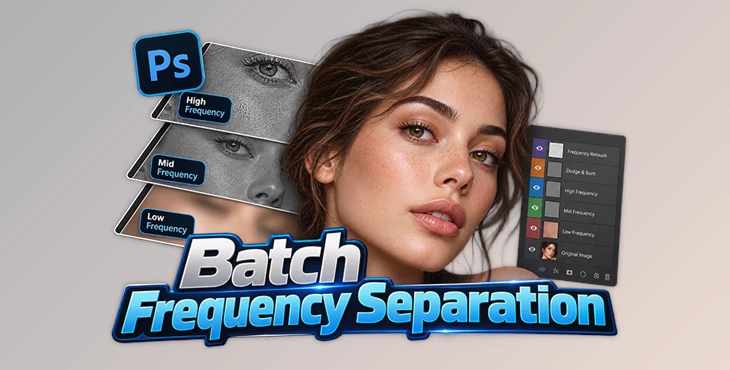
Building the same frequency separation layer structure for every photo becomes repetitive when a retouching job contains dozens of images. Batch Frequency Separation is a Photoshop plugin designed around that specific problem: it creates a complete three-band frequency separation rig in one click and can apply the same process to an entire folder of photos.
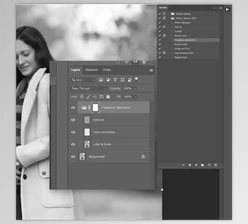
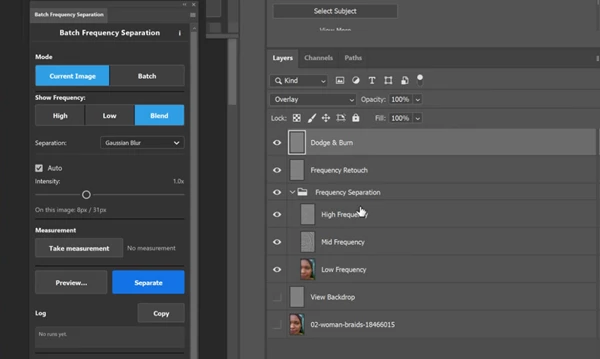
The tool creates High, Mid, and Low frequency layers for you. It also adds separate layers for Dodge & Burn and Frequency Retouch. Your original image stays unchanged at the bottom, so you can start retouching without setting up all the layers yourself.
Its most distinctive feature is batch processing. Rather than preparing every photograph individually, you can process a folder and output each image as a named, layered PSD with the retouching rig already built.
A Complete 3-Band Retouching Rig
The plugin uses a true three-band separation rather than limiting the setup to two frequency layers. Clicking Separate automatically creates the complete stack.
The separation is mathematically exact, meaning the Blend view remains identical to the original image before any retouching begins. The generated rig contains:
High frequency layer
Mid-frequency layer
Low frequency layer
Dodge & Burn layer
Frequency Retouch layer
Original image preserved at the bottom
This gives photographers a consistent starting structure for retouching while removing the repeated task of manually rebuilding and naming the same layer stack.
The plugin also works with Photoshop's Remove Tool, so you can heal directly on a frequency layer.
Batch Processing: From a Folder to Layered PSDs
Batch mode is the feature that separates this plugin from a standard one-image frequency separation workflow.
The process is straightforward:
Select input folder → Select output folder → Process photos → Receive layered PSDs
Every processed photograph receives the full frequency separation rig, with the layers built, named, and saved automatically. There is no stated cap on the number of files you can process, and the original files are never modified.
This workflow is especially suited to jobs with many photographs that need similar preparation, including wedding, school, studio, and e-commerce photography. A photographer can process a set of selected images first and begin retouching from the prepared PSD files afterward.
Preview and Tune the Separation Before Applying It
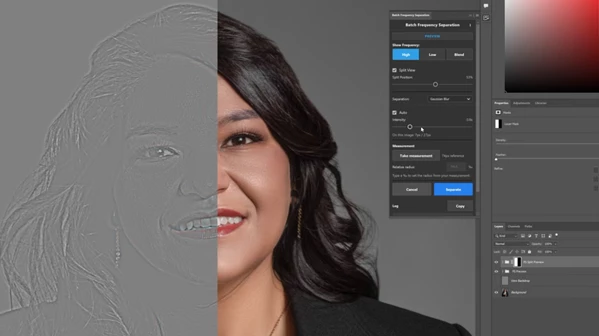
Batch Frequency Separation includes a Live Split View for inspecting the separation before committing it to the image.
You can drag the divider across the preview while switching between High, Low, and Blend views. This provides a direct way to inspect individual bands as well as the reconstructed image while adjusting the separation.
You can also change the radius and intensity at this stage. The plugin provides several approaches to controlling the result:
Auto radius based on image resolution
Intensity slider
Full manual radius control
Measurement-based matching between images
Nothing is final during preview. Choosing Cancel restores the file exactly, while the completed rig can be removed with a single undo.
Keeping the Look Consistent Across Different Image Sizes
A fixed radius does not necessarily produce the same separation when photographs have different resolutions. Batch Frequency Separation addresses this with an Auto Radius option that scales according to each image's resolution.
There is also a measurement workflow for more deliberate matching. You can measure once by dragging a ruler across an eye and then reproduce that look on another photograph, even when the second image has a different size.
This offers two approaches depending on the job: automatic scaling for efficient processing, or measurement-based matching when maintaining a particular separation appearance across files matters.
Blur Options and Image Requirements
The plugin provides three filter choices for creating the separation:
| Filter | Supported Image Requirements |
|---|---|
| Gaussian Blur | Available as a separation option |
| Median | Requires an 8-bit or 16-bit RGB image |
| Surface Blur | Requires an 8-bit or 16-bit RGB image |
Median and Surface Blur are not available for 32-bit images. The plugin uses correct 8-bit and 16-bit math for the supported modes.
These options give the retoucher control over the filter used to construct the frequency separation rather than restricting the workflow to a single blur method.
Photoshop Compatibility and Installation
Batch Frequency Separation requires Adobe Photoshop 24.2 or newer and works on both Windows and macOS.
The listed Photoshop compatibility includes:
Photoshop 2027
Photoshop 2026
Photoshop 2025
Photoshop 2024
Photoshop 2023
It is a UXP plugin and can be installed and licensed through the aescripts + aeplugins Manager App. The ZXP/UXP Installer is also supported.
For workflows using Median or Surface Blur, the source must be an 8-bit or 16-bit RGB image; those filters don't support 32-bit images.
Where Batch Frequency Separation Fits Into a Retouching Workflow
The plugin is built for high-volume retouching, not just creating frequency layers for an occasional image. Its combination of one-click rig creation and folder-level processing is suited to photographers who routinely prepare many frames from the same job.
A typical workflow can be reduced to:
Choose images → Preview and set separation → Match or automatically calculate radius → Build the rig → Retouch
For a folder-based job, the preparation stage becomes:
Input folder → Batch processing → Layered PSD output → Retouch prepared files
The main advantage is simply saving time on setup. Instead of creating the same frequency separation layers for every photo, Batch Frequency Separation prepares the High, Mid, Low, Dodge & Burn, and Frequency Retouch layers for you while keeping the original image untouched.
This can be especially useful when you have a lot of photos to retouch, such as wedding photos, portraits, studio shots, or product images. Each photo starts with the same organized layer setup, so you can get straight to the retouching.

Files Password : gfxplugin.com OR 123456