Downloadable Files
You can download Mistake Detector for free from the end of this page.
Mistake Detector
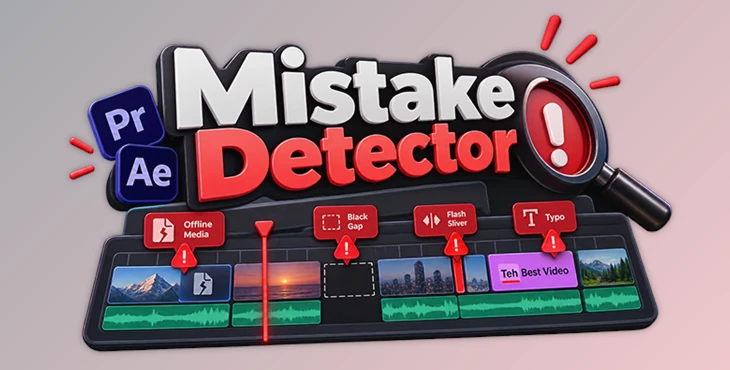
Have you ever finished editing a project, watched it several times, exported it, and then noticed a tiny mistake only after sending it to the client? Maybe there is a missing clip, a small black gap between two shots, a muted audio track, or even a simple typo in a lower third.
These mistakes can be surprisingly easy to miss, especially when you have been staring at the same timeline for hours.
Mistake Detector is a plugin for Adobe Premiere Pro and After Effects designed to catch these kinds of problems before you export your project. Instead of manually checking every part of a long sequence or composition, you can scan the project and get a list of potential issues with their exact timestamps.
One Last Check Before Export
Quality control is an important part of editing and motion design, but manual project checks can get tedious. A timeline might contain hundreds of clips, multiple audio tracks, graphics, effects, and nested compositions.
Even a very small mistake can affect the final delivery.
Imagine finishing a ten-minute video and accidentally leaving a two-frame clip at a cut. When you play the timeline normally, that tiny flash might be almost impossible to notice. The same thing can happen with an offline clip, an unexpected black gap, or a spelling mistake inside a graphic.
Mistake Detector works as an extra checking stage before export. It analyzes the open project itself rather than examining an exported video. This lets it identify problems directly in the timeline or composition and show you where they are.
It does not automatically change or clean up your project. You remain in control of deciding what actually needs to be fixed.
Features
Scan Your Project in Seconds
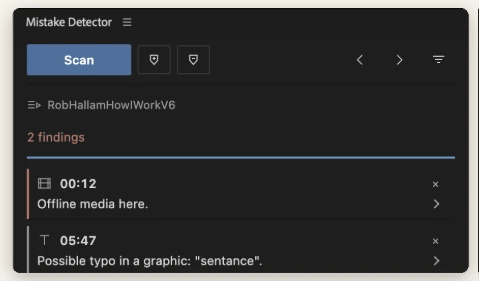
The basic workflow is simple: open your sequence or composition and click Scan.
In Premiere Pro, Mistake Detector scans the active sequence. In After Effects, it checks the active composition along with its precomps.
When it finds something suspicious, it adds the issue to a list with a timestamp. Clicking that finding takes the playhead directly to the relevant location, so you don't have to search the timeline manually.
This is especially useful near a deadline when you want to do one final technical check without watching the entire project again from beginning to end.
Find Common Premiere Pro Mistakes
Mistake Detector can check Premiere Pro sequences for several common editing problems.
It can detect offline media, helping you find clips whose source files Premiere Pro can no longer locate. Instead of discovering missing footage during export or after delivery, you can identify it while the project is still open.
It also searches for black gaps where no video is visible across the active video tracks. Importantly, a gap on an upper track is not automatically treated as a problem when another clip is visible underneath it.
Another useful check looks for muted audio tracks that still contain clips. Empty muted tracks are ignored, while tracks containing media can be flagged.
Mistake Detector can also identify exposed frames, where an image does not completely cover the frame and there is nothing underneath to fill the empty area.
For quick accidental edits, the plugin checks for flash slivers—clips that are three frames or shorter at the sequence frame rate. These tiny leftover pieces can easily appear around cut points without being noticed.
Finally, it can spell-check text inside Essential Graphics titles and lower thirds, helping you catch simple text errors before the client does.
Check After Effects Compositions Too
One purchase of Mistake Detector works with both Premiere Pro and After Effects.
In After Effects, the plugin focuses on issues more relevant to motion graphics and compositing projects.
It can identify missing footage, which could otherwise appear as missing-media placeholders in the final result.
It also detects broken expressions that After Effects has already flagged as errors. This is particularly useful in complex templates where expressions may control many different properties.
Text layers can also be checked for possible spelling mistakes.
Another useful feature is black border detection. Mistake Detector first uses layer geometry to locate potential problems and then checks the rendered frame, helping reduce false alarms caused by masks or effects.
Jump Straight to Every Problem
Finding an issue is only useful if you can locate it quickly.
Every Mistake Detector result includes a timestamp. Click the timestamp in Premiere Pro and the playhead moves directly to that point.
In After Effects, selecting a finding can open the composition where the issue appears. For black-border findings, it can also take you directly to the relevant frame.
This makes the scan results practical rather than simply giving you a long technical report.
Add Findings as Timeline Markers
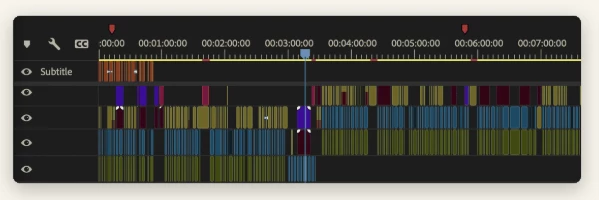
If you prefer working directly from your Premiere Pro timeline, Mistake Detector can create markers for its findings.
With one click, you can add red markers corresponding to detected issues. Each marker is named by check type, such as Offline Media, Black Gap, Muted Audio, Exposed Frame, Flash Sliver, or Graphics Text.
You can then move through the timeline and fix the problems one by one.
When you are finished, Mistake Detector can remove the markers it created without deleting your existing personal markers.
Ignore Intentional Choices
Not everything unusual in an edit is actually a mistake.
You might intentionally use a very short clip, leave an area black for creative reasons, or mute a track because it is not needed in the final version.
Mistake Detector lets you dismiss intentional findings. Dismissed items stay out of later scans of that sequence or composition, while typo dismissals remain ignored for the current session.
You can also switch off individual checks. For example, if you are editing a silent montage, you can disable audio-related checks rather than repeatedly dismissing them.
This flexibility helps keep the results focused on problems that actually matter for your project.
Local Scanning Without Changing Your Project
Mistake Detector performs its scans locally inside Premiere Pro and After Effects. By design, the project doesn't need to leave your computer for analysis.
It also does not rely on AI judgment to decide whether your creative choices are correct. The checks are based on information provided by the host application or measurements taken directly from the project.
Most importantly, scanning does not modify your edit. Mistake Detector only writes markers when you ask it to, and you can remove those markers again.
A Simple Mistake Detector Workflow
You can use the plugin as the final step in your normal editing workflow.
First, finish your edit or motion graphics composition as usual. Before exporting, open Mistake Detector and enable the checks that fit the project.
Click Scan and review the results.
Start with obvious technical errors such as offline media, missing footage, or black gaps. Then check warnings such as very short clips or exposed frames and decide whether they are accidental or intentional.
Click each finding to jump directly to its location. Fix genuine problems and dismiss intentional choices.
Once you have worked through the list, run another scan. Repeat this process until there are no unwanted findings for a quick additional quality-control stage before export.
Tips for Better Final Checks
Mistake Detector is most useful when treated as an extra pair of eyes rather than a replacement for reviewing your video.
Run your first scan before the final export, but still watch the finished video when the project is important. Automated technical checks can find specific mistakes, while normal playback helps you judge pacing, timing, storytelling, color, sound, and other creative details.
Also keep the filters relevant to the project. Turning off checks you know do not apply can make the results easier to review.
When a warning represents an intentional creative decision, use the dismiss function instead of repeatedly checking the same result. This keeps later scans cleaner and makes genuine new problems easier to notice.
For larger projects, timeline markers can also provide a convenient workflow. Add markers for all findings, move through them one at a time, fix the problems, and then remove the Mistake Detector markers when the sequence is clean.
Who Is Mistake Detector For?
Mistake Detector is particularly useful for video editors and motion designers who regularly deliver finished work to clients.
Premiere Pro editors can use it as a final check for missing media, timeline gaps, muted audio, accidental frame exposure, tiny leftover clips, and text mistakes.
After Effects users can use the same plugin to check compositions for missing footage, broken expressions, text errors, and unwanted black borders.
It can also help on long or complicated projects where manually inspecting every element becomes difficult.
Final Thoughts
Small mistakes are often the hardest ones to notice because everything else in the project looks finished.
Mistake Detector provides a straightforward way to perform one more technical check before delivery. Click Scan, review the findings, jump directly to anything suspicious, fix genuine problems, and scan again.
It does not try to make creative decisions for you or automatically modify your work. Instead, it highlights specific technical issues that might otherwise survive until the final export.
For editors and motion designers working in Premiere Pro and After Effects, that simple final check can make the delivery process cleaner, faster, and a little less stressful.

Files Password : gfxplugin.com OR 123456