Downloadable Files
You can download Linear Wipe+ for free from the end of this page.
Linear Wipe+
Creating a clean wipe animation in After Effects sounds simple, but text and shape layers can make the process more complicated than expected. The standard Linear Wipe effect works with the rectangular dimensions of a layer, which do not always match the content you can actually see.
Linear Wipe+ makes the wipe effect work more naturally with text and shape layers. Instead of using the entire layer size, it looks at the visible artwork and creates the wipe around it. This means the effect stays with your design even when you move, resize, or use the layer in 3D.
A Smarter Way to Create Wipe Animations
With the default Linear Wipe in After Effects, the effect is based on the rectangular boundaries of the entire layer. This is usually fine for regular footage, but it can become inconvenient with text and shape layers.
For example, a short word may occupy only a small area inside a much larger layer. When the wipe follows the full layer dimensions instead of the visible letters, adjusting the animation can take extra work.
Linear Wipe+ uses the actual visible bounds of text and shape content as its reference. As a result, the wipe remains visually attached to the content when the layer is moved or scaled. This makes it especially useful for animated titles, typography, logos, graphic elements, and other motion design projects where the wipe needs to follow the artwork accurately.
What Is Linear Wipe+?
Linear Wipe+ is an After Effects effect designed as a more flexible alternative to the classic Linear Wipe. Its main advantage is its ability to calculate the visible bounds of text and shape layers.
Instead of treating every layer as one large rectangle, the effect focuses on the content that is actually visible. This makes it easier to create consistent wipe animations without repeatedly readjusting the transition when the layer changes position or size.
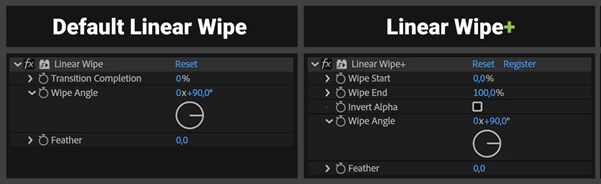
You can use the effect to reveal content, hide it, reverse the alpha behavior, add feathering, or create center-based transitions such as Barn Door-style wipes.
Content-Aware Wipe Bounds
One of Linear Wipe+'s most useful features is its ability to work with the actual visible bounds of text and shape layers.
This means a wipe can remain aligned with a title or graphic even when you move or scale the layer. It reduces the need to manually compensate for the invisible rectangular area surrounding the content.
Wipe On and Wipe Off
You can use the same effect to reveal a layer or remove it from the frame.
For example, you can gradually reveal a title at the beginning of a scene and later use a wipe to hide it again. This makes Linear Wipe+ useful for title animations, lower thirds, logo reveals, and other motion graphics.
One Angle for Both Wipe Edges
Linear Wipe+ allows both edges of the wipe to be controlled using a single angle setting. This keeps the setup simple while providing more flexibility when designing directional transitions.
You can experiment with horizontal, vertical, or angled wipes depending on the movement and composition of your project.
Invert Alpha
The effect also includes an option to invert the alpha of the wipe transition. This gives you another way to control which parts of the layer remain visible during the animation without building a more complicated effect stack.
Adjustable Feathering
Feathering helps soften the edge of a wipe and can make a transition feel less mechanical.
A sharp edge may work well for geometric graphics or bold typography, while a softer edge can be useful when you want the reveal to blend more naturally into the scene.
Easier Barn Door-Style Wipes
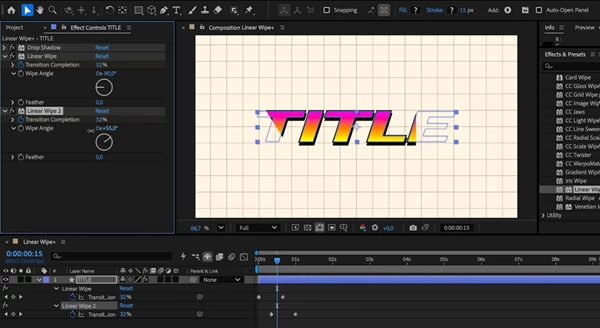
After Effects already includes a Barn Doors preset for creating wipes that open or close from the center. However, that approach uses a stack of four effects, which can make adjustments less straightforward.
It can also produce unwanted results when feathering is used. A small portion of the layer may remain visible even when the transition reaches full completion. Layers containing transparency, such as text, can introduce additional problems when alpha inversion is involved.
Linear Wipe+ simplifies this type of animation by handling it with a single effect. This makes center-based wipes easier to control while keeping the result clean on layers with alpha channels.
Where Linear Wipe+ Can Be Useful
The effect fits naturally into many common After Effects workflows. You can use it for animated titles that reveal from one side, logos that appear from the center, shape graphics entering a composition, lower thirds, interface-style motion graphics, or typography that needs to disappear with a controlled wipe.
Because the wipe follows the visible content, itis especially useful when your design is still changing. You can reposition or resize a title without rebuilding the wipe around its new location.
It can also be useful in 3D compositions where text and shape layers need to move while keeping their wipe animation visually connected to them.
Tips for Better Wipe Animations
Try matching the wipe direction to the natural movement of your composition. If a title enters from the left, for example, revealing it in a similar direction can make the animation feel more connected.
Use feathering carefully. A small amount can create a softer and more polished transition, but too much feathering may make graphic elements or typography look unnecessarily blurry.
For center reveals, try the Barn Door-style approach instead of stacking several separate effects. Keeping the setup simple can make later timing and design changes much easier.
It is also worth adjusting the speed of the wipe to suit the content. Fast wipes can work well for energetic motion graphics, while slower reveals can give titles and logos more visual importance.
A Cleaner Approach to Everyday Wipes
Linear wipes are a basic part of motion design, but small workflow improvements can make a noticeable difference when they are used repeatedly.
Linear Wipe+ makes the familiar effect more practical for text and shape layers by basing the transition on visible content, while also combining wipe-on, wipe-off, alpha inversion, feathering, and center-based wipe options into one effect.
For projects with text, logos, shapes, or other animated graphics, it makes wipe transitions easier to work with. The wipe stays aligned with your artwork, even when you make changes to the composition.

Files Password : gfxplugin.com OR 123456