Downloadable Files
You can download EasyBatch for free from the end of this page.
One Template, Many Versions
Creating one After Effects composition is usually straightforward. The repetitive work starts when that same design needs to become dozens of different versions.
Imagine creating sports graphics for multiple teams, lower thirds for a long list of names, promotional videos with different prices, or social media content for several formats. The basic design may stay exactly the same, but the text, colors, numbers, images, and other details need to change for every version.
Doing this manually often means duplicating compositions, changing properties one by one, renaming files, and adding every version to the render queue separately. As the number of variations grows, the project can quickly become harder to manage.
EasyBatch makes this process much easier. You can create different versions from a single After Effects template using Essential Graphics, then render them all together instead of handling each version separately.
What Is a Data-Driven After Effects Workflow?
A data-driven workflow separates your composition design from the information that changes inside it.
Instead of creating a separate composition for every variation, you build one master template and expose the properties you want to control through the Essential Graphics panel. These properties might include:
Names and titles
Numbers and scores
Colors
Images
Video clips
Other editable template properties
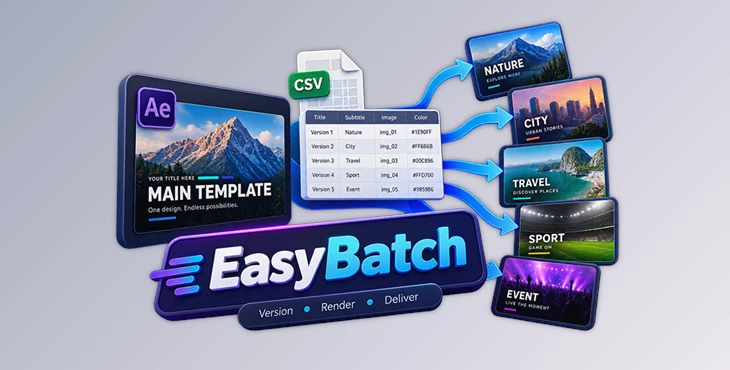
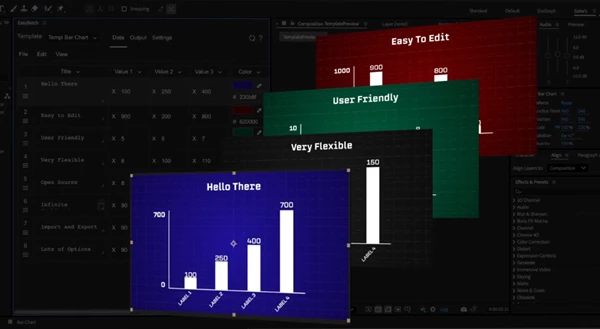
EasyBatch organizes these properties into columns, while each row represents a different version of your composition.
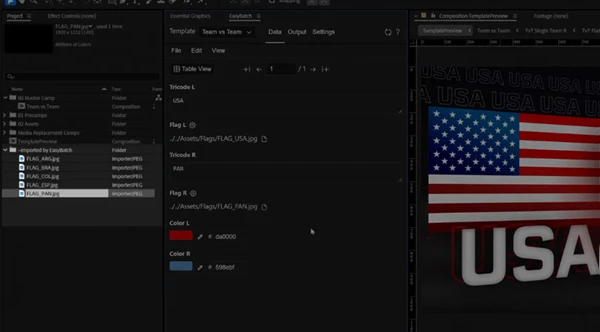
For example, a sports designer could create one matchup graphic and then use different rows for team names, colors, flags, and scores. The visual structure remains consistent while the content changes automatically.
This approach reduces repetitive editing and keeps larger projects cleaner because you don't need to duplicate the same composition to create new versions.
Meet EasyBatch
EasyBatch is an After Effects extension built for template versioning and batch rendering. It works with Essential Graphics and lets you manage multiple composition variations from a table-based interface.
You can enter information manually or import it from a CSV file. Each row becomes another version of the composition, making the workflow especially useful when you need to produce many deliverables based on the same design.
Once your versions are ready, EasyBatch can process them as a batch instead of requiring you to prepare and render every variation individually.
Create Multiple Versions from One Composition
One of EasyBatch's main advantages is that you can keep a single template instead of creating duplicate compositions for every output.
Expose the properties you want to change in Essential Graphics, select the template in EasyBatch, and those properties become editable columns.
Each row can then contain different values for the final output.
This is particularly useful for projects such as lower thirds, scoreboards, promotional graphics, information slates, and social media packages.
Import Data from CSV
When you have a large amount of information to manage, typing everything directly into After Effects can become inefficient.
EasyBatch allows you to import CSV data and map columns using property names. This means you can prepare your information in a spreadsheet and then bring the data into the extension.
For projects involving dozens or even hundreds of names, labels, scores, or other values, this can make preparation much more manageable.
Automatically Swap Images and Videos
Not every variation is limited to text or colors. Sometimes each version also needs a different image, flag, logo, or video clip.
EasyBatch supports replaceable media using file patterns based on your data. It automatically locates and imports matching assets for each row.
For example, a sports graphics template could use team information to load the appropriate flags or images without requiring you to replace every asset manually.
Preview Versions Before Rendering
Batch processing is convenient, but mistakes can get expensive when you discover them after every version has already rendered.
EasyBatch lets you preview individual rows as you work. This gives you a chance to check whether text fits correctly, colors look right, and the expected assets load.
A quick preview can catch small problems before they repeat across an entire batch.
Organize Output Names and Folders
Large batches can create another problem: keeping all exported files organized.
EasyBatch lets you build output paths and filenames using your template data. Instead of manually renaming every finished render, you can include information from each version in its filename or folder structure.
This makes completed batches easier to identify and manage.
Reuse Data Across Multiple Deliverables
Sometimes the same information needs to appear in several different layouts.
You might need a landscape version for one platform, a vertical version for another, and an additional format for a different delivery package.
EasyBatch lets template variations share the same dataset. This makes it easier to reuse your existing information across multiple deliverables instead of preparing it again for every format.
Keep After Effects Projects Cleaner
Duplicating compositions can quickly make an After Effects project crowded, especially when dozens of versions are involved.
Because EasyBatch builds variations around Essential Graphics and data rows, you can keep one main template and generate different outputs without filling the project with unnecessary copies.
This can make the project easier to navigate and update later.
Where EasyBatch Can Be Useful
EasyBatch is most useful when the visual structure stays consistent while the content changes.
For example, a sports designer might have one approved matchup design but need versions for many games. Team names, flags, colors, scores, and other information can change from row to row while the original design stays intact.
The same idea works well for lower thirds. Instead of creating a separate composition for every person's name and job title, you can place those details into different rows and create the required versions from one template.
Campaign graphics are another practical example. One master design could produce variations containing different headlines, prices, images, labels, or promotional information.
It can also help with alternate languages and multi-format delivery packages where the same general design needs to be exported with different content or dimensions.
A Simple EasyBatch Workflow
The basic workflow starts inside After Effects.
First, create your main composition and expose the properties you want to change through the Essential Graphics panel.
Next, open EasyBatch and select your template. The available properties will appear as editable columns.
You can then add rows manually or import a CSV file with headers that match your property names. Each row represents another template version.
If your versions require different images or videos, you can define file patterns so EasyBatch can find the appropriate assets.
Finally, create your output naming pattern, select the required render settings and output module templates, and start the batch render.
Instead of repeating the same editing and rendering process for every version, the workflow prepares the template once and feeds it the necessary data.
Tips for a Smoother Workflow
Build a Clean Master Template
Before creating a large batch, make sure your main composition is working correctly. Check animation timing, alignment, text behavior, and media placement first.
A well-prepared master template makes every later variation easier to manage.
Use Clear Property Names
When preparing Essential Graphics properties, give them simple and recognizable names.
This matters most when importing CSV files, because matching property names makes the relationship between your spreadsheet and After Effects much easier to understand.
Prepare Large Datasets Outside After Effects
For a handful of versions, entering information directly in EasyBatch may be enough. For larger projects, preparing your data in a spreadsheet can be more convenient.
It also lets you review names, numbers, and other information before importing everything into the project.
Test a Few Rows First
Before rendering a large batch, preview several different rows.
Try versions with short and long text, different assets, and unusual values. This can reveal layout problems that may not appear in the first version.
Plan Your File Names Early
Think about how you'll deliver the finished renders before starting the batch.
Using meaningful values from your template data in filenames can make the exported files much easier to sort and identify later.
Less Repetition, More Focus on the Template
The main idea behind EasyBatch is simple: if the design stays the same and only the data changes, you should not have to rebuild the composition for every version.
EasyBatch brings everything into one workflow. You can use Essential Graphics, import data from CSV files, replace assets, preview different versions, organize file names, and render everything in batches. This makes it much easier to manage multiple versions of the same After Effects project.
It's particularly useful for sports graphics, lower thirds, campaigns, social media packages, alternate-language projects, and other jobs where one approved template needs to become many final deliverables.
Instead of spending most of your time duplicating compositions and repeating the same edits, you can focus on building a reliable master template and let the data handle the variations.

Files Password : gfxplugin.com OR 123456