Downloadable Files
You can download AE Banner Bridge for free from the end of this page.
Turn After Effects Animations Into HTML5 Banners
Creating motion graphics in After Effects feels natural when you already know its timeline, keyframes, text tools, and effects. But things can become more complicated when the same animation needs to work as an interactive HTML5 banner for the web.
Normally, this may mean rebuilding parts of the design in another application, converting assets, writing code, or working with a developer to reproduce the animation for a browser.
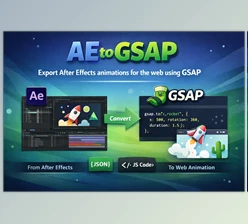
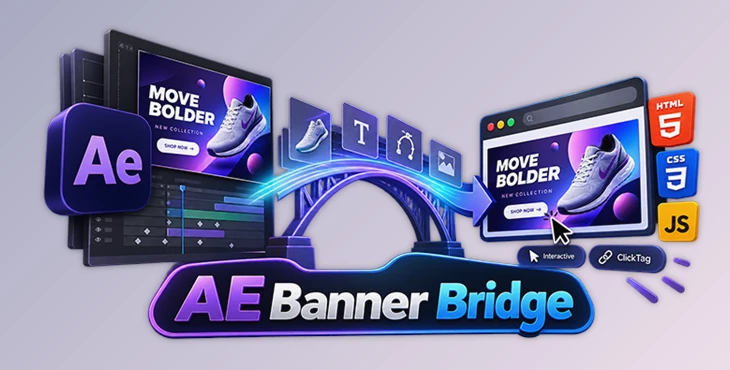
AE Banner Bridge makes that transition much easier. It allows motion designers to create their animations inside Adobe After Effects and export them as ready-to-use HTML5 banners containing HTML, CSS, JavaScript, and image files.
Instead of moving the project into a completely different web animation environment, you can keep working with the After Effects workflow you already know.
What Is an HTML5 Banner?
An HTML5 banner is a web-based animated advertisement built with technologies such as HTML, CSS, JavaScript, images, SVG graphics, and web fonts.
Unlike a normal rendered video, an HTML5 banner can contain interactive elements. For example, it can react when someone moves the mouse over an element or clicks the banner.
This makes HTML5 useful for animated display advertising, promotional campaigns, interactive web graphics, and other lightweight animations that need to run directly inside a browser.
The challenge for motion designers is that building these banners traditionally requires a workflow that is quite different from creating animations in After Effects.
That is where AE Banner Bridge becomes useful.
AE Banner Bridge: From After Effects to the Web
AE Banner Bridge is an After Effects script designed specifically to export compositions as HTML5 banners.
It converts supported elements of an AE composition into browser-ready assets and creates a complete export folder containing the required HTML, CSS, JavaScript, and image files.
This means you can design and animate a banner using familiar After Effects tools and then prepare it for web delivery without manually writing the entire web version yourself.
The script includes nine dedicated tabs covering different stages of the workflow, from creating the initial composition to adding interactions and publishing the final banner.
Ready-to-Use HTML5 Export
One of the main features of AE Banner Bridge is its ability to turn an After Effects composition into a complete HTML5 banner.
The exported project contains the files needed for web delivery, including HTML, CSS, JavaScript, and image assets.
This can significantly reduce the amount of manual conversion required after finishing an animation in After Effects.
Familiar After Effects Workflow
You do not have to leave the After Effects timeline to create the animation.
Keyframes, layers, timing, masks, track mattes, blending modes, and supported effects can remain part of your normal workflow.
For motion designers who already work quickly in AE, this means there is less need to learn an entirely separate animation editor just for web banners.
Composition Setup Presets
The Comp Setup tab helps you prepare the banner before animation begins.
You can select a banner format preset and define important settings such as frame rate, duration, and composition name.
Starting with the correct dimensions and settings can help avoid unnecessary adjustments later in the project.
Anime.js Easing Presets
The Anime Sets tab provides ready-made easing options based on Anime.js.
You can apply Natural, Impact, and Overshoot styles with In, Out, or InOut directions.
These presets are useful when you want to quickly add character to movement without manually building every easing curve.
Advanced Animation Control
For more detailed control, the Anime Pro tab provides options such as cubic Bézier curves, spring and elastic movement, and stepped timing.
This is particularly useful for interface-style motion, bouncing elements, product graphics, buttons, and other animations where the timing strongly affects how polished the final result feels.
DOM Text Animation
AE Banner Bridge can create real DOM-based text instead of forcing all text into raster images or vector shapes.
You can animate text by letter, word, or line, giving you more flexibility for animated headlines, promotional messages, calls to action, or other typography-heavy banners.
You can also embed custom fonts when needed.
CSS Effects
You can translate several familiar visual effects into browser-native CSS effects.
Supported options include drop shadows, blur, gradient ramps, and hue/saturation adjustments.
Using browser-native effects helps keep the exported banner efficient while still letting you add visual depth and variation.
SVG Export
Illustrator files, text, and shape layers can be converted into browser-ready SVG graphics.
SVG is especially useful for logos, icons, illustrations, and other graphics that need to remain sharp at different display sizes.
This can also help you avoid unnecessary raster images in the final banner.
Interactive Elements
Web banners often need more than animation.
With the Interaction tab, you can assign IDs, create hover reactions, configure ClickTags and URLs, make the entire banner clickable, and choose whether links should open in a new browser tab.
This turns a passive animation into an interactive web advertisement without requiring you to build all of the interaction logic manually.
Timeline Actions
Use markers to control playback behavior.
You can define loop counts, create stop points, and add developer annotations to the timeline.
This creates a convenient connection between the visual After Effects timeline and the exported banner's behavior.
Batch Export
When a campaign contains several banner sizes or variations, exporting them individually can become repetitive.
AE Banner Bridge supports batch processing of multiple compositions, making it easier to prepare several deliverables from the same After Effects project.
This is especially useful for advertising campaigns that require the same visual concept in multiple dimensions.
Lightweight Web Output
File size is extremely important for online advertising.
Instead of relying on a large proprietary player or separate WebAssembly runtime, AE Banner Bridge outputs standard HTML, CSS, and JavaScript with a small JavaScript library of around 18 KB.
Combined with optimized image assets, this approach can make it easier to work within strict ad-server size requirements.
A Practical Workflow
A good way to use AE Banner Bridge is to think about the final web banner before you begin building the animation.
Start by choosing the required banner format and creating the composition with the Comp Setup tools.
Then build the visual design using supported After Effects layers and features. Animate the main elements with regular keyframes or use the Anime Sets and Anime Pro tools when you need more specialized easing.
For text-heavy designs, use the DOM text tools so that typography can remain suitable for browser-based animation.
If the banner contains logos or vector artwork, converting suitable layers to SVG can help maintain sharp edges while keeping the design flexible.
Once the animation works, add interactions such as hover behavior, ClickTags, or destination URLs.
Finally, configure the publishing options, check the initial loading size, and export the composition as an HTML5 banner.
Tips for Better HTML5 Banners
Keep the design efficient from the start. Web banners often have stricter file-size limits than normal motion graphics projects, so every image and effect should have a purpose.
Use vector graphics where they make sense. Logos, simple icons, and clean illustrations are often good candidates for SVG because they stay sharp without large raster files.
It is also worth keeping animations focused. A few well-timed movements can often feel more professional than having every element moving at once.
Pay attention to easing as well. Natural acceleration and deceleration can make even simple position or scale animations feel much more refined.
When using interactive elements, make sure the interaction has a clear purpose. Hover effects can provide useful feedback, while ClickTags should lead users naturally toward the intended destination.
Finally, check the exported banner rather than judging the project only inside After Effects. Browser rendering, file sizes, fonts, interactions, and responsive behavior are all important parts of the final result.
Create an Entire Campaign Without Leaving AE
One of the most useful aspects of AE Banner Bridge is that it allows motion designers to keep After Effects at the center of their workflow.
Instead of creating the video version of a campaign in AE and then rebuilding the web version elsewhere, you can use the same familiar environment to prepare HTML5 banner variations.
AE Banner Bridge includes tools for text animation, SVG conversion, CSS effects, interactions, timeline controls, and batch export. It also creates lightweight HTML, CSS, and JavaScript files you can use on the web.
If you already work in After Effects and don’t want to learn a separate web animation tool, AE Banner Bridge lets you create the animation in a familiar environment and then bring it to the browser while keeping control over the design, timing, and interactions.

Files Password : gfxplugin.com OR 123456