Downloadable Files
You can download Putty for free from the end of this page.
Give Your Artwork More Freedom to Move
Bending text, logos, and graphic shapes in After Effects can sometimes be more complicated than expected. You may want a title to follow a smooth wave, make a logo flex naturally, or give individual letters a soft animated bend. The challenge is getting that movement without making the artwork look stretched or difficult to control.
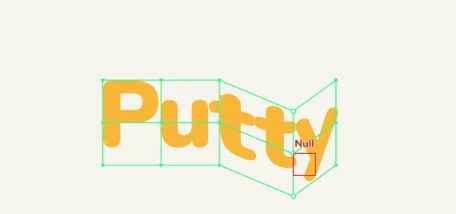
Putty makes this kind of bending and reshaping much easier. It places a lattice or cage around your artwork, so you don’t have to work with a large mesh covering the whole layer. Just move the points you need, and the surrounding parts of the graphic will bend smoothly with them.
This makes Putty useful for motion graphics where you want flexible deformation while still keeping direct control over the final shape.
What Does Putty Actually Do?
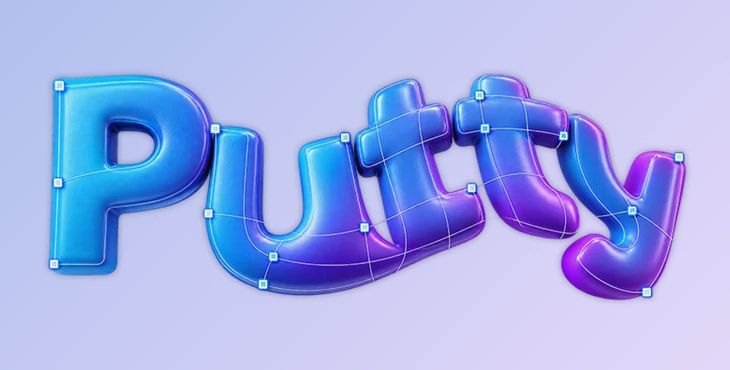
Putty is an After Effects plugin for bending and deforming layers with a customizable lattice or cage.
The basic idea is simple: apply the effect to your artwork, create a fitted mesh, and move its control points to change the shape. If you drag one point, Putty can smoothly influence the surrounding points as well, helping the deformation feel more natural.
This can be especially useful for elements such as:
Animated text and titles
Logos and brand graphics
Icons and graphic shapes
Illustrations
Individual letters or separate design elements
Organic motion and subtle distortions
For example, imagine a straight line of text that needs to follow a flowing wave. A traditional mesh covering the entire layer may give you control points far outside the actual text. Putty instead fits its controls around the visible artwork, putting the points closer to the areas you actually want to edit.
That can make shaping and animating the result much more direct.
Lattice or Cage: Two Ways to Bend
Putty offers two main approaches to deformation: Lattice and Cage.
Lattice creates a grid fitted to the artwork. This is useful when you want to reshape an element as a whole and need several control points across its surface.
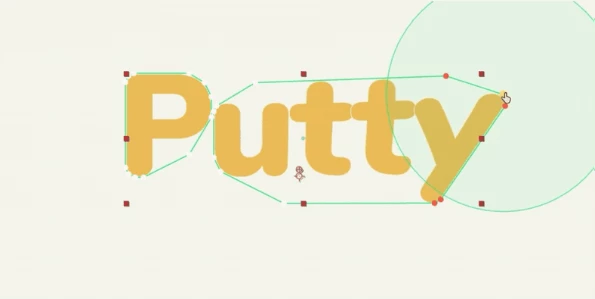
Cage works differently. It creates an outline around individual pieces, allowing separate elements to be controlled more independently. With text, for example, this can make it possible to bend and animate letters one by one.
There is also a Fit Offset option for adding extra room around the artwork when you do not want the controls sitting directly against its edges.
Choosing between these modes depends on the type of movement you want. Lattice works well for broader deformations, while Cage can be useful for larger, cleaner movements of individual elements.
A Mesh That Fits the Artwork
One of Putty's main features is its fitted mesh.
Instead of automatically covering the complete rectangular layer, the grid can sit directly around text, logos, and shapes. This gives you control points in more useful positions and can reduce unnecessary adjustments when working with artwork that occupies only part of a layer.
Smooth Soft Selection
Moving a single point does not always produce a natural deformation. Sometimes you want the surrounding area to follow gradually.
Putty's Soft Selection allows neighboring points to respond smoothly as you drag. You can also adjust the reach of this influence depending on how broad or localized you want the deformation to be.
For more precise edits, individual points can be moved separately or pinned in place.
Animate the Mesh Directly
Putty's mesh can also be animated.
Enable Mesh Animation, turn on the stopwatch, and changes to the mesh can become keyframes. This means you can create transitions between different shapes directly through the deformation controls.
A title could start straight and gradually bend into a wave, for example, or a logo could gently flex over time.
Control Points with Nulls
For animation setups that need more control, selected mesh points can be turned into a Cluster and driven with a Null.
Once connected, moving, parenting, or tracking the Null causes those points to follow. The Null also includes a Soft Selection slider and can follow Mesh Animation.
This can be particularly useful when you want deformation controls to become part of a larger animation rig.
Move the Artwork Without Moving the Mesh
The Image Transform controls allow the artwork to move, scale, and rotate through the deformation field while the mesh remains in place.
This opens up another type of animation. Instead of constantly changing the mesh itself, you can move the image through an existing bend and let different areas of the artwork pass through the deformation.
Symmetry and Wiggle
Putty also includes tools for adding faster or more organic movement.
Symmetry mirrors edits, which can be useful when creating balanced shapes.
Wiggle introduces gentle motion into the deformation and can help make otherwise static graphics feel less rigid.
Where Putty Can Be Useful
The plugin can fit into many motion design situations.
You could use it to make typography flow along a curved path, give a logo a soft elastic movement, distort an illustration during a transition, or animate separate letters with different bends.
It can also work well when you want a graphic to feel less perfectly digital. A small amount of movement or deformation can give static shapes a softer, more organic character without completely changing their original design.
Because Putty can work with both direct mesh animation and Null-driven clusters, it can handle anything from a quick manual bend to a more controlled animation setup.
Tips for Cleaner and More Natural Results
Start with Small Deformations
You do not always need dramatic bending to make an animation noticeable. Small changes across several points often create smoother results than pushing one point extremely far.
For text and logos, subtle deformation can also help preserve readability and the original character of the design.
Use Soft Selection for Organic Motion
When a bend feels too sharp, increase the Soft Selection influence so nearby points move along with the main control point.
A wider influence usually creates broader, smoother curves, while a smaller influence is better when you need localized adjustments.
Pin Areas That Should Stay Still
If part of the artwork needs to remain fixed while another area bends, pinning points can help isolate the movement.
This is useful when creating effects where one side of an object stays anchored while the other side stretches or moves.
Use Cage Mode for Separate Elements
When working with letters or individual shapes, Cage mode can provide cleaner control than treating everything as one large deformation surface.
This is particularly helpful for typography animations where each character needs its own movement.
Let Nulls Handle Repeated Motion
If certain points need to follow another element, using Clusters and Nulls can make the animation easier to manage.
Instead of manually adjusting multiple mesh points throughout the timeline, you can animate or track the Null and let the connected points follow it.
Keep the Motion Purposeful
Wiggle and flexible deformation can quickly make an animation feel lively, but too much movement can also make text or logos difficult to read.
Use organic motion where it supports the design rather than applying it equally to every element.
A More Direct Way to Bend Artwork
Putty gives After Effects users a focused way to bend and animate text, logos, shapes, and other visual elements without relying on a mesh that covers the entire layer.
Its fitted Lattice and Cage modes make control points easier to place where they matter, while Soft Selection helps create smoother bends. Mesh Animation, Clusters, Null controls, Image Transform, Symmetry, and Wiggle provide additional options when the deformation needs to become part of a larger animation.
For simple projects, you can use it to grab a few points and quickly reshape an element. For more involved motion graphics, you can animate those same points or connect them to Nulls for greater control.
The key is to experiment with the amount of deformation. Even a small bend or subtle movement can make static artwork feel more flexible and alive without overwhelming the original design.

Files Password : gfxplugin.com OR 123456