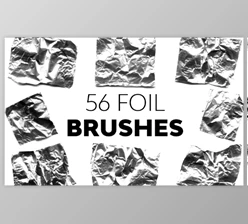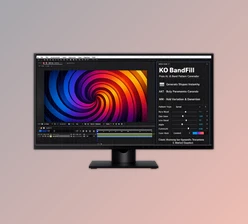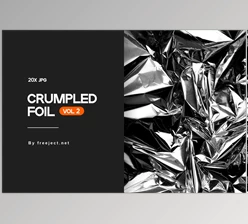
Downloadable Files
You can download KO Foil for free from the end of this page.
Give Flat Graphics a More Reflective Look
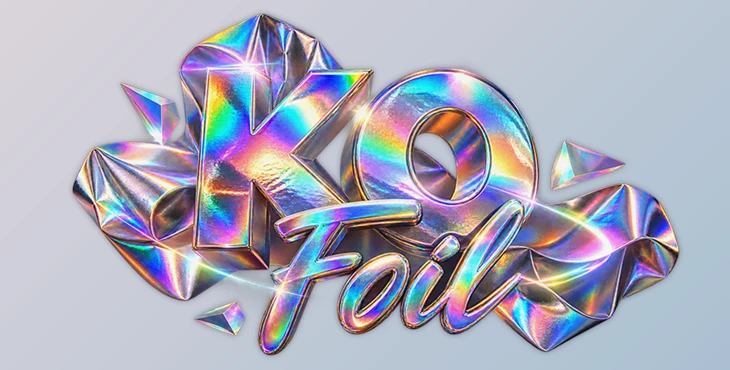
Holographic foil has a distinctive look. As light moves across the surface, colors shift, highlights travel through different areas, and rainbow-like reflections appear depending on the angle of the light. Recreating that feeling digitally can be difficult, especially when the result needs to look like reflective material rather than a simple colorful gradient.
KO Foil is a native After Effects plugin designed specifically for this type of effect. It creates holographic and iridescent foil, light leaks, and prismatic gradients using optics-based color calculations.
Instead of simply placing a rainbow gradient over an object, the plugin calculates how the light and colors behave. This makes the effect feel more connected to the surface underneath it and gives logos, typography, graphics, and textured materials a more convincing foil appearance.
What Is KO Foil?
KO Foil is an effect plugin for Adobe After Effects that helps create reflective, holographic, and iridescent surfaces.
One key difference is how it generates color. The plugin does not work like a traditional color-remapping effect. Instead, it disperses light and calculates the resulting gradient from optics.
This approach is useful when you want the colors to feel like they belong to a reflective material rather than looking painted on top of the image.
For example, you could use KO Foil on a logo to create a holographic branding animation, apply it to a headline for reflective metallic-style typography, or combine it with a paper texture to produce something closer to printed foil.
It can also create light leaks and prismatic gradients, making it useful beyond straightforward holographic effects.
Why Optics-Based Color Matters
A basic rainbow gradient can create colorful results, but it does not necessarily behave like iridescent material.
KO Foil approaches the effect differently. Its colors come from how light is dispersed, creating more natural-looking shifts between hues.
This becomes especially noticeable when the effect moves. Rather than feeling like a static gradient sliding across the screen, the changing colors can behave more like light interacting with a reflective surface.
By default, the effect is added similarly to a glow. Because of this, applying it to a plain white solid may initially show nothing until the blend mode is changed.
Understanding this behavior makes it easier to build the effect intentionally instead of wondering why it is not immediately visible.
Built-In Presets
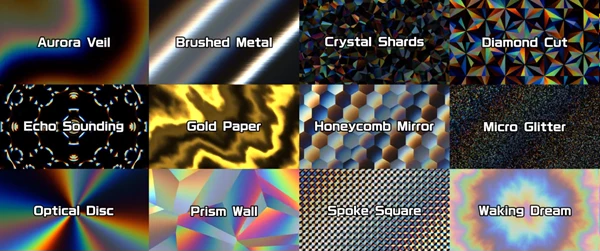
KO Foil includes presets that provide ready-made starting points.
These presets are not locked looks. Their settings are written into controls that remain accessible, so you can choose a preset and then modify its parameters to fit your project.
This can be particularly helpful when learning the plugin. Start with a look that is already close to what you want, then adjust individual controls while watching how they affect the result.
Direct Lighting Controls
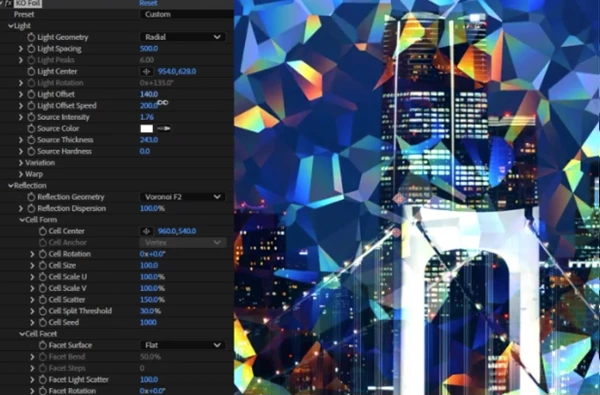
The plugin is designed around direct controls rather than a complicated lighting setup.
Each slider has a specific purpose, and the image responds while you adjust it. This makes it possible to position and shape the sheen visually instead of creating a lighting environment and repeatedly checking where the reflection appears.
For motion graphics work, this can make experimentation much quicker.
You can move the highlight until it falls across the most important part of a logo, title, or graphic and then animate it to create movement.
Bump Control
The Bump feature allows another layer to influence the surface of the foil.
Its brightness becomes surface information for the effect. This means you can point Bump toward elements such as a logo, headline, or photograph of textured paper and allow that information to affect how the surface reacts to light.
This is especially useful when you want the foil to feel less perfectly flat.
For example, using a paper texture can introduce subtle surface variation, helping the final result resemble foil applied to a physical printed material.
Matte Control
The Matte control determines where the foil appears.
You can point it toward another layer and use that layer to control the placement of the effect. The original layer's alpha remains untouched, so you do not need to duplicate layers simply to build the matte.
This makes it easier to restrict the foil to specific areas of a composition.
A logo, text element, symbol, or custom shape can therefore define exactly where the holographic treatment appears.
Light Leaks and Prismatic Gradients
KO Foil is not limited to full foil surfaces.
Its optical color behavior can also be used for light leaks and prismatic gradients. These effects can work well as supporting elements around titles, transitions, abstract graphics, or other motion-design compositions.
Instead of making the entire design holographic, you can use these effects more subtly to introduce changing color and light.
CPU-Based Processing
KO Foil runs on the CPU and does not require GPU processing.
According to its design, each pixel uses a direct light calculation instead of heavy sampling. Most lighting adjustments therefore do not dramatically change the computational cost, although Warp and very small cells can increase processing requirements.
The plugin also supports multi-frame rendering and 32-bit floating-point processing.
It is available for both Windows and macOS, with native Apple Silicon support.
Where Can You Use KO Foil?
The effect can fit naturally into many types of After Effects projects.
A simple brand logo can be turned into a shifting holographic mark. Typography can receive a reflective foil treatment for title sequences, promotional graphics, or product visuals. Paper textures can be combined with the Bump controls to create foil-print-inspired designs.
You could also use the plugin for:
Holographic logos and symbols
Iridescent typography
Reflective title animations
Foil-style packaging graphics
Prismatic backgrounds
Light leaks
Abstract motion graphics
Printed-paper and textured foil looks
The effect does not always need to dominate the entire composition. Sometimes a small moving reflection across a logo or title is enough to make the graphic feel more dimensional.
Tips for Better Foil Effects
Start With a Preset, Then Customize It
Presets are useful for quickly understanding what KO Foil can produce, but they can also serve as learning tools.
Choose a preset that is reasonably close to your desired result and then adjust one control at a time. This makes it much easier to understand how light position, reflections, surface information, and compositing work together.
Use Texture for More Physical Results
Perfectly smooth foil can work well for clean digital graphics, but physical materials usually contain subtle imperfections.
Try using a paper photograph or another textured layer with the Bump control. Even gentle surface variation can help the light react in a more interesting way.
The texture does not need to be extremely strong. Small details are often enough to keep the surface from looking completely flat.
Keep the Highlight Focused
More reflection is not always better.
If every part of a design is equally bright and colorful, the important areas can become harder to notice. Try positioning the strongest sheen around the part of the graphic that should attract attention.
For a logo, this could mean letting the highlight travel across the main symbol. For typography, it might move gradually across selected letters.
Use Matte for Cleaner Composites
When the foil should only appear in a particular area, use the Matte control instead of building unnecessary duplicate layers.
Keeping the foil isolated to specific shapes can create a cleaner composition and make the reflective effect easier to control.
Animate With Restraint
Iridescent effects naturally attract attention, so they often work well with relatively simple animation.
A slow movement of the sheen or gradual shift in the reflection can be enough to reveal the optical color changes. Faster movement can work for energetic projects, but subtle motion is often useful when you want the material itself to remain the focus.
A Different Approach to Holographic Effects
KO Foil makes it easier to create holographic and iridescent effects in After Effects without building complicated lighting setups or using simple rainbow gradients.
Its optics-based color generation is at the center of the workflow, while direct lighting controls, Bump and Matte layers, built-in presets, light leaks, and prismatic gradients provide additional control over how the effect appears.
The plugin can work equally well for a small reflective accent or a full holographic treatment. Logos, typography, paper textures, packaging-style graphics, and abstract motion designs can all benefit from its approach.
For a more realistic foil look, pay attention to the surface as well as the colors. A little texture, a well-placed highlight, and smooth animation can make a simple graphic look much more like real reflective foil.

Files Password : gfxplugin.com OR 123456