Downloadable Files
You can download SFX Auto Insert for free from the end of this page.
SFX Auto Insert
Adding sound effects can make even a simple video edit feel more dynamic and polished. A small click, impact, pop, transition sound, or emphasis effect can give visual moments more weight and help the viewer feel the rhythm of an edit. The problem is that placing all those sounds manually can quickly become repetitive, especially when a project contains many captions and similar moments.
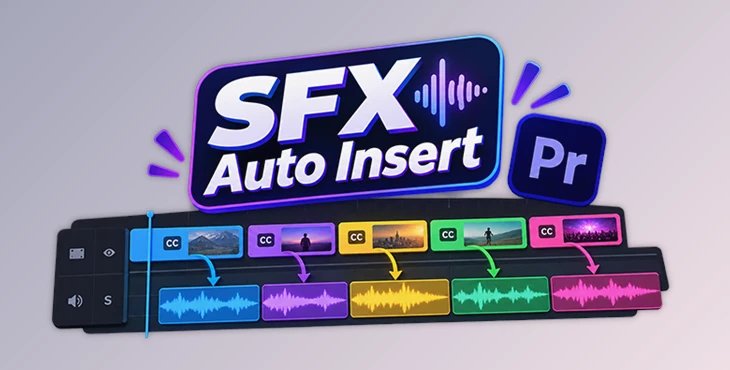
SFX Auto Insert is designed to simplify this part of the editing process in Adobe Premiere Pro. Instead of repeatedly searching through an SFX folder and dragging individual audio files onto the timeline, you can use label colors as triggers for different sound categories.
Just color your captions as you edit, check the sound effects the panel suggests, and add them all to the timeline when you’re ready. It saves you from placing each sound one by one and makes the whole process much quicker.
Turn Caption Colors Into Sound Triggers
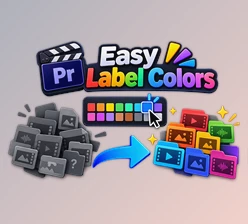
The main idea behind SFX Auto Insert is simple: a label color can represent a particular category of sound.
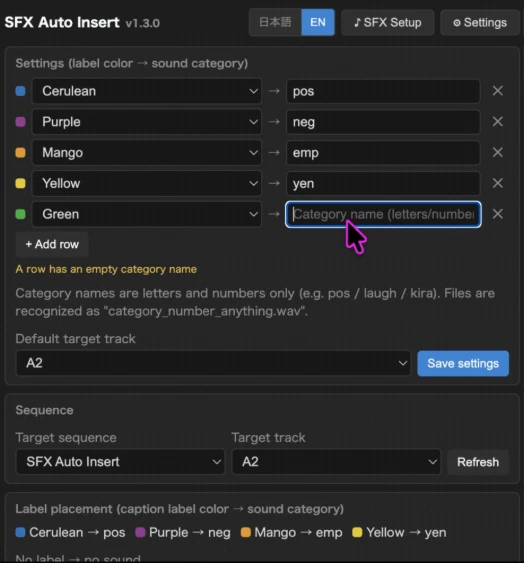
For example, you might assign one label color to positive sounds, another to negative sounds, and another to emphasis effects. When those colors appear on captions in your sequence, the panel reads them and proposes a matching sound effect from the corresponding category.
This can be especially useful in fast-paced videos where captions and sound effects frequently work together. Instead of stopping every few seconds to browse your audio library, you can continue editing and use label colors to indicate where particular types of sounds should appear.
The workflow can help keep repetitive sound placement more consistent while reducing the amount of manual searching and dragging required.
Meet SFX Auto Insert
SFX Auto Insert works entirely inside Premiere Pro, so there is no separate application that needs to be managed alongside your editing software.
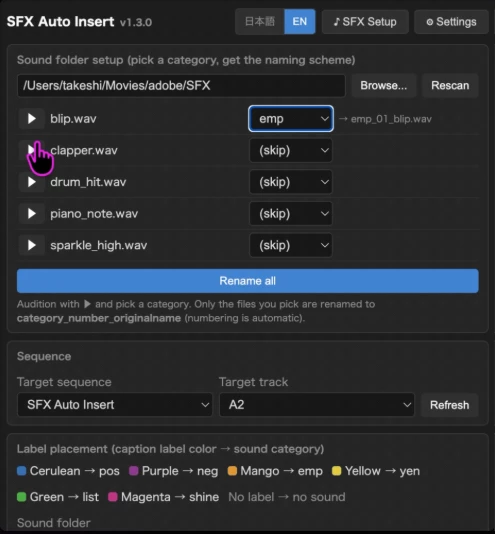
The workflow starts by pointing the panel to your existing sound effects folder. It can audit the files and batch-rename them according to its naming scheme, allowing you to prepare an existing SFX collection without manually reorganizing every file.
After that, you can map label colors to sound categories and begin using those colors throughout your sequence.
The panel then detects the labels, chooses appropriate sounds from their assigned categories, and presents the proposed placements for review before anything is added to the timeline.
Color-Coded Sound Triggers
Any label color can be assigned to a sound category. Once the mapping is configured, coloring a caption becomes the trigger for the corresponding type of sound.
This is particularly convenient if label colors are already part of your Premiere Pro workflow because there is very little additional behavior to learn.
Custom Sound Categories
You are not limited to predefined categories. Categories such as positive, negative, or emphasis can be renamed and customized to match the way you organize your own sound library.
For example, you could create categories for clicks, pops, impacts, transitions, alerts, or any other group of effects that makes sense for your projects.
Batch SFX Library Preparation
Preparing a large sound library manually can take time. SFX Auto Insert can audit your files and batch-rename them into the required naming scheme in one operation.
This allows you to continue using your existing collection rather than rebuilding your sound library from scratch.
Automatic Sound Selection
When the panel detects a colored caption, it can select a sound from the category associated with that label.
Selection within a category is randomized, and the same file is not repeated twice in a row. This can introduce some variation when multiple similar sound cues appear close together.
Pin Exact Sounds With Sequence Markers
Automatic selection is useful for repetitive placements, but some moments require a specific effect.
In those situations, you can add a sequence marker and use it to pin a particular sound file to an exact frame. This gives you more precise control over important beats while keeping the faster automated workflow for the rest of the sequence.
Review Before Inserting
The panel does not have to place every proposed sound immediately. Suggested placements appear in a checklist first, allowing you to review them and uncheck anything you do not want.
This makes it easier to keep automation under control instead of accepting every generated placement blindly.
Easy Removal and Undo
If the inserted sounds do not work as expected, the panel includes one-click removal for sounds added by the last insert operation while leaving your own audio untouched.
The entire batch can also be reversed with a Premiere Pro undo, making experimentation much less disruptive to the timeline.
Built Directly for Premiere Pro
SFX Auto Insert operates inside Adobe Premiere Pro without requiring a separate companion application. It supports Premiere Pro 2022 and later on both Windows and macOS, with English and Japanese interfaces available.
Where Can SFX Auto Insert Be Useful?
The workflow can fit especially well into projects with frequent captions and short sound cues.
Imagine editing a fast social media video where important words need subtle pops or impacts. Instead of manually finding a suitable sound for every caption, you could assign an emphasis label to those moments and let SFX Auto Insert prepare the placements.
A tutorial might use different categories for positive confirmations, warnings, and highlighted information. Short-form content could use clicks and pops to reinforce animated captions, while other edits might use the system for recurring transitions or interface-style sound cues.
The main benefit is not simply adding more sound effects. It is reducing the repetitive work involved in placing effects that follow a predictable pattern.
Tips for a Cleaner and More Natural Workflow
Automation works best when the sound library itself is organized thoughtfully. Create categories that reflect how you actually edit rather than making too many categories that are difficult to remember.
It is also worth keeping several suitable sounds inside frequently used categories. Because the panel can randomly select files without repeating the same one twice in a row, having multiple variations can help repeated cues feel less monotonous.
Use automatic placement for routine moments, but take advantage of sequence markers when an important beat needs a very specific sound. This combination gives you speed without giving up detailed control.
Finally, always use the review checklist before inserting a large batch. Not every caption necessarily needs a sound effect, and removing unnecessary placements can keep the final edit from feeling overly busy.
A Faster Approach to Repetitive Sound Design
SFX Auto Insert takes a familiar Premiere Pro feature—label colors—and turns it into a practical system for placing sound effects.
By mapping colors to custom sound categories, preparing existing SFX libraries, automatically selecting sounds, reviewing placements before insertion, and allowing exact sounds to be pinned with markers, it can reduce much of the repetitive work involved in caption-driven sound design.
You still have control over where and how the sounds are used. SFX Auto Insert can take care of the repetitive placements, while you can handle the moments that need more attention or precise timing.
If you often add sound effects to captions, key moments, or repeated elements in your edits, it can save time and make the process easier without leaving Premiere Pro.

Files Password : gfxplugin.com OR 123456