Downloadable Files
You can download Lumina Suite AI for free from the end of this page.
A Smarter Way to Handle Everyday Image Tasks
Working with images often means jumping between several different tools. You may need one application to upscale a low-resolution photo, another to remove its background, a separate program to vectorize a logo, and yet another utility to optimize or convert the finished file.
This becomes even more complicated when your workflow includes specialized tasks such as CMYK color separation, PDF conversion, or preparing images for 3D viewing.
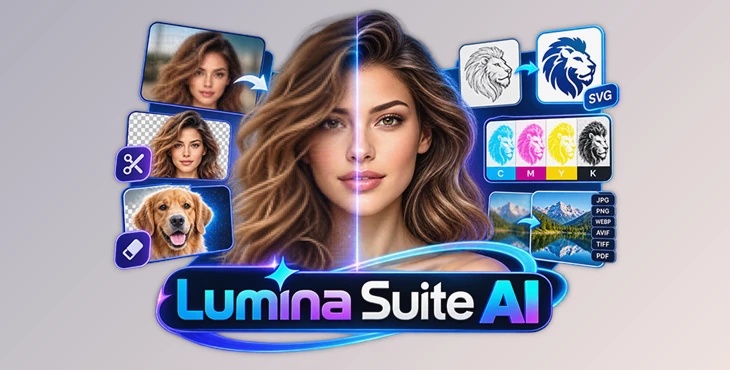
Lumina Suite AI brings these different processes together in a single Windows application. It combines AI-powered image processing with traditional editing and conversion tools, while performing its main processing locally on your computer.
That local approach is particularly useful when you are working with private client files, large images, or projects that you simply do not want to upload to an online service.
What Can Lumina Suite AI Do?
Lumina Suite AI is designed as an all-in-one image processing suite for photographers, designers, screen-printing professionals, digital artists, and general content creators.
Instead of focusing on a single type of image enhancement, it covers several stages of a typical graphics workflow.
For example, you could upscale an old photograph, isolate its subject from the background, make basic visual adjustments, and then convert the final result into another format. A designer could also take a pixel-based logo and turn it into an editable SVG, while a print professional could use the CMYK separation tools to prepare artwork for screen-printing workflows.
Because these capabilities are available within one suite, repetitive image-processing tasks can become easier to manage without constantly moving files between unrelated utilities.
AI Upscaler and Image Restoration
Low-resolution images can become noticeably soft or pixelated when enlarged using conventional scaling methods. Lumina Suite AI provides an AI-powered upscaler capable of increasing image resolution by 2x or 4x.
Its processing engines are designed to restore details while reducing compression noise, making this feature suitable for old photographs, textures, digital artwork, and anime-style images.
The goal is not simply to make an image physically larger, but to produce a cleaner and more usable enlarged version.
Smart AI Background Removal
Removing a complicated background manually can take a significant amount of time, especially when an image contains people, products, or objects with detailed edges.
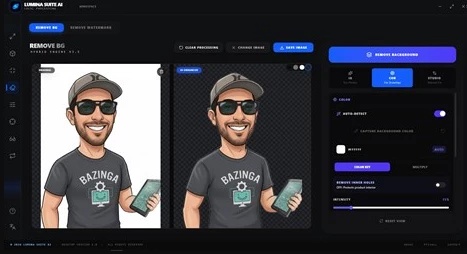
The background removal feature uses neural networks to automatically isolate subjects from their surroundings.
After the initial cutout, you can continue working in the Studio to add another background or shadow and adjust properties such as brightness, contrast, and saturation. This makes the feature useful for product images, social media graphics, presentations, and other projects where clean subject isolation is important.
AI Object Removal
Lumina Suite AI also includes an AI Object Remover for cleaning unwanted elements from images.
This can be helpful when an otherwise useful photograph contains distracting objects or visual elements that you would rather remove before continuing with the rest of your editing workflow.
Bitmap-to-SVG Vectorization
Logos and illustrations found in raster formats are not always suitable for large-format output or further vector editing.
The Auto-Vectorization Studio converts bitmap graphics into scalable SVG files. It is designed for logos, line art, illustrations, and other graphics that need to remain clean when resized.
Controls for lines and colors allow you to refine different parts of the vectorization process separately. The resulting SVG can then be taken into vector-editing software such as Illustrator or CorelDRAW for additional work.
Professional CMYK Color Separation
For users working with screen printing and pre-press production, Lumina Suite AI provides dedicated CMYK color separation.
Images can be separated into Cyan, Magenta, Yellow, and Key/Black channels for print-oriented workflows. A Photolith Mode is also available when a project requires film output.
This gives the suite a more specialized role than a typical AI photo editor, particularly for designers who prepare graphics for physical printing.
Image Optimization and Format Conversion
Large image files can create unnecessary storage and loading problems, particularly when graphics are intended for websites or applications.
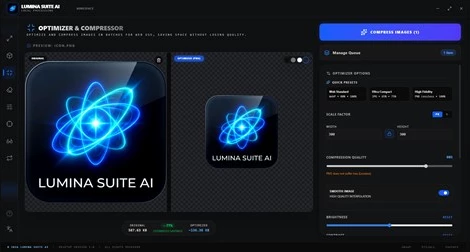
The Universal Optimizer can reduce file sizes while maintaining visual quality and supports formats including:
PNG
JPG
WebP
AVIF
ICO
TIFF
Batch processing makes this especially useful when many images need to be converted or optimized together.
For example, a collection of website graphics can be converted to WebP rather than processing each file manually.
Image and PDF Conversion
Lumina Suite AI can also turn images into high-quality PDF documents with output resolutions ranging from 72 to 600 DPI.
Standard document sizes such as A4 and A3 are available, along with custom dimensions.
The workflow also works in reverse. PDF content can be extracted into PNG, JPG, or WebP images, with the option to process a specific page or extract all pages.
3D Anaglyph and SBS Effects
The 3D Anaglyph Studio adds another creative option to the suite.
You can generate traditional cyan/red stereoscopic images and adjust their depth to control the strength of the 3D effect.
An SBS (Side-by-Side) mode is also included for preparing stereoscopic images for compatible VR headsets, smartphone VR viewers, or supported 3D displays.
Built-In Image Editor
Not every project requires a dedicated full-scale photo editor.
For smaller adjustments, Lumina Suite AI includes standard editing tools for tasks such as cropping, basic corrections, and essential filters. This allows you to make quick changes before or after using its AI processing features without necessarily opening another application.
Local AI Processing and Privacy
One of the most important characteristics of Lumina Suite AI is that its processing takes place locally.
Instead of sending images to a remote cloud service, the application uses your computer's own hardware to run its neural networks and processing tasks. This removes upload limits from the workflow and keeps files on your machine.
Local processing can be especially valuable when handling confidential client photography, unreleased designs, commercial artwork, or other material that you prefer not to upload to third-party servers.
Lumina Suite AI is also optimized to take advantage of GPU acceleration on Windows, so users with more capable graphics hardware can benefit when processing demanding or high-resolution images.
Tips for Getting Better Results
AI tools can save considerable time, but your source image still matters. When upscaling, start with the cleanest version of the original file you have available. AI restoration can improve details and reduce compression artifacts, but a better source generally gives the processing engine more useful information to work with.
For background removal, inspect difficult areas after automatic processing. Hair, transparent materials, shadows, and fine edges can sometimes benefit from additional refinement before the cutout is used in a professional composition.
When vectorizing artwork, simple logos and clean line art are generally more suitable candidates than highly detailed photographs. Use the available line and color controls to refine the vector result instead of expecting every raster image to translate into an equally simple vector graphic.
For web projects, consider modern formats such as WebP or AVIF when appropriate. Optimization can significantly reduce the size of image-heavy pages while keeping the visual result suitable for normal viewing.
Finally, when using CMYK separation, remember that the final output is intended for a print workflow. Review the individual channels carefully and prepare them according to the requirements of your specific printing process.
System Requirements
Lumina Suite AI is available for Windows PCs and requires Windows 10 version 17763.0 or later.
The minimum hardware requirements include 8 GB of RAM, 2 GB of video memory, a 64-bit Intel Core i3 or AMD Ryzen 3-class processor, and a DirectX 11-compatible graphics processor.
For a smoother experience, particularly when processing large images with AI, the recommended configuration includes 16 GB of RAM, 6 GB of video memory, an Intel Core i5 or AMD Ryzen 5-class processor or better, and a dedicated GPU such as an NVIDIA RTX 2060 or AMD RX 5700 or higher.
More capable hardware can be especially helpful because the application performs its AI workloads locally rather than relying on cloud servers.
One Suite for Many Image Workflows
Lumina Suite AI combines several tools that would otherwise be spread across different parts of an image-production workflow. AI upscaling and restoration can improve source material, background and object removal can simplify editing, SVG vectorization can prepare graphics for scalable use, and CMYK separation extends the workflow into professional screen printing.
At the same time, optimization, format conversion, PDF processing, 3D image creation, and standard editing tools cover many of the smaller tasks that appear between those larger stages.
The result is a flexible toolkit for users who regularly work with different kinds of image files and prefer to keep processing on their own computer. Whether you are preparing web graphics, restoring older images, cleaning product photography, vectorizing artwork, or creating print-ready separations, Lumina Suite AI provides several practical ways to handle those tasks from one place.

Files Password : gfxplugin.com OR 123456