Downloadable Files
You can download Affinity for free from the end of this page.
One Creative App Instead of Constant App Switching
Creative projects rarely stay inside a single discipline. A design may begin with vector shapes, move into photo editing, require a carefully structured page layout, and then need additional adjustments before it is ready to publish.
Affinity brings these different stages together in one fast, professional creative application. Instead of constantly moving between separate programs, you can work with vector graphics, pixel-based images, layouts, and integrated creative tools while staying inside the same .af file.
This unified approach can make complex creative projects easier to manage, especially when a project combines illustration, photography, branding, typography, and page design.
What Is Affinity?
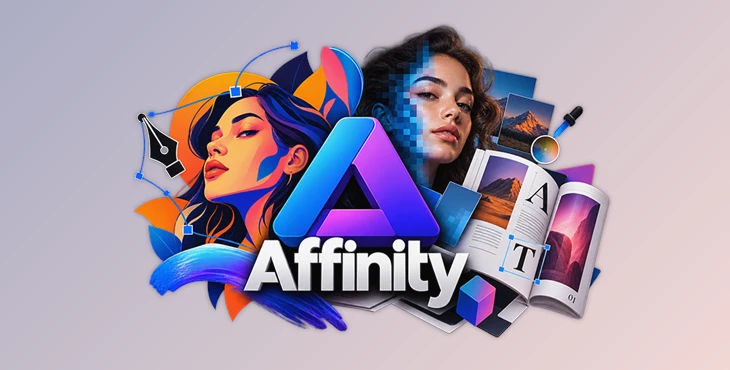
Affinity is a professional creative application that combines tools for graphic design, digital illustration, photo editing, and page layout.
Its workspace is divided into specialized creative areas, including:
Vector for graphic design and illustration
Pixel for image editing and raster-based work
Layout for page composition and publishing
Canva AI for optional AI-powered creative tools available with supported Canva premium plans
The main idea is simple: rather than switching applications whenever the type of work changes, you can continue working on different parts of the same project inside Affinity.
For example, you could create vector artwork for a poster, edit the photography used in the composition, arrange typography and layout elements, and then return to the image for additional adjustments without leaving the project.
Why a Unified Creative Workflow Matters
Moving repeatedly between different applications can interrupt the creative process. Files need to be exported, reopened, converted, or reorganized, and small changes may require jumping back into an earlier application.
Affinity is designed to reduce this friction.
Because vector, pixel, and layout tools are available within the same application, different stages of a project can remain closely connected. This is particularly useful for projects such as branding, posters, social media graphics, editorial layouts, digital illustrations, marketing materials, and mixed-media compositions.
Keeping more of the workflow together can also make experimentation easier. Instead of treating each stage as a separate process, designers can move between different types of editing as the project develops.
Features
Vector Design and Digital Illustration
Affinity includes professional vector tools for creating graphics, illustrations, logos, typography-based artwork, and other scalable design elements.
This makes it suitable for projects where clean shapes, curves, and editable vector elements are important. A designer could, for example, build a logo and then immediately combine it with photography or raster textures without moving the project into another application.
Pixel-Based Photo Editing
Pixel tools allow you to edit and manipulate raster images directly within your project.
This is useful for retouching photographs, making detailed image corrections, combining images, applying creative effects, or preparing photographic elements for larger compositions.
Having pixel and vector tools available together is especially valuable when a project mixes photography with illustration or graphic design.
Professional Page Layout
Affinity also provides layout tools for building structured multi-element designs and page-based projects.
You can combine text, images, vector graphics, and other visual assets into polished layouts without needing to move the project into a separate publishing application.
This makes the software useful for editorial graphics, presentation-style compositions, print designs, promotional materials, and other projects where precise layout is important.
Broad File Compatibility
Compatibility is an important part of a professional workflow, particularly when working with clients or collaborating with people who use different software.
Affinity can work with formats including PSD, AI, IDML, and DWG, helping users bring existing creative files into their workflow while preserving useful layers and structure.
This makes it easier to continue previous projects or exchange files within workflows that involve multiple creative applications.
Non-Destructive Editing
Affinity supports non-destructive workflows, allowing you to experiment without immediately committing changes permanently to the original content.
Edits can be adjusted, reordered, or removed as the project develops. Undo history can also be retained with the document, making it possible to revisit earlier stages of your work.
This flexibility is particularly helpful when exploring different looks or when clients request changes after a project has already progressed significantly.
High-Performance Editing
Large creative files can quickly become demanding, particularly when they contain many layers or require extremely detailed editing.
Affinity is designed for high-performance workflows and can handle projects containing thousands of layers. It also supports extremely deep zoom levels of up to 1,000,000%, allowing precise work on very small details.
Optional Canva AI Tools
Users with supported Canva premium plans can access optional AI-powered tools directly inside Affinity.
These tools are integrated into the creative workflow rather than replacing the core manual editing experience. This gives users the choice to incorporate AI-assisted features when they are useful while continuing to rely on traditional design and editing tools.
Export to Canva for Collaboration
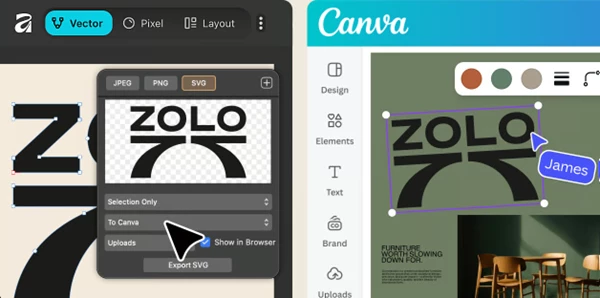
Finished assets can be exported from Affinity into Canva, providing another option for collaborative workflows.
For example, a designer could create and refine the main visual assets in Affinity and then move them into Canva, where teammates can collaborate on campaign materials and adapt those assets across additional formats.
Capture One Integration
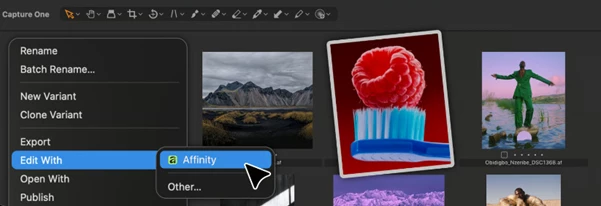
Affinity supports a direct workflow with Capture One, allowing images to move from Capture One into Affinity for deeper and more precise editing.
This can be useful for photographers who begin with photo management and initial image processing before moving into more detailed creative editing.
DaVinci Resolve Integration
Affinity .af files can also be opened directly in DaVinci Resolve.
This creates a useful bridge between still-image design and video production, particularly for creators who prepare graphics or visual assets that will later become part of motion or video projects.
Affinity and Cavalry Workflow
Designs created in Affinity can be taken into Cavalry for animation.
This provides a practical workflow for motion designers who want to create polished static artwork first and then transform those designs into animated compositions.
Where Affinity Fits Into Real Creative Projects
The combination of vector, pixel, and layout tools makes Affinity useful across many different types of creative work.
A branding project, for example, could begin with vector logo development, continue with photographic editing for campaign imagery, and finish with layouts combining logos, typography, and images.
An illustrator could build scalable vector artwork and then add raster textures or detailed pixel-based finishing touches.
A photographer could edit an image and then incorporate it directly into a poster or promotional layout.
A video creator could prepare still graphics in Affinity before transferring the finished assets into DaVinci Resolve, while a motion designer could continue the process in Cavalry.
The advantage is not simply having many tools available. It is being able to move naturally between different creative tasks without repeatedly rebuilding or transferring the project.
Tips for a Better Affinity Workflow
When starting a new project, think about which parts should remain vector-based and which elements require pixel editing. Keeping logos, typography, icons, and geometric graphics as vectors whenever possible gives you more flexibility when resizing or revising the design.
Use non-destructive adjustments when experimenting with photographs and visual effects. This makes it easier to compare different approaches and return to earlier versions without rebuilding the project.
When collaborating with users of other creative applications, pay attention to file compatibility and structure. Affinity's support for formats such as PSD, AI, IDML, and DWG can simplify collaboration, but checking imported files before making major edits is a good habit.
If your workflow continues into Canva, DaVinci Resolve, Capture One, or Cavalry, plan that handoff early. Knowing where the project will go next can help you organize assets and maintain a cleaner production workflow.
Finally, treat optional AI tools as another part of your creative toolkit rather than the entire workflow. Combining AI-assisted features with Affinity's manual vector, pixel, and layout controls gives you more control over the final result.
A Flexible Workspace for Modern Creators
Affinity brings graphic design, illustration, photo editing, and page layout together in a single creative environment. Its combination of Vector, Pixel, and Layout tools helps reduce unnecessary application switching while keeping different parts of a project closely connected.
Features such as non-destructive editing, broad file compatibility, high-performance handling of complex documents, optional Canva AI tools, and integrations with Canva, Capture One, DaVinci Resolve, and Cavalry extend that workflow beyond the application itself.
For designers, photographers, illustrators, and other visual creators, the biggest advantage is flexibility. You can begin with one type of creative task, move naturally into another, and continue refining the same project without constantly interrupting your workflow.
If your projects regularly combine vectors, photography, typography, layouts, and other visual elements, exploring Affinity's unified workflow can be a practical way to keep more of the creative process in one place.
 Affinity by Canva (v3.3.3 for Mac).rar (Size: 916.6 MB - Date: 11/4/2026 2:21:24 PM)
- Affinity by Canva (v3.3.3.5004 for Win).rar (Size: 883.6 MB - Date: 11/4/2026 2:20:47 PM)
- Affinity by Canva (v3.3.1.4940 for Win).rar (Size: 629.7 MB - Date: 10/13/2026 1:27:18 PM)
- Affinity by Canva (v3.3.1 for Mac).rar (Size: 950.6 MB - Date: 10/11/2026 12:57:38 PM)
- Affinity by Canva (v3.3.0 for Mac).rar (Size: 950.8 MB - Date: 9/16/2026 7:11:00 PM)
- Affinity by Canva (v3.3.0.4850 for Win).rar (Size: 629.5 MB - Date: 9/16/2026 7:10:25 PM)
Files Password : gfxplugin.com OR 123456