
Downloadable Files
You can download CineWhip for free from the end of this page.
Cinematic Whip Transitions for DaVinci Resolve
When using fast-paced editing, it is important to have transitions that are dynamic but not too obviously artificial or chaotic. Whip transitions can link two clips with a burst of motion that helps keep the action going while still allowing a purposeful edit.
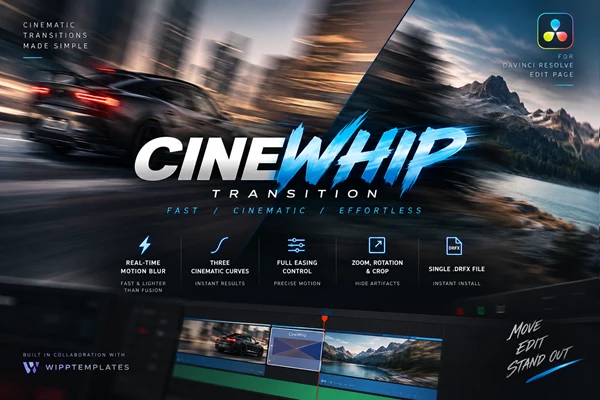
CineWhip is designed specifically for this purpose. It provides a fast cinematic whip transition directly on the DaVinci Resolve Edit page, combining smooth motion with real-time motion blur and customizable movement controls. Instead of building complex node trees in Fusion every time you need this effect, you can create polished whip transitions through a much simpler workflow.
What Is CineWhip?
CineWhip is a cinematic whip transition preset for DaVinci Resolve created in collaboration with WippTemplates. Its main purpose is to make smooth, high-energy whip transitions faster and easier to create.
A whip transition uses rapid directional movement to visually connect one shot to another. When handled properly, this type of transition can make a cut feel like part of the camera movement itself rather than an obvious edit.
A key element behind this effect is motion blur. CineWhip includes real-time, high-quality motion blur optimized specifically for whip transitions. According to its provided specifications, this approach is faster and lighter than Fusion's native motion blur, making it particularly useful when you want to maintain a responsive editing workflow.
Where Can CineWhip Make a Difference?
Whip transitions work especially well in projects where energy, speed, and visual continuity matter. For example, an editor cutting a real estate video could quickly move between different rooms or exterior shots while maintaining a sense of movement throughout the sequence.
The same technique can work well for promotional videos, social media edits, travel content, energetic montages, and other projects built around frequent cuts and dynamic camera movement.
Instead of simply placing an effect between two unrelated shots, you can use CineWhip to reinforce the existing direction and rhythm of your footage. This can help transitions feel more connected to the edit, rather than like effects added afterward.
Real-Time Motion Blur
CineWhip includes high-quality real-time motion blur optimized specifically for whip transitions. This helps create the streaked movement associated with a fast camera whip while keeping the effect smooth and cinematic.
It is also faster and lighter than Fusion's native motion blur, which can help when working on projects with many transitions.
Three Cinematic Motion Curves
The preset includes three custom cinematic motion curves. These provide ready-made movement characteristics that help you achieve polished results quickly, instead of building motion from scratch.
Multiple curves also give you more flexibility to match transitions to the pacing and personality of different edits.
Full Easing Control
Motion rarely looks natural when it starts and stops at a perfectly constant speed. CineWhip provides full easing customization, allowing you to control how the movement accelerates and decelerates.
This is particularly useful when you want the transition to feel more deliberate and better integrated with the motion already present in your footage.
Zoom and Rotation Controls
In addition to the primary whip movement, CineWhip includes controls for zoom and rotation. These options add another layer of movement and help you adapt the transition to different shot types.
A subtle zoom may add extra intensity to an energetic sequence, while controlled rotation can complement footage that already contains dynamic camera movement.
Crop Controls for Hiding Artifacts
Fast transformations can sometimes reveal unwanted edges or visual artifacts. CineWhip includes built-in crop options specifically designed to help hide these problems.
This gives you more freedom to adjust movement, zoom, and rotation without immediately exposing distracting edges during the transition.
Edit Page Workflow
One of CineWhip's most practical advantages is that it is fully editable directly on the DaVinci Resolve Edit page.
You don't need to build Fusion node trees to use or customize the transition. For editors who spend most of their time on the Edit page, this can make the process considerably faster and more approachable.
Simple DRFX Installation
CineWhip is delivered as a single .drfx file, making installation straightforward. Once installed, the transition becomes part of a workflow designed around quick access and customization.
Getting Better Results with CineWhip
Although CineWhip provides ready-made cinematic movement, how you use the transition still strongly influences the final result.
Try matching the whip's direction to movement already happening in your shots. If the first clip contains strong movement toward one side of the frame, continuing that visual direction through the transition can make the cut feel much more natural.
It is also worth experimenting with the three included motion curves rather than applying exactly the same movement to every cut. A fast, aggressive transition may suit an energetic montage, while a slightly smoother curve can work better when the edit needs to remain cinematic and controlled.
Easing is another important area to adjust. Small changes to acceleration and deceleration can dramatically change how the transition feels. Instead of focusing only on speed, pay attention to how the movement enters and exits each shot.
Treat zoom and rotation as supporting controls rather than effects that always need to be pushed hard. Subtle adjustments can add depth and energy without making the transition distracting.
Finally, use the crop controls when stronger movement introduces unwanted edges or artifacts. This helps preserve a clean frame while still letting you create more dramatic motion.
Keep the Transition Connected to the Edit
The strongest whip transitions usually feel motivated by the footage itself. Rather than adding them between every clip, use them where the pacing, camera direction, or subject movement naturally supports a fast transition.
For example, a quick camera pan followed by another moving shot is an ideal opportunity to create visual continuity. In a real estate edit, you might use a whip to move rapidly from one space to another. In a high-energy montage, it can help maintain momentum between otherwise separate scenes.
Because CineWhip lets you control motion curves, easing, zoom, rotation, and cropping, you can adjust the transition to suit the footage instead of forcing every edit into the same preset movement.
Final Thoughts
CineWhip allows for cinematic whip transitions to be created in DaVinci Resolve without the need for complicated Fusion node trees. CineWhip includes real-time motion blur, three cinematic motion paths, customizable easing options, the ability to add rotation and zoom, and options to hide any artifacts created during the transition. These features allow for both creative freedom and speed when creating transitions.
Working directly from the Edit page is especially useful for editors who want polished movement without interrupting their normal workflow.
For energetic videos, real estate productions, fast montages, and other projects where transitions need to support the edit's rhythm, CineWhip offers a focused set of tools to create smooth, intentional motion while keeping the process simple.

Files Password : gfxplugin.com OR 123456