Downloadable Files
You can download Easy Label Colors for free from the end of this page.
Easy Label Colors
When a Premiere Pro project starts growing, keeping clips, bins, sequences, and markers organized can quickly become a challenge. Color labels are one of the simplest ways to create visual order, but repeatedly opening menus just to assign colors can interrupt the editing flow.
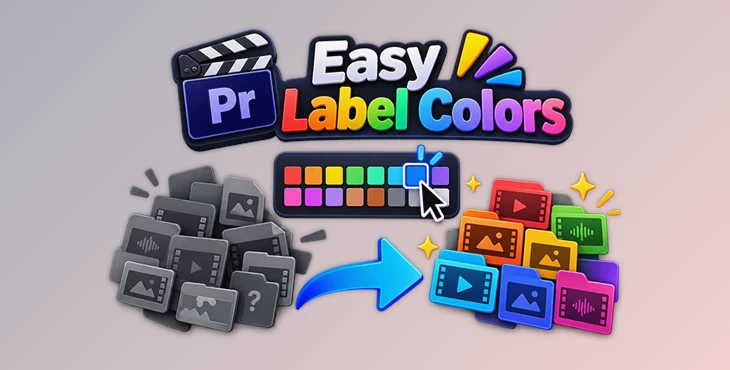
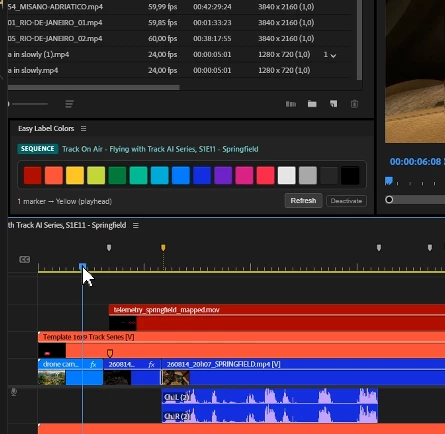
Easy Label Colors makes this process much faster. It puts Premiere Pro’s label palette inside a compact, dockable panel, allowing you to select multiple items and assign a color with a single click.
Turn Colors Into a Visual Editing Language
Color coding is more than a cosmetic change. In a busy editing project, colors can act as a visual language that helps you recognize different types or statuses of media almost instantly.
For example, you might use one color for approved clips, another for selects, another for exports, and different colors for short and long content. Instead of checking every item individually, you can understand the structure of your project at a glance.
This becomes particularly useful when working with large bins, complex timelines, multiple sequences, or projects containing many markers.
What Is Easy Label Colors?
Easy Label Colors is a compact CEP panel designed for Adobe Premiere Pro. Its purpose is simple: make Premiere’s existing label-color system faster and easier to access.
The workflow requires only three basic steps:
- Select your clips, bins, sequence, or markers.
- Click the desired color swatch.
- Everything selected immediately receives that label color.
Instead of navigating through additional menus whenever you want to change a label, the color palette remains conveniently available in a dockable panel.
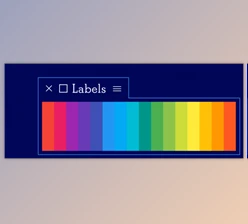
16 Premiere Pro Label Colors
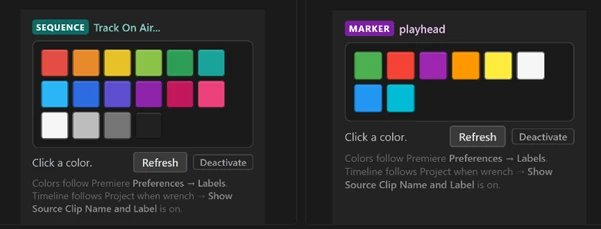
Easy Label Colors provides access to Premiere Pro’s 16 project label swatches directly from its panel.
These colors follow your settings under Preferences → Labels, so you are not working with a separate or independent color system. If you change your Premiere label colors in Preferences, the panel updates accordingly.
Multi-Select Color Labeling
One of the biggest advantages of Easy Label Colors is its ability to work with multiple selected items.
Rather than changing labels individually, you can select several clips, bins, or other supported elements and apply the same color to all of them with one click.
For projects containing large amounts of media, this can remove a considerable amount of repetitive work.
Project Panel Support
Inside the Project panel, you can multi-select items in a bin and assign the same label color to all of them instantly.
This is useful for visually separating footage, graphics, audio, approved material, selects, or any other media categories that make sense for your workflow.
Timeline Support
Easy Label Colors can also be used while working with clips in the Timeline.
Select the clips you are currently editing, choose a swatch, and assign their source labels without repeatedly opening additional menus.
For timeline colors to follow source labels, enable:
Timeline panel → Wrench → Show Source Clip Name and Label
This ensures that the source label colors are properly reflected in the timeline.
Sequence Labeling
The panel can also target the active sequence.
When nothing else is selected, the active sequence becomes the target, allowing you to assign a label color with the same simple workflow.
This can be useful when a Premiere project contains several sequences for different versions, formats, edits, or delivery stages.
Marker Color Control
Easy Label Colors is not limited to clips and project items. It also supports Premiere Pro markers.
The panel provides access to eight Adobe marker colors. You can park the playhead on a marker and assign a new color, or define an In/Out range and recolor all markers inside that range.
This can make markers much easier to categorize visually. Different colors could represent revisions, important edit points, notes, approved sections, or other stages of your workflow.
Compact Dockable Panel
The interface is designed to stay accessible without occupying unnecessary workspace.
You can dock the panel inside Premiere Pro and keep it available while editing. This is particularly useful when color labeling is an active part of your organizational workflow.
One Panel for Different Parts of Premiere Pro
A major strength of Easy Label Colors is that the same simple interaction works across several areas of Premiere Pro.
Whether you are organizing media in the Project panel, labeling clips while editing in the Timeline, managing a Sequence, or categorizing Markers, the basic workflow remains consistent: select something and click a color.
That consistency can make color organization feel like a natural part of editing instead of an additional administrative task.
Practical Ways to Use Color Labels
There is no single correct way to organize a Premiere Pro project with colors. The most useful system is usually the one that matches the way you edit.
For example, you could create a simple status system where different colors represent raw footage, selects, approved shots, finished sections, and clips that still need attention.
You could also organize media by type, using separate colors for video, graphics, music, sound effects, interviews, or B-roll.
For larger projects, consistent colors can make navigating bins and timelines noticeably easier because you can identify groups visually before reading individual names.
Tips for a Cleaner Workflow
Try to create a simple color system before assigning labels to hundreds of items. Giving each important color a specific meaning will make your project easier to understand later.
Avoid using too many colors without a clear reason. Although Premiere provides 16 project labels, you do not necessarily need to use all of them. A smaller and consistent palette can often be easier to recognize.
You can also customize the colors under Preferences → Labels. Since Easy Label Colors follows Premiere’s label preferences, the panel will reflect your customized palette.
When working with markers, consider assigning colors according to purpose. For example, one marker color could indicate revisions while another highlights important moments or completed sections.
And when working in the timeline, remember to enable Show Source Clip Name and Label if you want the timeline to visually follow the source label colors.
Make Large Premiere Projects Easier to Read
Easy Label Colors takes a feature that already exists inside Premiere Pro and makes it much faster to use.
Instead of repeatedly navigating through menus, you can keep the label palette docked in your workspace, select the items you want to organize, and assign their color with a single click.
Its support for project items, timeline clips, sequences, and markers makes it especially useful for editors who rely on color coding to keep complicated projects understandable.
The idea behind the tool is refreshingly simple: select anything, click a color, and keep editing.
 Easy Label Colors (v1.3.2).rar (Size: 1.2 MB - Date: 10/20/2026 12:19:56 PM)
- Easy Label Colors (v1.3.1).rar (Size: 1.2 MB - Date: 10/13/2026 1:28:28 PM)
- Easy Label Colors (v1.3.0).rar (Size: 1.2 MB - Date: 10/5/2026 2:02:29 PM)
- Easy Label Colors by Aescripts (v1.2.0).rar (Size: 783.5 KB - Date: 9/12/2026 2:45:14 PM)
Files Password : gfxplugin.com OR 123456