Downloadable Files
You can download Acorn for free from the end of this page.
A Smarter Way to Edit Images on Mac
Image editing doesn't always require a complicated workspace or a long series of manual steps. Whether you are retouching a photograph, removing a background, creating graphics, working with text, or preparing images for the web, having the right tools in one place can make the entire creative process much easier.
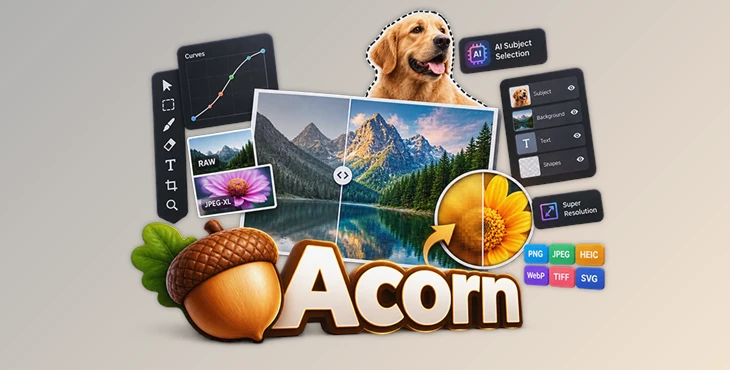
Acorn is an image editing app for Mac users that offers flexibility in photo editing, graphics creation, vector editing, filters, AI-enhanced tools, and professional image exporting. Acorn supports both everyday image manipulation and advanced editing with layers, masks, curves, vectors, RAW support, and non-destructive editing.
Acorn 8 has added AI Subject Selection, Live Text, Data Driven Graphics, LUT support, JPEG-XL support, Super Resolution, enhanced export options, and support for Apple Shortcuts.
The result is an image editor that can handle everything from quick corrections to detailed creative compositions without making the workflow unnecessarily complicated.
What Can You Do with Acorn?
At its core, Acorn provides tools for editing, combining, correcting, transforming, and exporting images.
For example, you can take a portrait, isolate the subject, remove or replace the background, correct the colors, add text and graphical elements, and export the finished design without moving between several different applications.
Photographers can use curves, levels, color correction, RAW support, masks, cloning, dodge and burn tools, and filters to improve their images. Designers can work with vector shapes, Bézier curves, text on paths, boolean operations, gradients, and layered compositions.
Acorn also supports non-destructive editing. Filters can be combined and adjusted without permanently changing the original image, making it easier to experiment with different looks while keeping the editing process flexible.
AI Subject Selection
AI Subject Selection helps automatically identify and isolate the main subject of an image.
Instead of manually tracing around a person or object, machine learning can perform much of the selection work for you. This can be particularly useful when creating composites, changing backgrounds, making selective adjustments, or preparing product and portrait images.
It reduces repetitive selection work and gives you a faster starting point for detailed edits.
Live Text Tool
Acorn's Live Text Tool can detect text contained inside an image and allow you to interact with it.
You can highlight detected text and copy it directly to the clipboard. This is useful when working with screenshots, photographs, scanned documents, reference images, or other graphics containing information you want to extract.
Data Driven Graphics
Data Driven Graphics adds a particularly useful option for projects that require many variations of the same design.
By importing information from a CSV file, Acorn can populate text boxes and images with different data. This can help automate the creation of name tags, personalized graphics, repeated layouts, and other designs where the structure remains consistent but the content changes.
Instead of manually modifying every version, you can build the layout once and use data to generate the necessary variations.
On-Canvas Ruler
Accurate positioning can make a noticeable difference in polished design work.
The on-canvas ruler helps you measure and align elements directly on your canvas. You can switch between pixels, inches, and centimeters depending on the project.
It can also assist when straightening images, making it useful for photography as well as graphic design.
LUT Support for Creative Color Grading
Acorn supports Look Up Tables, commonly known as LUTs.
LUTs allow you to quickly apply predefined color transformations to images. They can be used to create cinematic tones, stylized color palettes, stronger contrast relationships, or consistent visual looks across multiple images.
They are especially useful when you want to establish a particular color direction quickly before making more detailed adjustments.
Super Resolution ML Image Resizing
Enlarging a small image traditionally risks producing soft edges and visible quality loss.
Acorn's Super Resolution feature uses machine learning to enlarge images while preserving and enhancing important details.
This can be useful when preparing smaller images for larger displays, presentations, design projects, or prints where additional resolution is required.
JPEG-XL Support
Acorn supports JPEG-XL for both importing and exporting.
This gives users another modern image format for balancing image quality and file size. Alongside JPEG-XL, Acorn supports a broad collection of other formats, making it easier to integrate the application into different image workflows.
Powerful Non-Destructive Filters
Filters are an important part of Acorn's editing system.
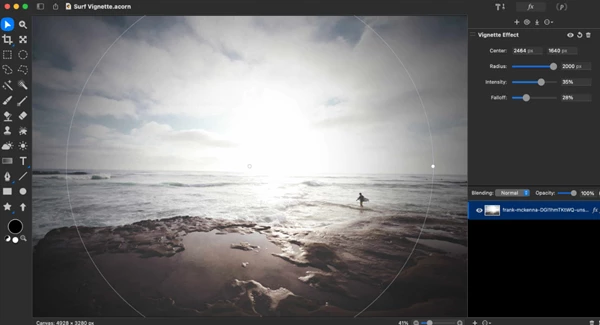
You can combine multiple filters and continue modifying them later rather than permanently committing to an effect. This makes experimentation much safer because you can refine or completely change your decisions as the project develops.
Acorn includes effects for sharpening, gradients, color correction, blur, distortion, vignette, drop shadows, tilt shift, and many other visual adjustments.
Curves and Levels
Curves and Levels provide detailed control over brightness, contrast, shadows, mid-tones, highlights, and individual color channels.
Because these adjustments can be applied non-destructively, you can refine the tonal balance of an image without permanently altering the original pixels.
You can also create presets for adjustments that you frequently reuse.
Layer Masks
Layer masks provide a flexible way to hide or reveal specific portions of a layer.
For example, when combining two photographs, you can use a mask to blend particular areas together without permanently erasing image information. Acorn's Mask blend mode can also be used to clip underlying layers.
This makes masks useful for compositing, retouching, background replacement, and selective effects.
Vector and Shape Tools
Acorn is not limited to bitmap photo editing.
Its vector tools include stars, arrows, Bézier curves, text tools, shape blending, and boolean operations. You can use union, intersect, difference, exclude, and divide operations to combine simple shapes into more complex designs.
SVG import and export also allows you to work with resolution-independent graphics.
Text on a Path and Circle Text
For more creative typography, Acorn lets you place text along paths or circles.
The Path Text Tool can wrap text around custom shapes and paths, while the Circle Text Tool provides controls for radius, rotation, inversion, baseline, and kerning.
These tools can be useful for logos, badges, labels, decorative typography, and other graphic designs.
Perspective Fix and Crop
Perspective problems are common in architectural, product, and everyday photography.
Acorn's Perspective Fix & Crop tool provides a grid that helps correct distorted perspective while cropping an image. The standard Crop tool also supports rotation, canvas expansion, and locked pixel dimensions.
This makes it easier to straighten and prepare photographs while maintaining precise output dimensions.
Clone, Dodge, Burn, Smudge, and Painting Tools
Acorn includes a collection of traditional pixel-editing tools.
Clone can work across different images and layers, while Dodge and Burn can selectively brighten or darken areas. Smudge, blur, paint, stamp, and related tools use configurable brushes.
Brush properties such as softness, flow, scatter, jitter, and rotation provide additional control for detailed editing and retouching.
RAW Image Support
Photographers can import high-resolution RAW images directly into Acorn.
The software supports higher bit depths, including 32-, 64-, and 128-bit images when the source camera and file support them. This provides more flexibility when working with high-quality photographic material.
Improved Über Export
Acorn offers extensive export controls with real-time previews.
You can adjust image size, quality, compression, color profiles, and other settings while seeing how those changes affect the resulting file. Frequently used configurations can also be saved as presets.
Supported export options include JPEG, JPEG-XL, JPEG 2000, GIF, animated GIF, PNG, animated PNG, HEIC, TIFF, WebP, BMP, PSD, PDF, SVG, and additional formats.
This makes Acorn useful when preparing images for websites, social media, print, animation, or continued editing in other applications.
Animated GIF and PNG Support
Layers can be exported as animated GIF or PNG files.
You can also open existing animated images, edit individual frames, apply filters across multiple frames, and modify animation speed.
It is a convenient feature for creating lightweight web animations and simple animated graphics without requiring a separate animation application.
Smart Layer Export
Smart Layer Export provides a workflow similar to image slicing.
You can define export boundaries for individual layers, specify filenames, and automatically generate multiple resolution versions such as @1x, @2x, @3x, @4x, and @5x.
This is especially useful for designers preparing assets for websites, applications, and high-resolution displays.
Apple Shortcuts Support
Acorn can integrate with Apple's Shortcuts system to automate common image-processing tasks.
Operations such as cropping, resizing, rotating, applying filters, adding watermarks, replacing text, and auto-enhancing images can become part of automated workflows.
For repetitive image processing, this can save considerable manual work.
Batch Editing
Acorn can also work with Automator for batch processing.
Tasks such as watermarking, resizing, trimming, exporting, and cropping can be applied across multiple images, making the software more practical when dealing with larger collections of files.
Broad File Format Compatibility
Acorn works with many common graphics formats, including JPEG, JPEG 2000, JPEG-XL, PNG, HEIF, WebP, GIF, BMP, TIFF, PSD, PDF, ICO, compatible AI files, RAW, PICT, SVG, and TGA.
Photoshop .abr brush files can also be imported by dragging them onto the Acorn application icon.
This broad format support makes it easier to move assets between Acorn and other photography or design workflows.
Practical Ways to Use Acorn
Acorn can fit into many different creative projects.
A photographer could import a RAW portrait, correct exposure with Curves, isolate the subject with AI Subject Selection, make selective adjustments through masks, apply a LUT for the desired color style, and export the final image for the web.
A graphic designer could combine photographs with vector shapes, create curved typography, use boolean operations to build custom graphics, and export the result as PNG, SVG, PDF, or PSD.
For repetitive design work, Data Driven Graphics can populate layouts using information from a CSV file. Combined with Smart Layer Export or automation tools, this can significantly reduce repetitive manual steps.
Even quick everyday jobs such as cropping screenshots, removing backgrounds, resizing images, extracting text, correcting perspective, or converting between file formats can be handled within the same application.
Tips for Better Results with Acorn
When working on detailed compositions, try to keep your workflow as non-destructive as possible. Use layer masks instead of permanently deleting image areas and use adjustable filters when you may want to refine the effect later.
For color grading, LUTs can provide a strong starting point, but consider refining the result afterward with Curves, Levels, and other color controls. This can help the final image feel intentional rather than simply filtered.
When enlarging images with Super Resolution, start with the highest-quality original available. Machine learning can improve resizing results, but a clean source image still provides better information to work with.
For repeated exports, save your commonly used configurations as presets. This is especially useful when you regularly prepare images at specific dimensions or compression levels.
Designers working with multiple output resolutions can also take advantage of Smart Layer Export rather than manually creating every asset size.
Finally, combine Acorn with Apple Shortcuts or Automator when you notice yourself repeating the same sequence of operations. Automating routine work leaves more time for the creative decisions that actually require your attention.
A Flexible Image Editor Built for Mac
Acorn combines photo editing, vector art, typography, AI-enhanced selections, machine learning image resizing, non-destructive filters, masks, and automation into one image editing application for Mac.
Features such as Super Resolution and AI Subject Selection can help accelerate tasks that are traditionally time-intensive. Curves and Levels adjustments, layer masks, vector shapes, RAW image support, LUTs, and customizable brushes let users do more intricate image editing.
Data-driven Graphics, Smart Layer Export, Apple Shortcuts support, and batch-processing capabilities also make Acorn useful when a project extends beyond editing a single image.
Whether you are retouching photographs, creating graphics, preparing web assets, building layered compositions, or simply looking for an efficient Mac image editor, Acorn provides a broad set of creative tools while keeping the workflow approachable.