Downloadable Files
You can download MG Marker Master for free from the end of this page.
Managing Multiple After Effects Markers Shouldn’t Be This Difficult
Markers are incredibly useful in Adobe After Effects. They can help you organize timing, identify important moments, synchronize animation with audio, mark transitions, or simply keep a complicated composition easier to understand.
The problem starts when a project contains a large number of markers.
Moving several markers together, copying the same marker structure to another layer, or transferring markers between compositions can quickly turn into repetitive work. Even a small timing adjustment may require changing multiple markers individually.
MG Marker Master is designed to simplify this process. It allows you to control groups of After Effects markers through keyframes, making marker management feel much closer to working with normal animation keyframes.
Instead of handling markers one by one, you can move, copy, paste, overwrite, and delete multiple markers through a streamlined dockable panel.
A Smarter Way to Work with After Effects Markers
Markers are often closely connected to the timing and structure of a project. For example, you might use them to identify beats in a music track, dialogue moments, scene changes, animation cues, or important sections of a composition.
When the timing of a project changes, those markers may also need to move.
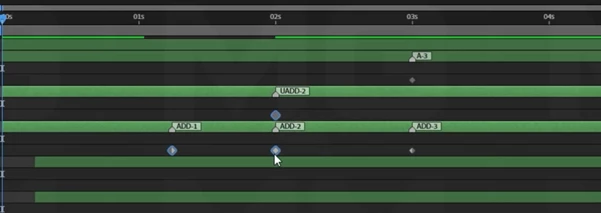
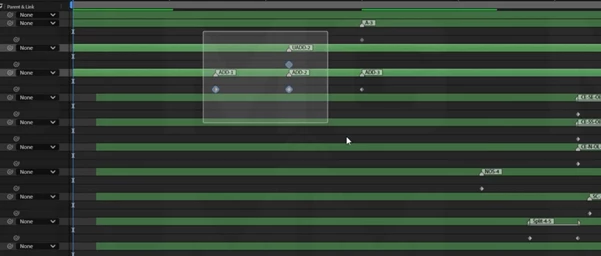
MG Marker Master solves this by creating corresponding control keyframes for your markers. Once marker control is enabled, you can work with those keyframes directly on the After Effects timeline.
This makes several common tasks much easier.
If a sequence needs to start slightly later, you can shift its marker group together instead of moving every marker manually. If another layer needs the same marker arrangement, you can copy and paste the corresponding control keyframes. You can even transfer marker structures between compositions and projects.
The result is a faster and more flexible workflow, especially in projects where markers play an important role in timing and organization.
Meet MG Marker Master
MG Marker Master is a marker-management tool designed for Adobe After Effects 2024 and newer.
Its main purpose is simple: make groups of markers behave more like keyframes.
The plugin provides a dockable panel where you can enable marker control, reveal the generated control keyframes, disable them when they are no longer needed, undo plugin operations, or completely reset the synchronization system.
This approach is especially useful for motion designers and editors working with marker-heavy compositions where timing frequently changes during production.
Move Multiple Markers at Once
One of the most useful features of MG Marker Master is the ability to move several markers together.
After enabling marker control, corresponding keyframes appear on the timeline. You can select and drag these control keyframes just like normal After Effects keyframes.
The associated markers follow their new timing automatically.
For example, imagine that you have created markers for several animation events, but the entire sequence needs to begin two seconds later. Instead of repositioning every marker separately, you can simply move their control keyframes together.
Copy and Paste Marker Groups
MG Marker Master also makes it possible to copy and paste multiple markers through their control keyframes.
This works between:
- Layers
- Compositions
- Projects
This can be particularly helpful when different parts of a project share the same timing structure.
For example, if several compositions use identical cue points, you can transfer the marker arrangement instead of manually recreating every marker.
Overwrite Existing Markers
Sometimes you do not simply want to add another group of markers. You may need to replace an existing marker structure with a new one.
MG Marker Master supports copying and overwriting multiple markers using their corresponding control keyframes.
This provides more flexibility when updating timing structures or replacing marker setups in an existing project.
Delete Multiple Markers Quickly
Deleting a large number of markers individually can be tedious.
With MG Marker Master, deleting the corresponding control keyframes allows you to remove multiple associated markers at once.
This makes cleanup much faster when reorganizing a composition or removing an outdated marker structure.
Find and Enable Marker Control
The plugin can find markers throughout the active composition and enable keyframe-based control for them.
Instead of manually preparing each marker, MG Marker Master creates the control system needed to manage them through the timeline.
Reveal Control Keyframes
If you are working in a complicated composition, locating the relevant controls can become difficult.
The Reveal function displays the marker control keyframes in the active composition, helping you quickly return to the controls you need.
Disable Marker Control
When you no longer need keyframe-based marker management, you can disable the system in the active composition.
MG Marker Master removes the associated control keyframes while allowing you to return to a regular marker workflow.
Undo Plugin Operations
The plugin includes its own Undo function for reverting the most recent MG Marker Master operation.
Native After Effects undo also works with the system in two stages: the first undo reverts the marker operation, while the second reverts the corresponding keyframe operation.
This gives you additional control when experimenting with marker timing.
Reset Plugin Controls
The Reset option removes all MG Marker Master controls from the project and clears the plugin’s synchronization state.
It is a useful option when you want to completely clean up the plugin controls and start again.
Keyboard Shortcut Support
Frequently used actions can also be assigned to custom keyboard shortcuts.
MG Marker Master supports shortcuts for:
- Enable
- Disable
- Reveal
- Undo
- Reset
For users who prefer keyboard-driven workflows, this can make marker management even faster.
Where MG Marker Master Can Be Useful
The plugin becomes particularly valuable when markers are part of the actual structure of your project rather than occasional timeline notes.
For a music-driven motion graphics project, for example, you might have markers representing beats, transitions, text appearances, and major animation events. If the music edit changes, shifting those timing points individually could take considerable time.
With MG Marker Master, groups of markers can be manipulated through their control keyframes.
The same idea can help with dialogue-driven animations, title sequences, template creation, repeated animation structures, complex motion graphics projects, and compositions containing many carefully timed events.
It is not about changing what After Effects markers do. Instead, it provides a more practical way to manage them when their number and complexity increase.
Tips for a Faster Marker Workflow
Organize Markers Before Making Large Timing Changes
Before moving a large marker group, check which markers belong to the section you actually want to modify. Keeping related timing cues organized makes group adjustments easier to understand and reduces accidental changes.
Use Control Keyframes for Large Timing Adjustments
If an entire section of your animation needs to move, selecting and shifting the related control keyframes is generally much more convenient than editing markers individually.
This is where the plugin’s keyframe-based workflow provides the biggest advantage.
Reuse Marker Structures When Possible
If multiple layers or compositions use the same timing pattern, avoid rebuilding the markers manually.
Copying and pasting their control keyframes can help maintain consistent timing while reducing repetitive work.
Take Advantage of Keyboard Shortcuts
If you frequently use Enable, Disable, Reveal, Undo, or Reset, assigning keyboard shortcuts can reduce unnecessary panel interaction.
Small workflow improvements like this can become significant during long After Effects sessions.
Use Reveal in Complex Compositions
Large projects can contain many layers and controls. When you need to return to your marker controls quickly, use the Reveal function rather than manually searching through the composition.
Use Reset When You Need a Clean Start
If the synchronization setup becomes unnecessary or you simply want to remove all MG Marker Master controls from the project, Reset provides a straightforward way to clear the system.
Less Marker Management, More Focus on Timing
Markers can make an After Effects project much easier to organize, but managing large groups of them manually can interrupt an otherwise efficient workflow.
MG Marker Master approaches the problem by connecting markers to controllable keyframes. This allows familiar timeline operations to handle tasks that would otherwise require repetitive marker editing.
Being able to move, copy, paste, overwrite, and delete marker groups can be especially useful in compositions where timing changes frequently or the same marker structures need to be reused across layers, compositions, or projects.

Files Password : gfxplugin.com OR 123456