Downloadable Files
You can download InstantLayer for free from the end of this page.
Stop Wasting Time Creating the Same Layers 🎬
When editing in Premiere Pro, some of the smallest repetitive tasks can slowly consume a surprising amount of time. Creating an Adjustment Layer, placing it above the right clips, matching its duration, applying your usual effects, renaming it, and organizing everything may only take a few clicks—but repeat that process dozens of times and it quickly becomes frustrating.
The same is true for Color Mattes. They are useful for many editing tasks, but manually creating and positioning them can interrupt your workflow.
InstantLayer is designed to simplify this entire process. Instead of going through multiple menus and dragging layers around your timeline, you can select your clips, press a button, and let the tool handle the repetitive work automatically.
What Does InstantLayer Do?
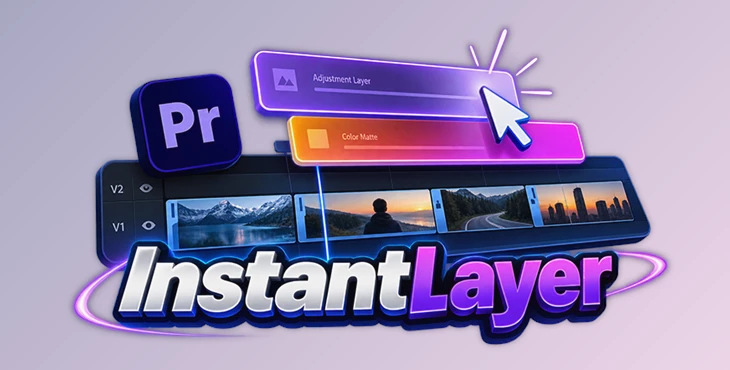
InstantLayer is a Premiere Pro tool for quickly creating Adjustment Layers and Color Mattes directly around selected clips.
The basic workflow is extremely simple: select one or more clips on your timeline and click the appropriate button. InstantLayer then creates the layer, matches its duration to your selection, places it on the appropriate track, names it, and organizes it.
This can be particularly useful when working on projects that rely heavily on adjustment layers for color grading, transitions, motion effects, or other reusable effects.
For example, imagine that you want to apply the same color treatment to several clips. Instead of manually creating an Adjustment Layer and resizing it to match those clips, InstantLayer can generate the correctly sized layer immediately.
The same approach can be used for transition effects around cuts, temporary Color Mattes, or Adjustment Layers containing frequently used Premiere Pro presets.
The result is not necessarily a different visual effect—it is a faster and cleaner editing workflow that leaves you more time to focus on creative decisions.
Features
One-Click Adjustment Layers and Color Mattes
The core feature of InstantLayer is its ability to create Adjustment Layers and Color Mattes with a single action.
Select your clips and press FX or Color. The new layer is automatically placed above the selection and matched to the same duration.
This eliminates much of the repetitive setup normally required when creating these elements manually.
Automatically Match Selected Clips
InstantLayer can match the duration of the newly created layer to your selected clips.
This is especially convenient when you have a specific section of your edit that needs an effect or color treatment. Instead of manually adjusting the In and Out points of the layer, you can create one that already fits the required section.
Create One Layer Per Clip
Using Shift-click, InstantLayer can create a separate layer for every selected clip instead of placing a single layer across the entire selection.
This is useful when individual clips need independent effects or adjustments while still following the same basic setup.
For example, if five shots require similar processing but you want to modify each one separately later, creating individual layers can provide much more flexibility.
Create Short Layers Across Cuts
Using Opt / Ctrl Click, you can create short layers positioned across cuts.
This makes InstantLayer particularly useful when preparing sections of the timeline for transition effects. Instead of manually creating and positioning small Adjustment Layers over every edit point, you can generate them directly where they are needed.
Custom Track Targeting
InstantLayer also lets you choose the destination track from its panel.
Once a track is selected, the tool can force newly created layers onto that track. This helps keep complex timelines more organized and predictable, especially when multiple video tracks are already in use.
Automatically Apply Presets and Effects
If you regularly use the same effects, InstantLayer can make the process even faster.
You can select the presets you want once, and newly created layers can have those presets applied automatically.
The tool supports Motion, Transform, and most native Premiere Pro presets, allowing commonly repeated effect setups to become part of the layer creation process itself.
This can be helpful for frequently used zooms, motion treatments, transition setups, or other effects that would otherwise need to be applied manually every time.
Cascade Mode
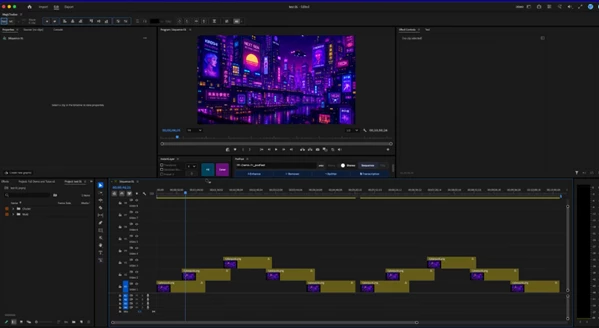
When working with multiple clips, Cascade Mode places each generated layer on the first available track above its corresponding clip.
This approach can help prevent layers from overlapping unnecessarily and makes it easier to keep individual adjustments separated.
Alignment Mode
If you prefer a cleaner and more uniform timeline structure, Alignment Mode places generated layers on one shared track.
Choosing between Cascade and Alignment modes gives you more control over how InstantLayer organizes layers based on the needs of each project.
Automatic Naming and Bin Organization
Timeline organization becomes increasingly important as projects grow.
InstantLayer can automatically rename created layers and generate bins for better organization. Instead of ending up with numerous generically named elements scattered throughout the project, your generated layers can remain easier to identify and manage.
Real Layers Created in the Bin
InstantLayer creates actual custom layers in the Premiere Pro bin rather than relying on pre-loaded templates.
This keeps the generated elements integrated naturally into your Premiere Pro project and gives you a more conventional editing workflow after they have been created.
Where Can InstantLayer Be Useful?
InstantLayer can fit into many everyday Premiere Pro workflows.
For color grading, you could quickly generate an Adjustment Layer covering several selected shots and apply your preferred color-related preset.
For transitions, short Adjustment Layers can be positioned directly over cuts, ready for effects such as zooms, blurs, flashes, or motion-based transitions.
For repeated effects, you can configure presets in advance so newly created layers already contain the processing you regularly use.
And when working with a large number of individual shots, Shift-click can generate separate layers for each selected clip, giving you independent control without manually building every layer.
These are simple improvements, but across a large editing project, removing repetitive steps can make the timeline considerably easier to work with.
Tips for a Faster InstantLayer Workflow
A little preparation can make InstantLayer even more useful.
If you regularly use the same Premiere Pro presets, configure them before starting a long editing session. This allows your commonly used effects to appear automatically whenever you generate a new layer.
It is also worth deciding when to use Cascade Mode versus Alignment Mode. Cascade can be helpful when individual clips require separate processing, while Alignment is often better when you want a cleaner shared-track structure.
For transitions, use the cut-based layer creation option rather than manually resizing Adjustment Layers around edit points. This keeps their placement consistent and can speed up projects containing many similar transitions.
Track targeting can also help maintain a predictable timeline. Choosing dedicated tracks for specific types of Adjustment Layers can make complex sequences easier to understand later.
Finally, remember that not every preset is fully supported. InstantLayer works with Motion, Transform, and most native Premiere presets, but Premiere Pro API limitations mean that presets involving Bezier-curve keyframes, effects containing colors, and some Film Impact effects may not work as expected.
A Small Tool That Removes a Lot of Repetition
InstantLayer focuses on a very specific part of Premiere Pro editing: making the creation and management of Adjustment Layers and Color Mattes faster.
Instead of repeatedly creating layers, resizing them, moving them to the correct tracks, applying presets, and organizing them manually, you can reduce much of that process to a few simple actions.
Features such as one-click layer creation, automatic duration matching, cut-based placement, preset application, track targeting, Cascade and Alignment modes, and automatic organization make it particularly useful for editors who rely heavily on Adjustment Layers.
It does not change how Premiere Pro editing works—it simply removes many of the repetitive steps around a workflow you may already use every day. And on projects with dozens or hundreds of edits, those saved clicks can add up quickly.