Downloadable Files
You can download Sniper for free from the end of this page.
Introduction: Save Once, Reuse Forever
Every video editor has those effects, animations, transitions, and adjustments that they use again and again. Whether it is a custom zoom effect, a camera shake, a color look, or a specific motion style, rebuilding the same setup for every project can take valuable time.
Sniper changes the way you work in Premiere Pro by allowing you to save almost anything from your timeline and reuse it whenever you need it. Instead of searching through old projects or recreating the same effects manually, you can build your own preset library and bring your favorite elements back with a single click.
Designed for speed and efficiency, Sniper helps editors spend less time managing repetitive tasks and more time focusing on creativity.
What Is Sniper and How Does It Work?
Sniper is a Premiere Pro tool that transforms clips, effects, graphics, and audio elements from your timeline into reusable presets. These saved elements can be organized, searched, and instantly added to new projects whenever needed.
The concept is simple: create your effect once, save it as a reusable “bullet,” and fire it into your timeline whenever you need it.
For example, if you create a unique zoom animation with motion blur, keyframes, and specific positioning, you do not need to rebuild that effect every time. Sniper allows you to save the entire setup and apply it again instantly.
This workflow makes editing faster, keeps projects consistent, and helps you create your own personal library of creative assets.
How Sniper Improves Your Editing Workflow
Premiere Pro projects often require repeating the same actions: adding adjustment layers, applying effects, recreating animations, or importing commonly used graphics. These small tasks can quickly add up and slow down the creative process. Sniper improves your workflow by turning your most-used elements into ready-to-use presets.
With Sniper, you can:
- Save your favorite effects and reuse them in future edits.
- Store complete clip setups instead of rebuilding them manually.
- Apply complex animations and adjustments in seconds.
- Keep your creative tools organized and easy to access.
- Maintain consistency across multiple projects.
Whether you are creating YouTube videos, commercials, social media content, or professional productions, having your own preset library can significantly speed up your editing process.
Features
Save Anything From Your Timeline
Sniper allows you to turn almost any timeline element into a reusable preset. Clips, effects, graphics, and sounds can all become part of your personal editing library.
Instead of searching through previous projects for a specific effect or animation, you can save it once and access it whenever you need it.
Fire Presets Directly Into Your Timeline
Once you save your elements, Sniper lets you quickly apply them back into your projects.
You can place presets directly onto your timeline or apply them through adjustment layers, with the correct size and position already prepared.
This is especially useful for effects like:
- Camera movements
- Zoom animations
- Color adjustments
- Motion effects
- Creative transitions
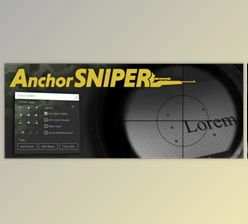
Precision Anchor Point Control With Aim
Sniper includes a powerful tool called Aim, designed for precise anchor point placement inside Premiere Pro.
Instead of manually adjusting anchor points, you can simply click where you want the movement center to be. Aim places the anchor point exactly at that location.
This makes creating professional zooms, pans, and rotations much faster and more accurate.
Aim works with:
- Premiere Pro Motion controls
- Existing Transform effects
- Automatically created Transform effects
This allows editors to create controlled movements around the exact point they want without unnecessary adjustments.
Organize Your Personal Preset Library
A large preset collection can quickly become difficult to manage. Sniper solves this problem with powerful organization options.
You can:
- Create folders for different types of presets.
- Add color tags for easier identification.
- Search and filter your saved elements instantly.
Whether you are organizing sound effects, motion presets, graphics, or visual effects, Sniper keeps everything accessible.
Auto Nesting for Complex Presets
Some effects require multiple layers, clips, or complicated structures. Sniper can automatically organize complex builds into clean nested sequences.
This keeps your timeline organized while allowing you to reuse advanced setups without rebuilding them manually.
Global Presets Across Projects
Your saved Sniper presets are not limited to a single project.
Create your library once and use it across different Premiere Pro projects. This makes it easier to maintain your favorite editing style and quickly access your most valuable creative tools.
Real-World Uses of Sniper
Creating Consistent Video Styles
Editors working on multiple videos often need the same visual identity across projects. Sniper allows you to save your signature effects, color treatments, and animations so every project keeps the same style.
For example, a content creator can save their intro animation, social media text style, or favorite transition and reuse it in every new video.
Building a Personal Motion Toolkit
Motion designers can create a collection of frequently used movements such as:
- Smooth zoom-ins
- Dynamic camera shakes
- Custom transitions
- Animated graphics
Instead of recreating these effects, they can apply them instantly whenever needed.
Faster Client Projects
Professional editors often work with tight deadlines. Sniper reduces repetitive tasks and helps deliver projects faster by keeping important assets ready at all times.
A saved library of effects, sounds, and graphics can become a powerful production shortcut.


Professional Tips for Using Sniper
Create Presets During Real Projects
The best presets usually come from effects you already use. When you create something useful, save it immediately with Sniper instead of waiting until later.
Over time, your library will naturally grow with assets that match your editing style.
Keep Your Library Organized
A large collection becomes much more useful when it is properly organized. Use folders and color tags to separate categories such as:
- Transitions
- Camera movements
- Sound effects
- Color effects
- Social media graphics
This will help you find the right preset quickly.
Save Flexible Presets
When creating reusable presets, try to make them adaptable for different projects.
Avoid unnecessary limitations and focus on effects that can work in multiple situations.
For example, a clean zoom effect or a universal adjustment layer setup can be useful in many different types of videos.
Combine Sniper With Creative Experimentation
Sniper is not only a time-saving tool. It can also encourage creativity.
By building a library of your best ideas, you can quickly experiment with different combinations and discover new editing styles.
Conclusion: Create Faster With Your Own Editing Library
Sniper provides Premiere Pro users with a smarter and faster method for managing their most commonly used editing assets. By saving sounds, clips, effects, graphics, and other assets as reusable presets, users can create their own personal editing library that evolves with each project they edit.
Whether you’re a professional editor or content creator, anyone who frequently uses repetitive editing can gain improved organization and a faster editing experience.
Create your presets once and use them again and again. Let Sniper do the work so you can create more and not have to recreate as often.